


Step 1: How Do You Set Up a Sprint in Nimble?
Goal: You create the sprint container, define its time boundaries, and configure realistic team capacity before a single story is committed.
How to:
Navigate to your project. In the left navigation panel, expand the Recent Projects menu and select your project. Hover over the Project breadcrumb at the top, expand the ‘Agile Planning’ module, and select ‘Sprint Planning’.
From the Sprints tab, click ‘Add Sprint’.
In the sprint creation screen, configure:
- Sprint Name: use a consistent convention (e.g., “Sprint 12: Q3 Hardening”)
- Start Date and End Date: Nimble enforces these boundaries during execution; two-week sprints are standard
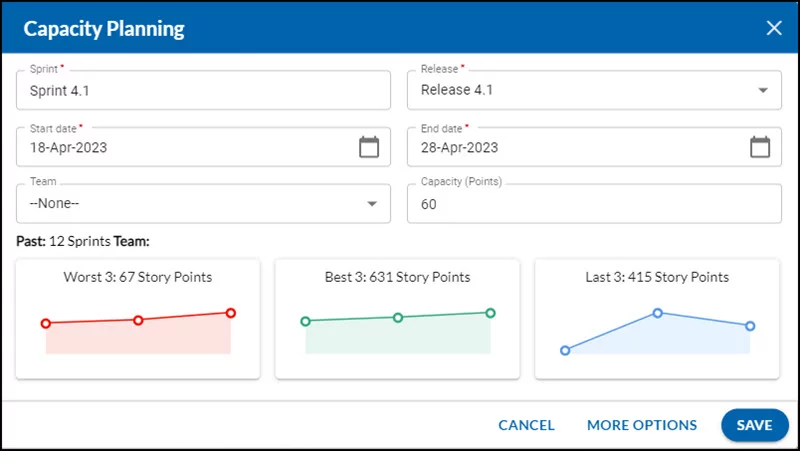
- Team Capacity: Nimble’s capacity planning accounts for team member availability, allocation percentages, and skill profiles. This is not a simple headcount calculation; it reflects actual working hours after leave and allocation are factored in.

Pro tip: Before confirming capacity, verify that team members with planned leave are reflected in the availability settings. Nimble’s intelligent scheduling accounts for this automatically, but confirming it prevents the single most common sprint overcommitment failure before the sprint starts
Once created, the sprint appears as a column in the Sprint Planning view, ready for story assignment in Step 2.
Step 2: How Do You Run Sprint Planning in Nimble?
Goal: You select and commit the right stories for the sprint, match planned work to realistic team capacity, and lock in a sprint goal.
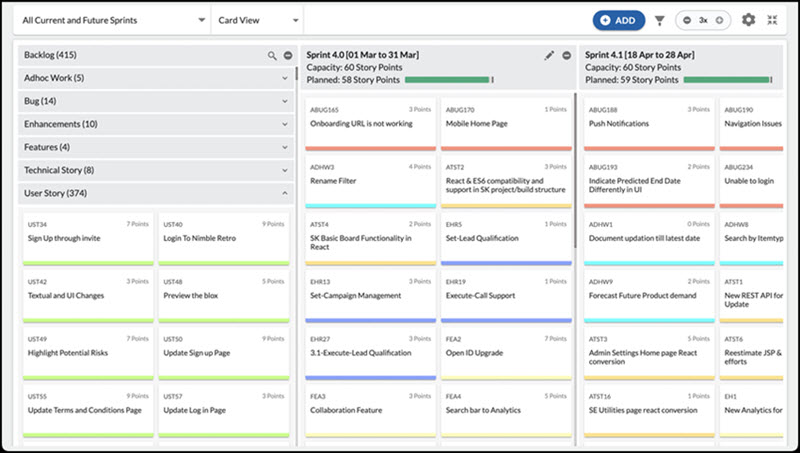
In the Sprint Planning view, you will see the Backlog section on the left and your active sprint column on the right.
To select the sprint for planning, use the All Current and Future Sprints drop-down in the toolbar, which lists present and future sprints in ascending order. Select the sprint you want to plan; it appears as a column next to the backlog.
Before pulling stories in, select your unit of measurement using the UOM for Sprint Capacity Planning selector in the toolbar: choose Story Points or Card Count depending on how your team estimates.
Nimble’s backlog respects the platform’s work hierarchy: stories sit under Epics, which sit under Programs. When you pull a story into a sprint, its context within the hierarchy is preserved. kAIron AI can suggest similar past work items from previous sprints and flag effort estimation anomalies before you commit, reducing the planning guesswork that inflates sprint overruns.
To populate the sprint:
- Review backlog cards and confirm they are estimated
- Drag cards from the Backlog column and drop them into the sprint column. To remove a card, drag it back to the Backlog section.
- Watch the Planned bar on the sprint column header: it fills as you add stories and turns red if you exceed sprint capacity
- The Capacity count on the sprint header shows how many story points or cards can be accommodated. If Story Points are selected and no estimates exist, Nimble displays capacity based on the average of the last three sprints, a sensible default that prevents guesswork
The 80% capacity rule: Plan to approximately 80% of available capacity. Teams that plan to 100% have no buffer for unplanned work or estimation variance. This is not a Nimble-specific rule; it is a well-established sprint health practice. Nimble’s Planned bar makes it easy to enforce visually.
To review and edit sprint details, click the Edit Capacity icon in the top-right of the sprint column. This opens a summary of the last 12 sprints, showing:
- Worst 3: average story points of the three lowest-performing sprints among the last 12
- Last 3: average story points of the three most recent sprints
- Best 3: average story points of the three highest-performing sprints among the last 12
Use this data during planning to set a capacity target grounded in your team’s actual delivery history, not optimistic assumptions.

Once your sprint is loaded, set the Sprint Goal: a one-sentence statement of what the team intends to deliver. This is surfaced on the sprint board throughout execution and anchors daily standup conversations.
Step 3: How do you manage daily standup and Sprint Flow?
Goal: Your team tracks daily progress, surfaces blocked work in real time, and manages work-in-progress, without switching to a separate standup tool.
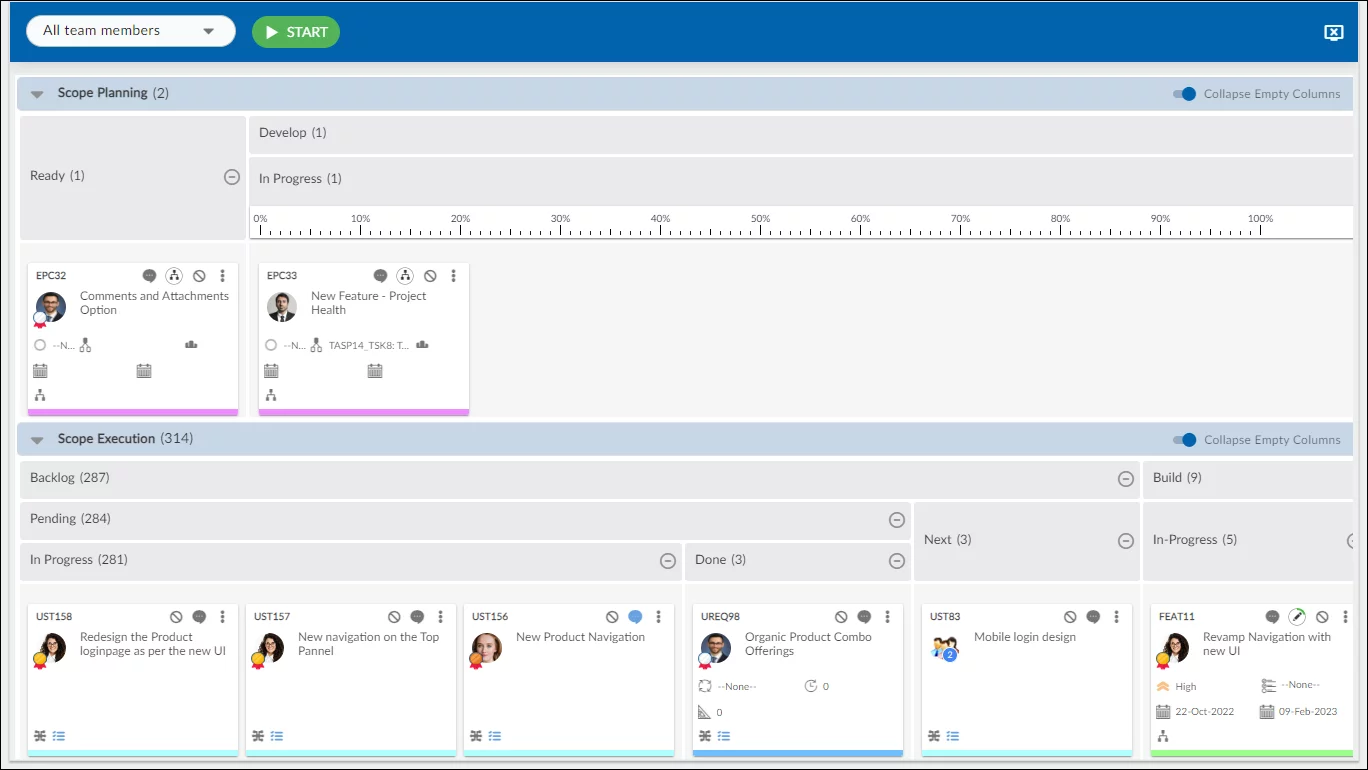
Once the sprint is active (click Start Sprint to begin), your team works from the Sprint Board view, Nimble’s standup-optimised board with To Do, In Progress, and Done columns.
Blocked items are surfaced visually. You do not need a separate status tool or a manual blocker log; the sprint board is the standup artefact. Bring it up on a shared screen; the in-progress column and blocked item highlights tell the standup story without a lengthy verbal status round.
During the sprint, use the board to:
- Move cards across columns as work progresses
- Flag blockers directly on the card, highlighted for the entire team at a glance
- Monitor WIP: Nimble’s board surfaces WIP status, preventing the invisible queue buildup that silently degrades sprint velocity

Watch Out: Mid-sprint scope additions are among the top causes of sprint goal failure. Nimble does not prevent you from adding stories after a sprint starts, but any addition updates the burndown immediately, making the delivery impact transparent. Use that visibility to have an explicit team conversation before adding work, not after.
For teams running continuous-flow delivery alongside sprint work, Nimble supports Kanban delivery boards in the same platform.
Step 4: How Do You Run a Sprint Review in Nimble?
What this step achieves: You assess what was delivered, share outcomes with stakeholders, and capture velocity data, without leaving Nimble or exporting to a spreadsheet.
From the sprint dashboard, access the Sprint Review Report, a one-click summary showing:
- Completed vs incomplete story points
- Blockers encountered and their resolution status
- A shareable stakeholder summary of sprint delivery
The Burndown Chart is native to every sprint: no add-ons, no exports, no manual updates. It tracks actual story points remaining against the planned daily burn rate.
How to read the burndown:
Burndown pattern | What it signals | What to do |
Tracking at or below the ideal line | Healthy sprint, on pace | Continue; call it out in standup |
Flat mid-sprint | Blocked work or unresolved dependencies | Escalate blockers immediately; don’t wait |
Steep drop on the last day | End-of-sprint rush; likely estimation gap | Surface in retrospective; adjust next sprint capacity |
Consistently below ideal line | Team is under-committed | Increase capacity target next sprint using Best 3 data |
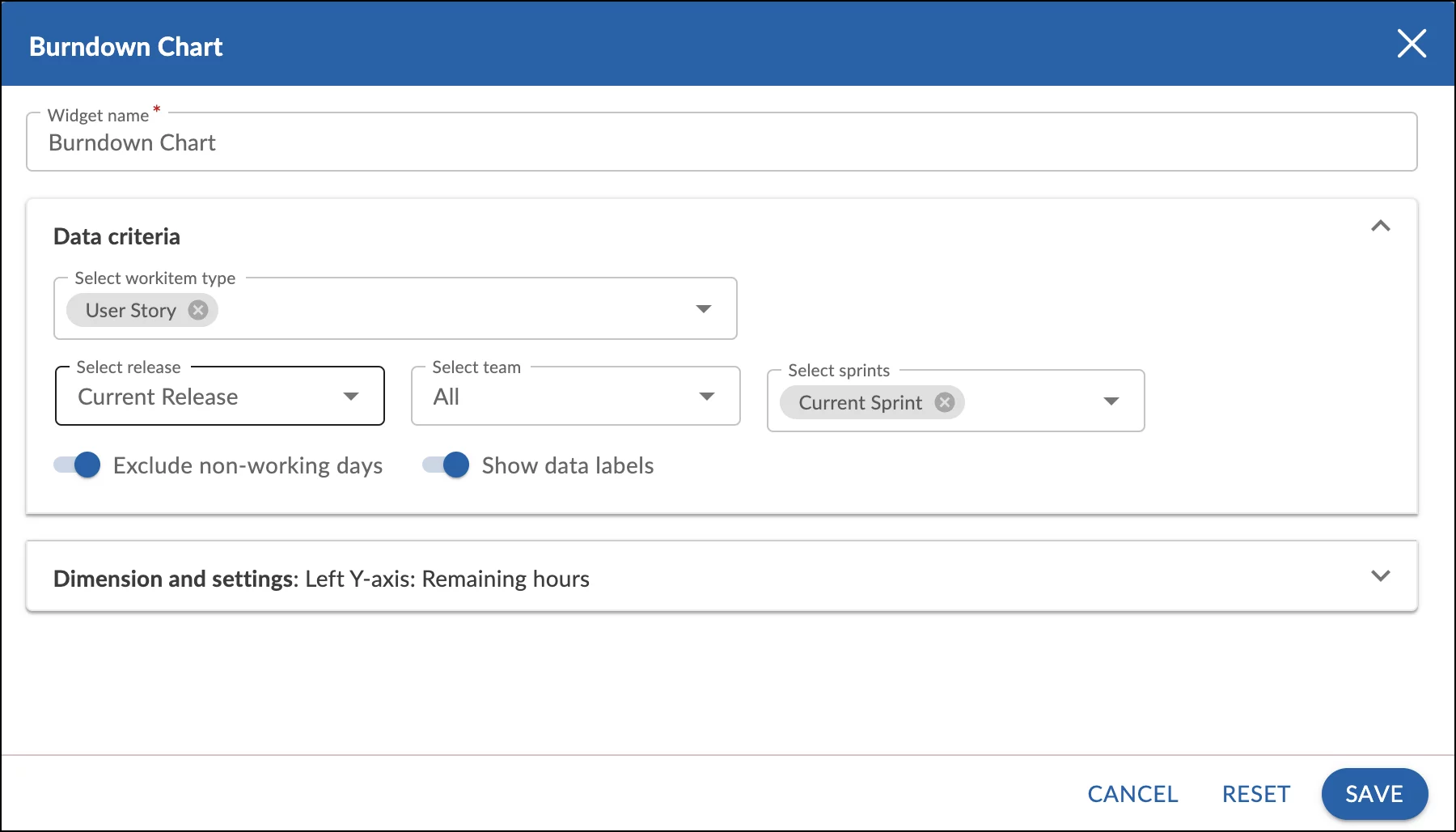

Nimble Note: Burndown and velocity data are available at both team level and portfolio level, with no manual aggregation required. PMO leaders and Delivery Directors can access sprint performance data across multiple teams from the portfolio dashboard (PMI, 2024). This is a significant operational advantage over tools that require spreadsheet consolidation for cross-team reporting.
The Velocity Chart shows the rolling average of story points delivered across recent sprints. Cross-reference it with the Edit Capacity summary (Worst 3 / Last 3 / Best 3) when planning the next sprint. This is what separates teams that improve systematically from those that guess capacity every two weeks.
Step 5: How do you run a Sprint Retrospective in Nimble?
Goal: Your team captures honest sprint feedback and converts retrospective actions into tracked work, closing the loop inside the same platform where the work was done.
Most teams run retrospectives in a separate tool: a Miro board, a shared document, or a physical whiteboard. The result: retro actions live outside the delivery system and rarely get followed up by the next sprint.
Nimble includes a native Retrospective module with a standard three-column template:
Column | Purpose |
What Went Well | Practices, decisions, and behaviour to reinforce. |
What to Improve | Friction points, failures, and process gaps |
Actions | Specific, owned action items for the next sprint |
Each action created in the Actions column can be converted directly into a tracked work item in the next sprint. The feedback loop closes inside Nimble; retro actions become visible, assigned, and reportable work, not forgotten sticky notes.
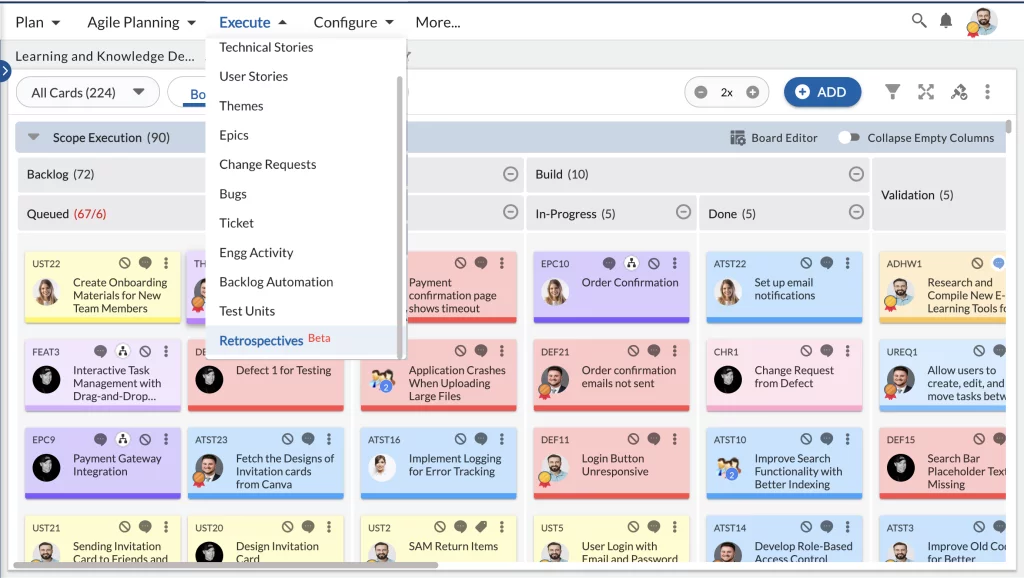

Neither ClickUp nor Asana includes a native retrospective module. Teams on those platforms run retros in a third tool and manually recreate action items in the project board. Nimble eliminates that hand-off entirely, ensuring retrospective actions are tracked with the same visibility as sprint work.
Pro Tip: Before starting the retrospective, pull up the burndown chart and sprint review report on a shared screen. Data-grounded retrospectives produce more specific and more actionable improvements than ones running from memory alone.