In this article, we will help you understand the how to Generate Card Details Using SwiftKanban AI Agent.
|
Skip Ahead to: |
Overview
Kanban Assist AI Agent enhances card creation by introducing intelligent automation across key stages of work planning and documentation. Using AI-powered agents, you can quickly generate comprehensive card content—including descriptions, comment summaries, and To-Dos—directly within Kanban Assist.
These AI Agents reduce manual effort, improve consistency, and help teams focus on execution rather than repetitive documentation tasks.
Note: These AI Agents are license-based Add-ons. Please contact [email protected] to enable the Kanban Assist feature for your account.
Kanban Assist AI Agents
Kanban Assist offers the following AI Agents to support smarter card creation and faster workflows. It includes:
- Card Description using SwiftKanban AI Agent
- Comment Summary using SwiftKanban AI Agent
- ToDos Generations using SwiftKanban AI Agent
Generate Card Description using SwiftKanban AI Agent
What It Does: Automatically generates clear and relevant descriptions for cards such as user stories, epics, defects, and custom card types. The AI Agent uses available card information to create a meaningful description with minimal effort.
Key Benefits:
- Save time by generating a strong starting point for card descriptions.
- Easily modify or fine-tune the description to meet specific requirements.
- Adjust the tone to align with your audience.
How It Works: Kanban Assist generates card descriptions by analyzing:
- Persona or role of the logged-in user (e.g., Developer, Product Owner)
- Card name, which provides the primary context
- Parent card details, when available, to ensure better alignment
Having all this information gives you the best results; however, the only mandatory requirement is the card name.
Options Available:
- Insert: Directly add the generated description into the card’s Description field with one click.
- Regenerate: Generate a new version of the description if the current one doesn’t meet your requirements.
- Copy: Copy the generated description to use elsewhere or as a reference.
- Edit: Modify the generated description within Kanban Assist to better align with your needs.
Example: Generating a Description Using SwiftKanban AI Agent
Scenario:
You are a Product Owner working on a project titled “Product Development.” As part of this project, you have an Epic titled “Schedule a call with a prospect,” with the following description:
“As a user scheduling feedback calls, I should be able to streamline the scheduling of feedback calls with prospects by integrating Calendly, allowing automatic scheduling and meeting invites to be sent without manual intervention. This enhances the efficiency of prospect engagement and feedback collection processes.”
You are now working on a linked User Story titled “Integration with Calendly for Feedback Call Scheduling.”
How the AI Agent Works:
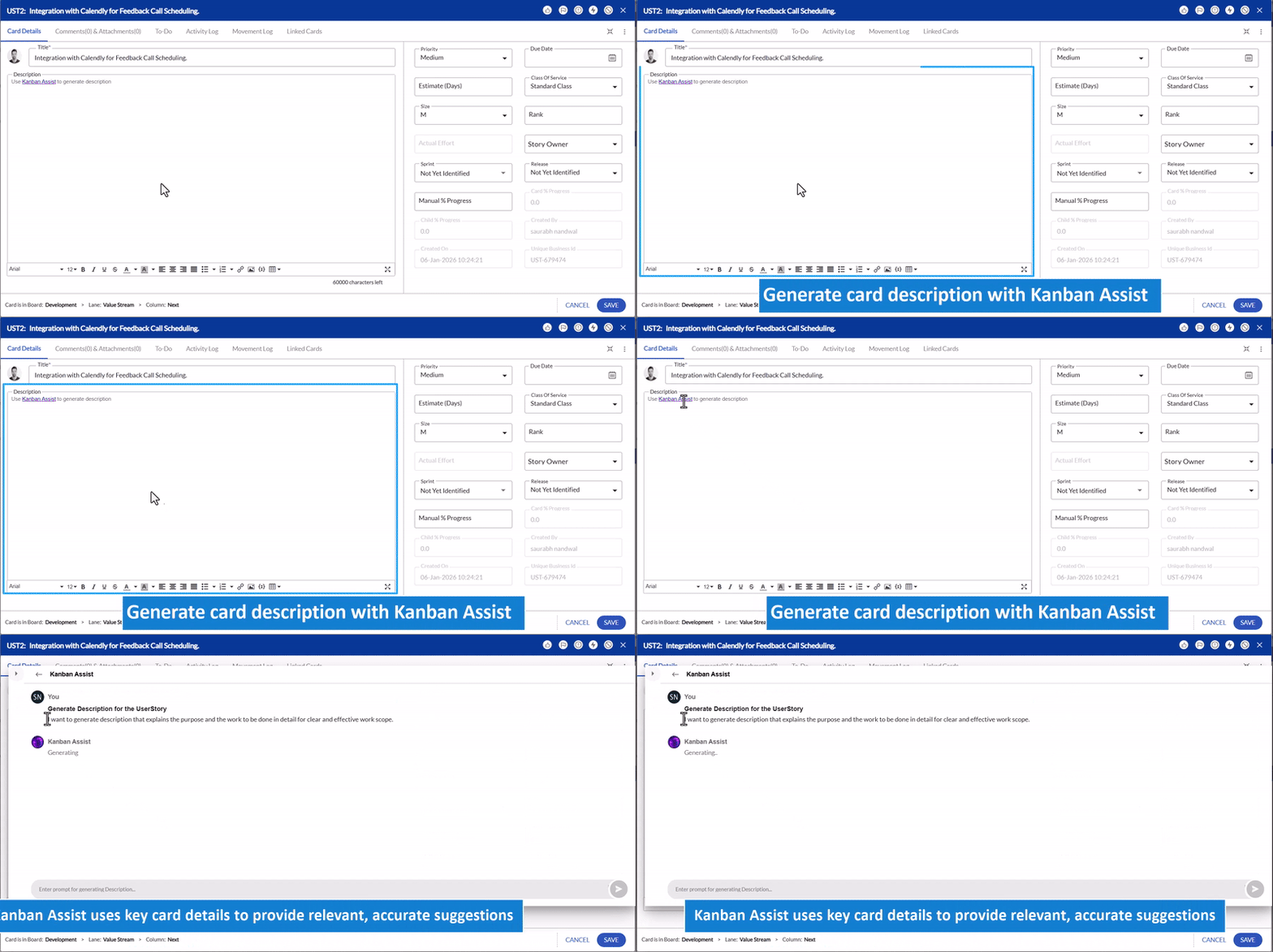
Using the context provided by the Epic and User Story details, the Kanban Assist AI Agent generates a relevant and comprehensive description for the User Story.
AI-Generated Description:
Generate Comment Summary using SwiftKanban AI Agent
What It Does:Summarize the entire comment thread on a card to highlight key points, decisions, and action items. This feature works for all card types, including product-shipped card types and custom forms.
Key Benefits:
- Save time by quickly understanding the context of lengthy comment threads.
- Ensure no important detail is missed when reviewing card discussions.
How It Works: Kanban Assistant analyzes the following:
- All comments in the thread.
- Persona of the user generating the summary.
Options Available:
- Insert: Add the summary directly to the Comment and Attachment section.
- Regenerate: Generate a new summary if needed.
- Copy: Copy the summary for other uses.>
- Edit: Modify the summary before inserting it.
- Refine: Adjust the tone (e.g., formal or concise).
Example: Generating a Comment Summary Using SwiftKanban AI Agent
Scenario:
Ethan Jacob, a developer, is assigned a defect titled “Users unable to save changes to their profile information.” While working on this defect, Ethan collaborates with Clara William, a tester, to troubleshoot the issue. The following comment thread is exchanged:
Comment Thread:
Ethan Jacob: I’m unable to reproduce the issue on my end. I tested saving changes, and everything worked fine. Could you check if it’s happening for all users or just specific ones?
Clara William: The issue seems to occur only for users with admin roles. Other users can save their profile changes without any problems.
Ethan Jacob: Got it, Clara. I’ll investigate if there are any permission-related problems for admin users on the ‘Save’ functionality.
Clara William:Let me know once you find something. I’ll recheck it once you make any changes.
Ethan Jacob: I’ll keep you updated. I’m still looking into it and waiting for some input from the backend team regarding the permissions.
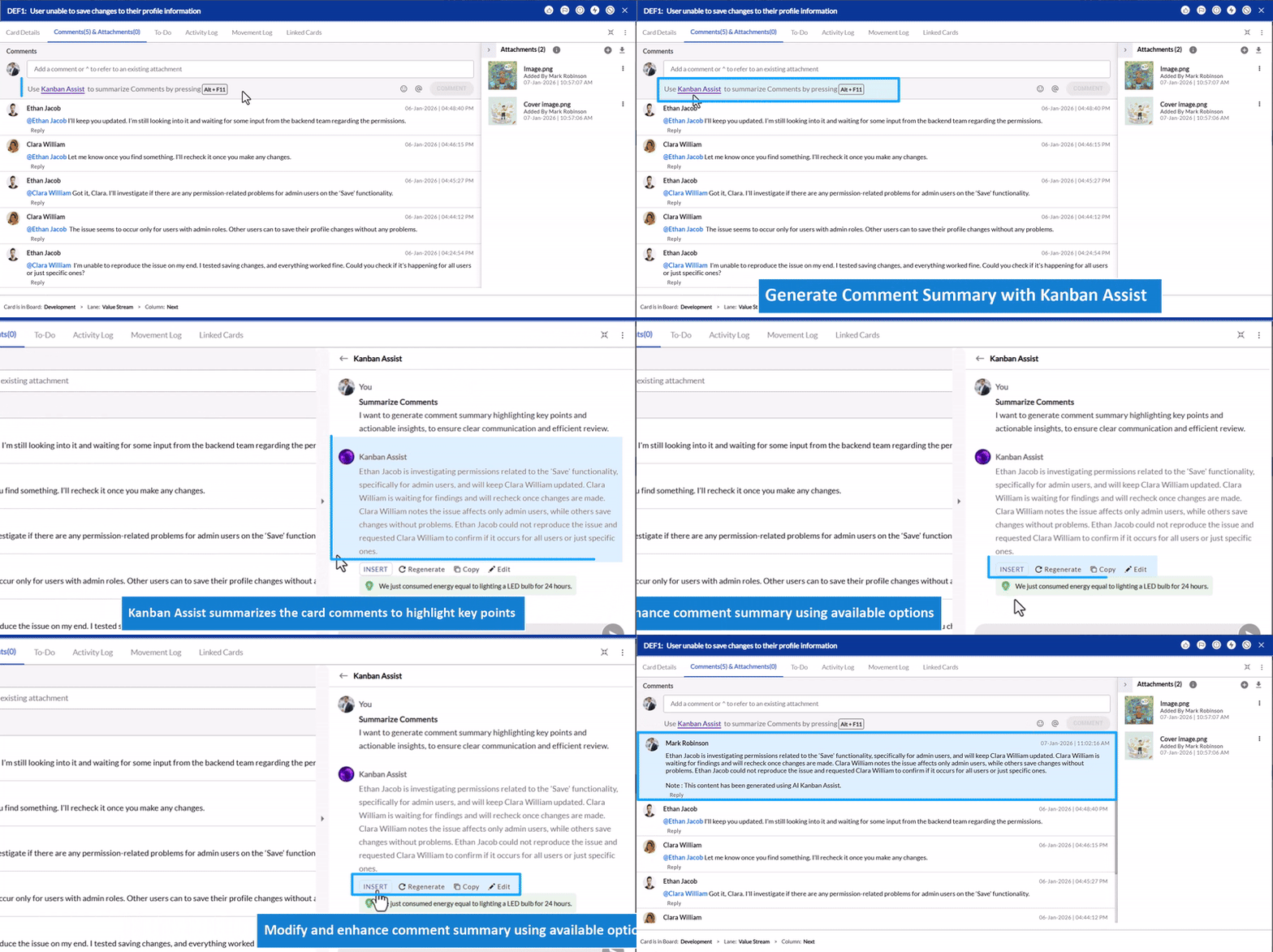
Mark Robinson, the Product Owner, opens the Comments & Attachments tab of this defect. Instead of reading through the entire thread, he uses Kanban Assist to quickly generate a concise summary of the comments.
How the AI Agent Works:
Kanban Assist reviews the conversation and produces a concise summary capturing the key findings and actions.
AI-Generated Comment Summary:
Generate To-Dos for a Card using SwiftKanban AI Agent
What It Does: Automatically creates a list of actionable To-Dos based on the card’s requirements and context. This helps break down work into clear, manageable steps.
Key Benefits:
- Simplify task management by auto-generating action items.
- Ensure all key steps are captured for a specific workflow.
How It Works: Kanban Assist generates To-Dos based on:
- Project Name and Template selected by the user.
- High-level deliverables provided by the user.
- Persona of the user generating the To-Dos.
Options Available:
- Insert: Add Selected To-Dos directly to the card.
- Regenerate: Generate a new list of To-Dos
- Copy: Copy theTo-Dos for other purposes.
- Edit: Modify the generated list before inserting it.
Example: Generating To-Dos for a Card Using SwiftKanban AI Agent
Scenario:
You are a Product Owner working on a project titled “Product Development.” As part of this project, you have a User Story titled “Integration with Calendly for Feedback Call Scheduling.”
The User Story is defined as follows:
“As a user scheduling feedback calls, I want to integrate Calendly into the scheduling process, so that feedback calls can be automatically scheduled and meeting invites sent without manual intervention.”
How the AI Agent Works:
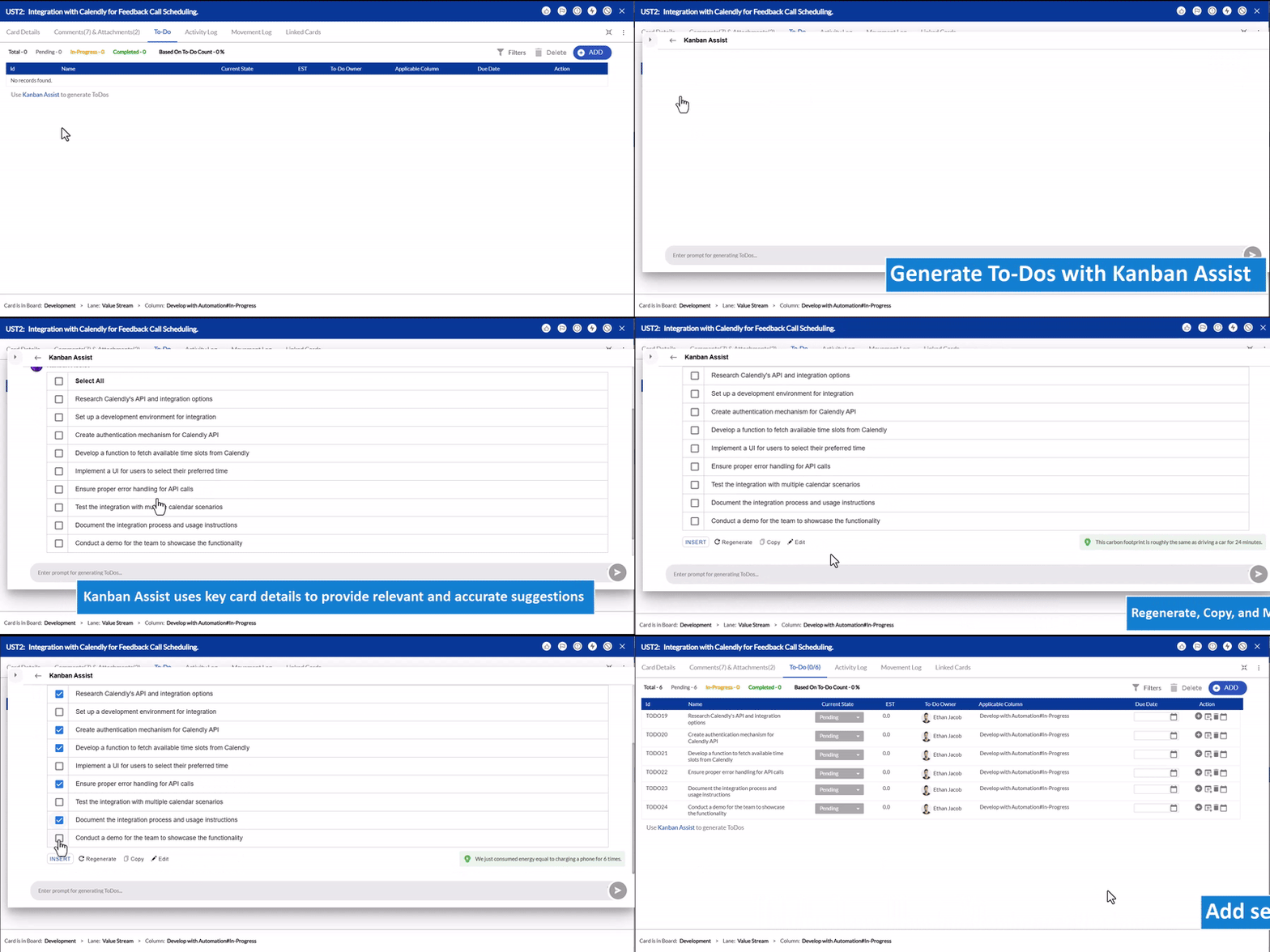
Using the details provided in the User Story title and description, the Kanban Assist AI Agent generates a list of relevant To-Dos. These To-Dos are designed to capture the key tasks required to achieve the goal defined in the User Story.
The generated To-Dos are displayed in a list format. You can review the suggestions, select the relevant To-Dos, make changes if needed, and then insert them directly into the To-Dos tab.
AI-Generated To-Dos: