
|
Skip Ahead to: |
Overview
Starting a new project often means sifting through proposals, contracts, or requirement specifications and then manually creating tasks in the system. This process takes hours and can still miss important details.
Intelligent Planning in Nimble changes that. Powered by AI, it doesn’t just extract data — it reads, understands, and intelligently plans your project. By uploading documents through Nimble Buddy, you instantly get a structured plan that reflects your project’s background, goals, objectives, scope, timelines, and even budgeting details.
Note: Intelligent Planning is available as part of the AI-Agent add-on. To use this feature, your organization must purchase the add-on.
Why Use Intelligent Planning
- Reduce manual effort: Skip repetitive setup work and eliminate the need for manual interpretation of lengthy documents.
- Improve accuracy: Nimble Buddy highlights scope and requirements directly from your files, reducing the risk of missing hidden clauses or dependencies.
- Faster onboarding: Move from documentation to Execution in minutes, not days.
- Smarter planning: The system doesn’t just extract data — it understands project intent (goals, objectives, timelines) and structures them into usable cards.
- Better collaboration: AI-generated cards ensure every team member starts aligned on what needs to be done.
How It Works
- From an exiting project or create a project using the ADD option, and go to Plan > Intelligent Planning.
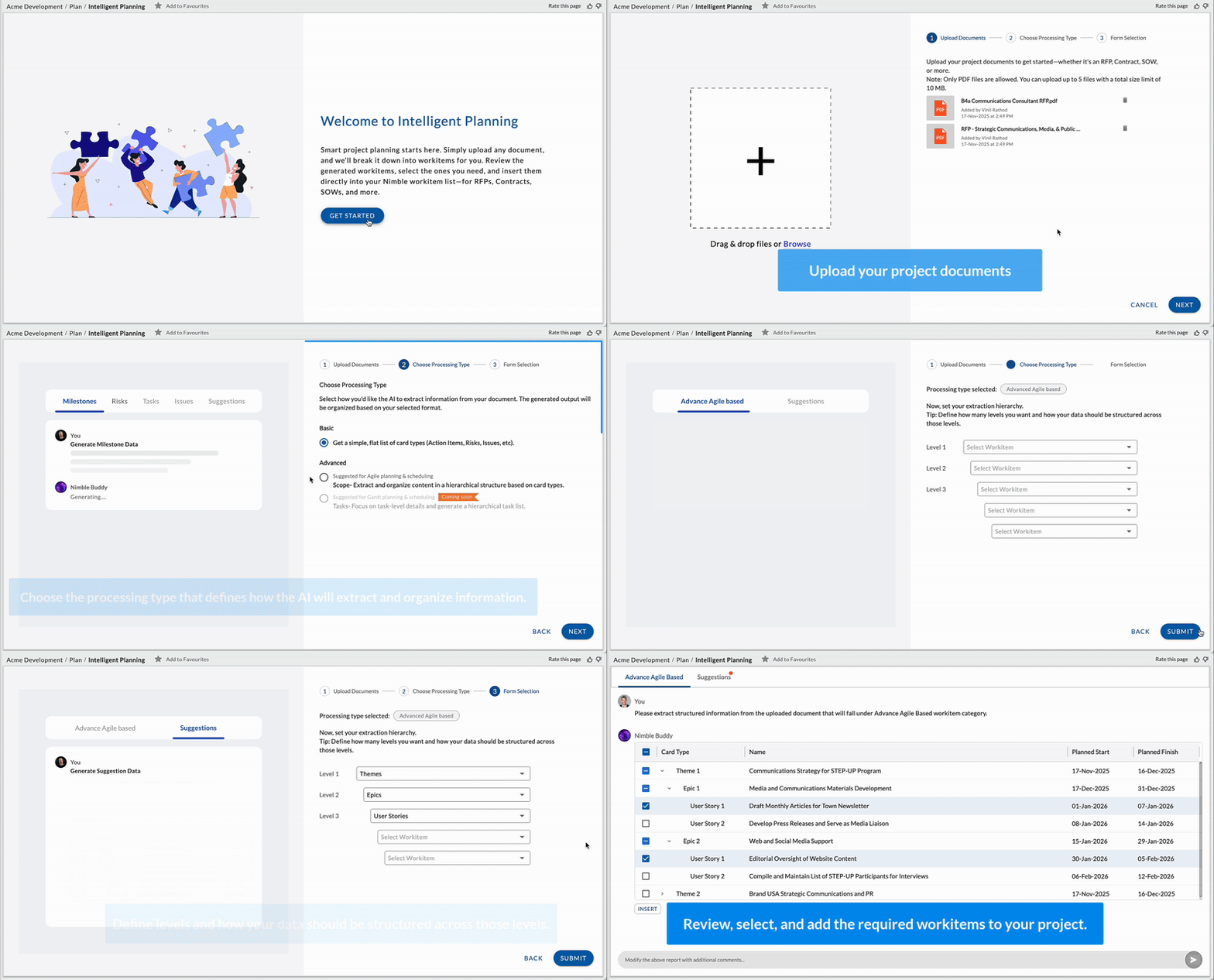
- Click GET STARTED.
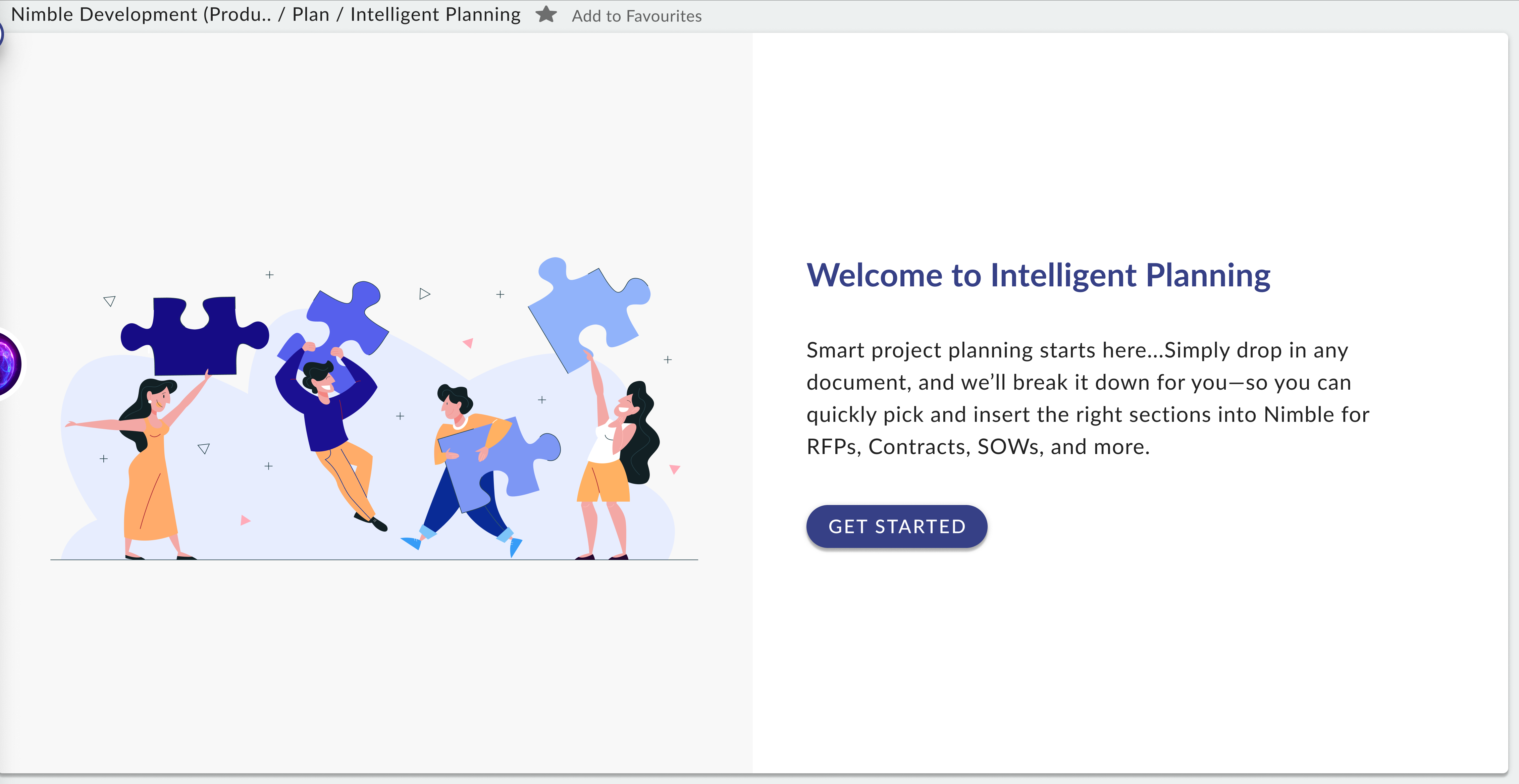
- Upload your files ( drag and drop, or use the + icon).
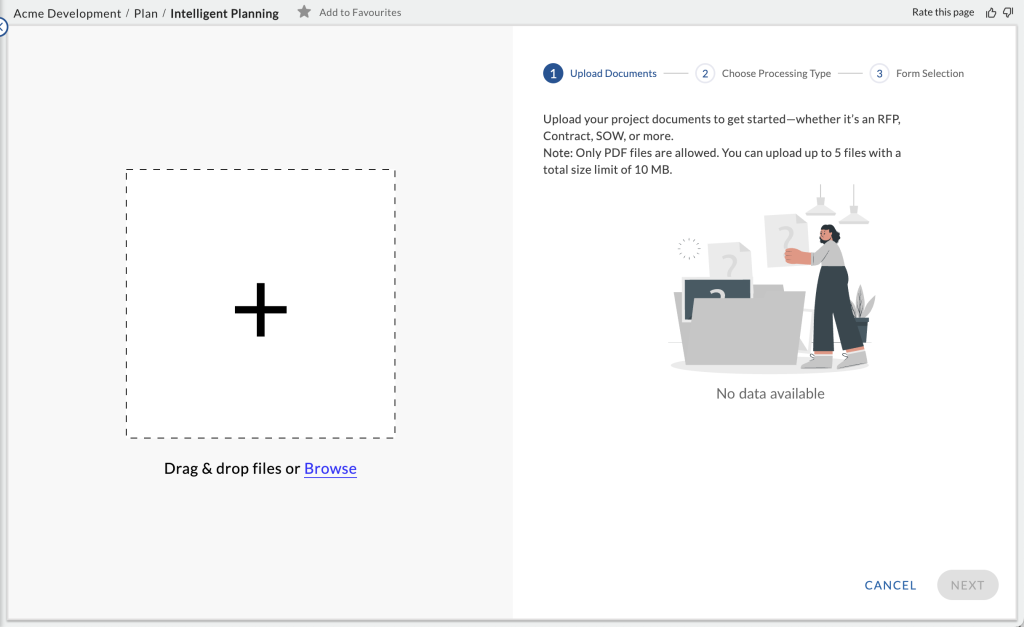
- Review the attachments list and click NEXT.
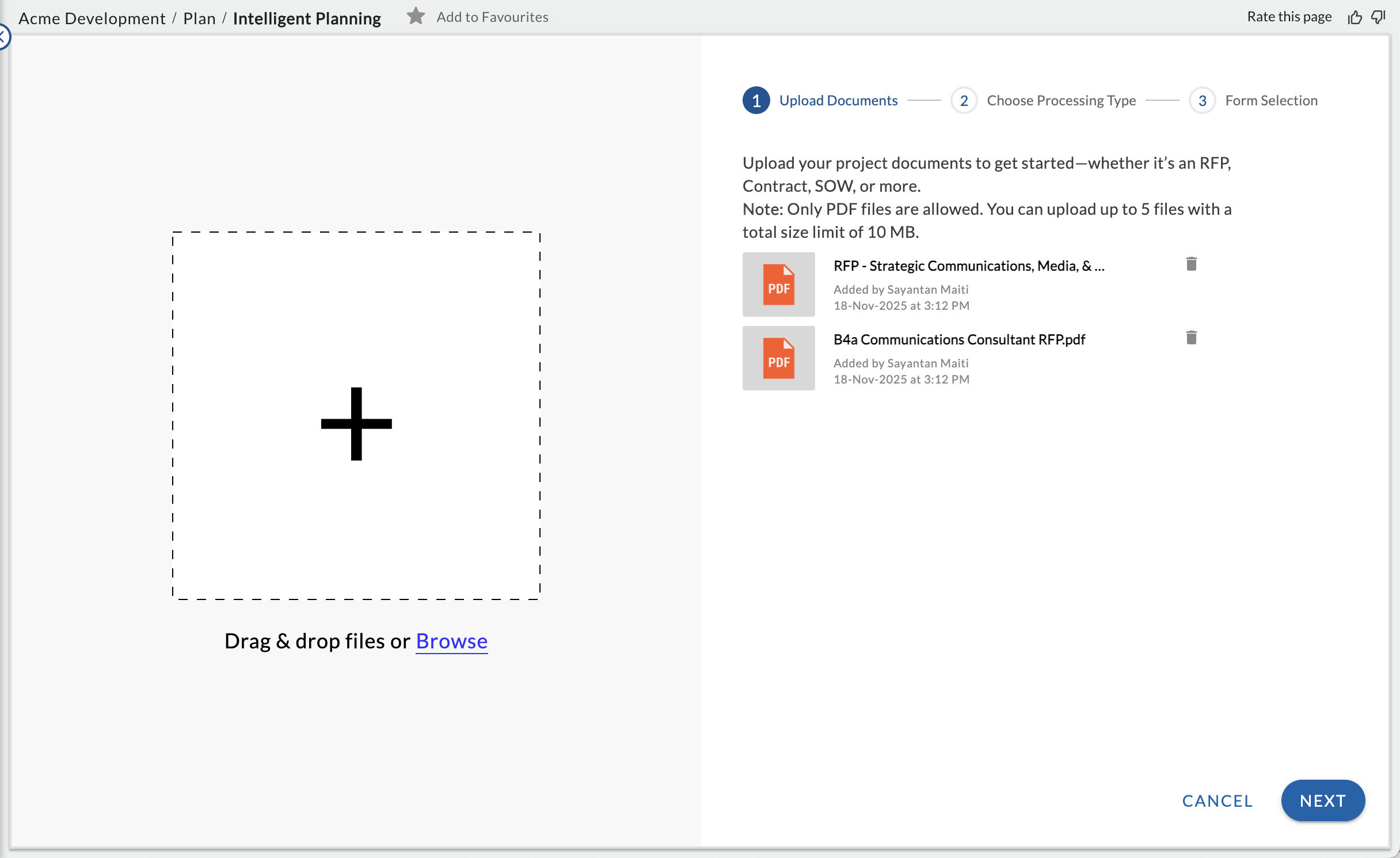
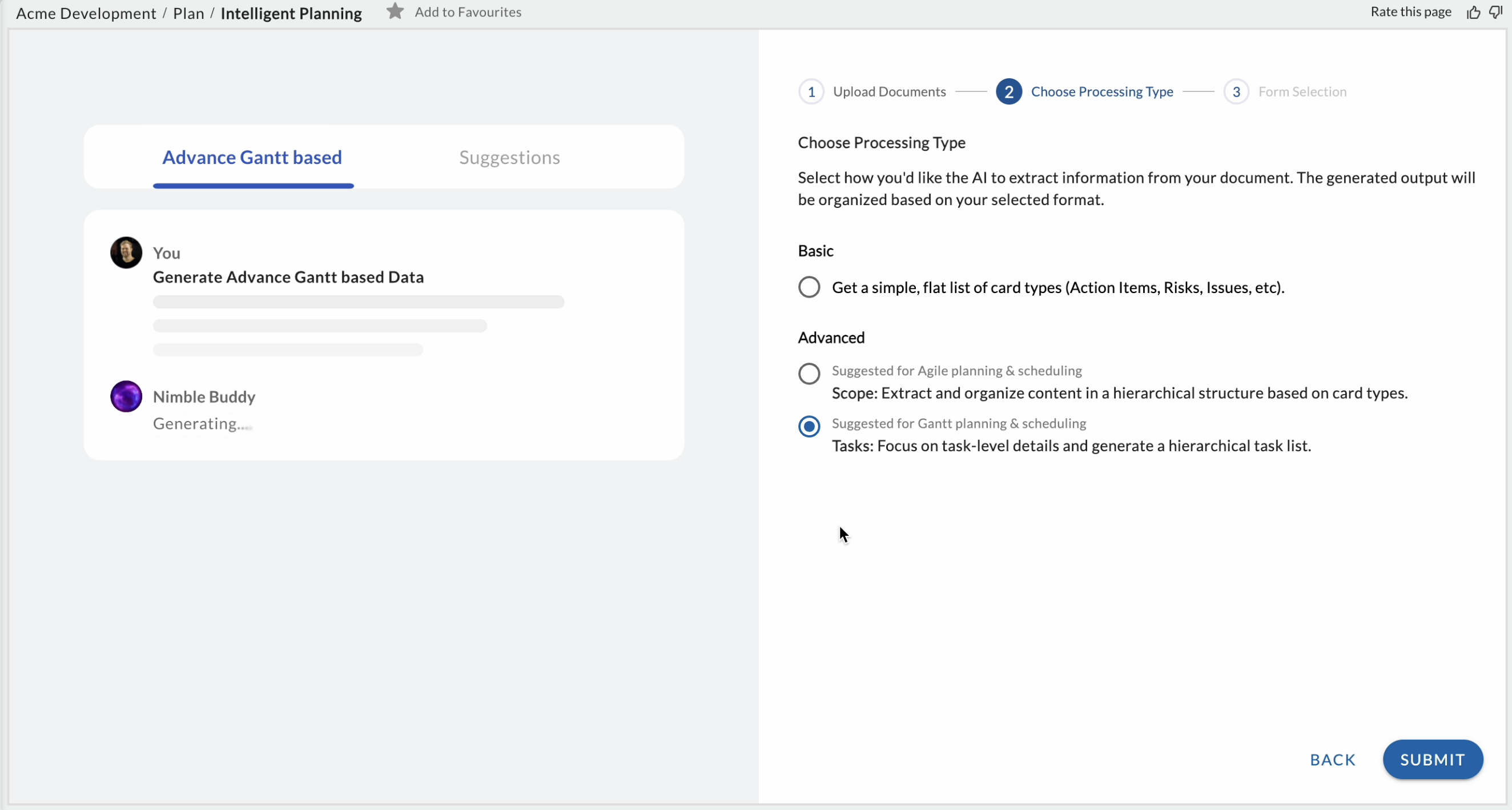
- Select your Processing Type (Shown only when the project is created using IT templates):
-
- Basic – Displays a simple, flat list of card types without hierarchy.
- Advanced – Displays card types in a parent–child structure, such as Theme → Epic → User Story. The next screen updates based on the option you choose.
-
- If BASIC is selected:
-
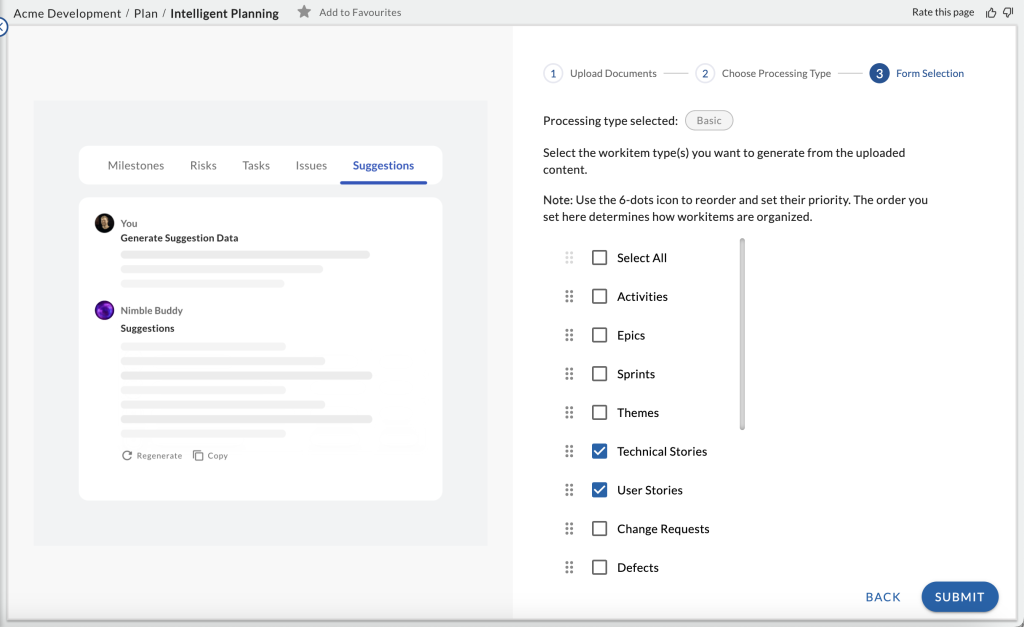
- Nimble Buddy analyzes the files and suggests card types.
Note: Suggestions are limited to card types available in the selected project template. - Select the card types you want to use for generating cards.
- If required, use the 6-dots icon to rearrange priority order (this defines how outputs are generated).
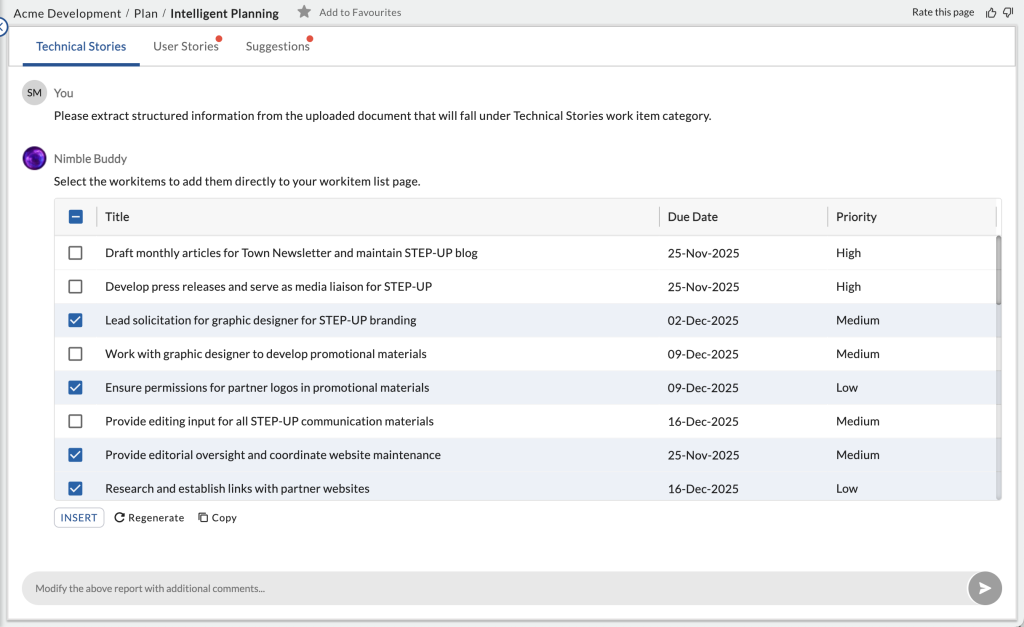
- Click SUBMIT to review the AI-generated cards (with due dates and priorities).
- Edit the generated tasks as needed such as Planned Start, Planned Finish or Due Date.
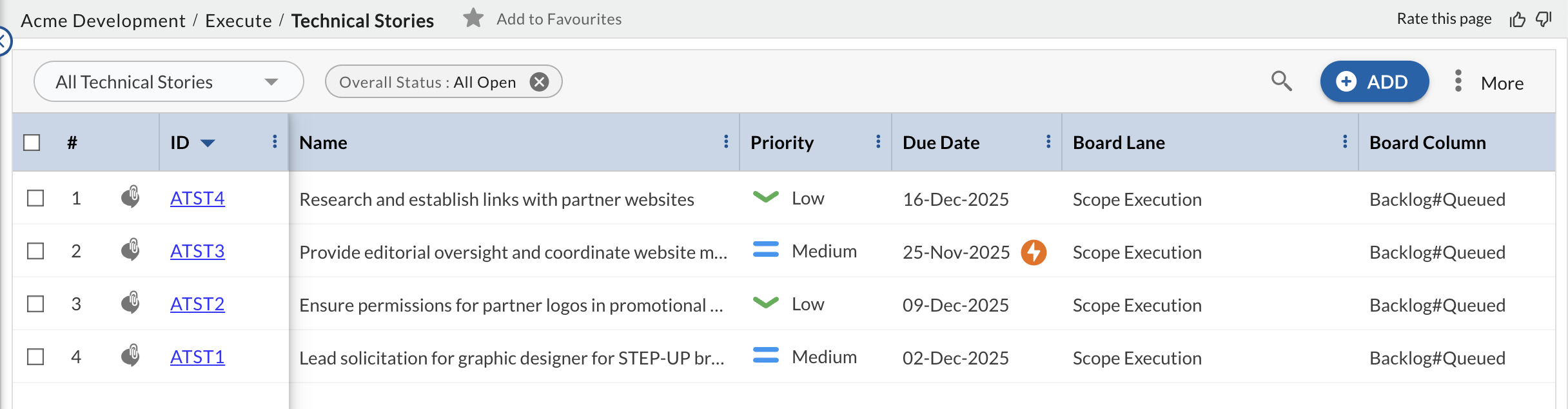
- Select the cards you want, regenerate if needed, and click INSERT to add them to your project.
- The created cards will appear in their respective card listing or on the Board.
- Nimble Buddy analyzes the files and suggests card types.
-
- If Advanced and Gantt planning & scheduling is selected:
-
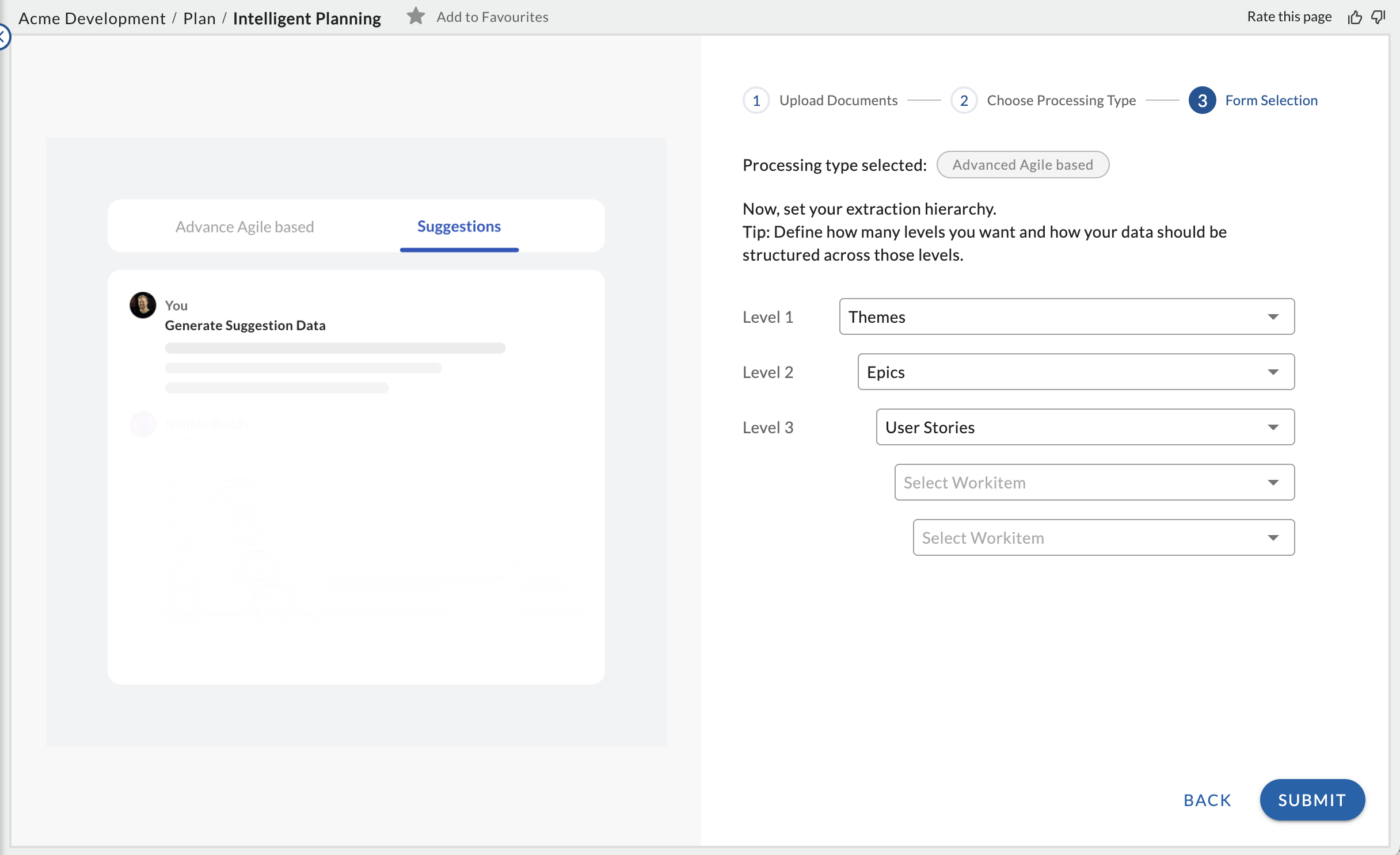
- The screen shows card types in a parent–child hierarchy.
- Up to five levels are displayed: Level 1: Theme (default), Level 2: Epic (default), Level 3: User Story (default), Levels 4 and 5: Optional.
- You can change any level using the dropdown list.
- At least one level must be selected to continue.
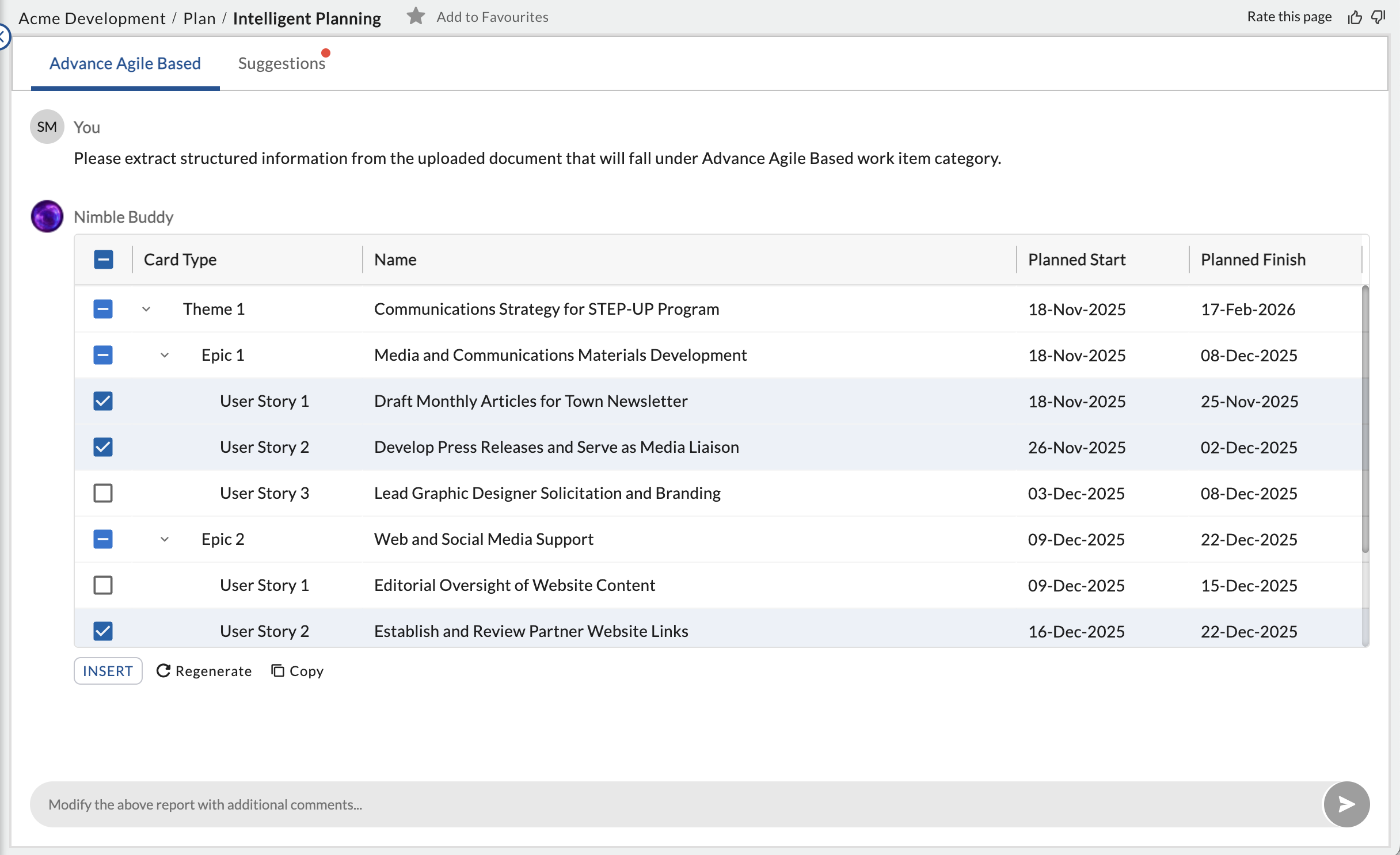
- Click SUBMIT to review the AI-generated cards (with Planned Start and Finish).
- Edit the generated tasks as needed such as Planned Start, Planned Finish or Due Date.
- Select the cards you want, regenerate if needed, and click INSERT to add them to your project.
-
- If Advanced and Gantt planning & scheduling is selected:
-
- No hierarchy configuration step is shown. Intelligent Planning automatically interprets the document’s structure and builds a task hierarchy for you.
- You are taken directly to AI generation for task extraction and timeline creation.
- Edit the generated tasks as needed such as Planned Start, Planned Finish or Due Date.
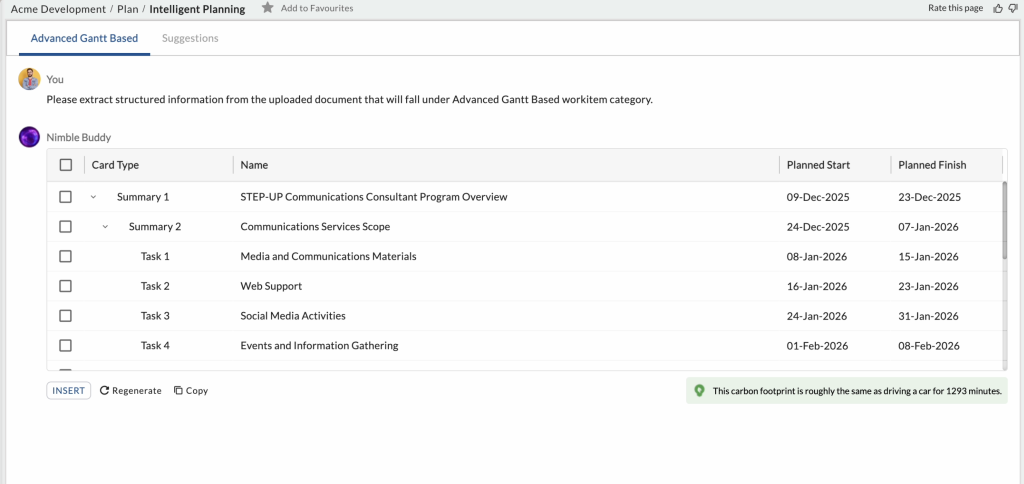
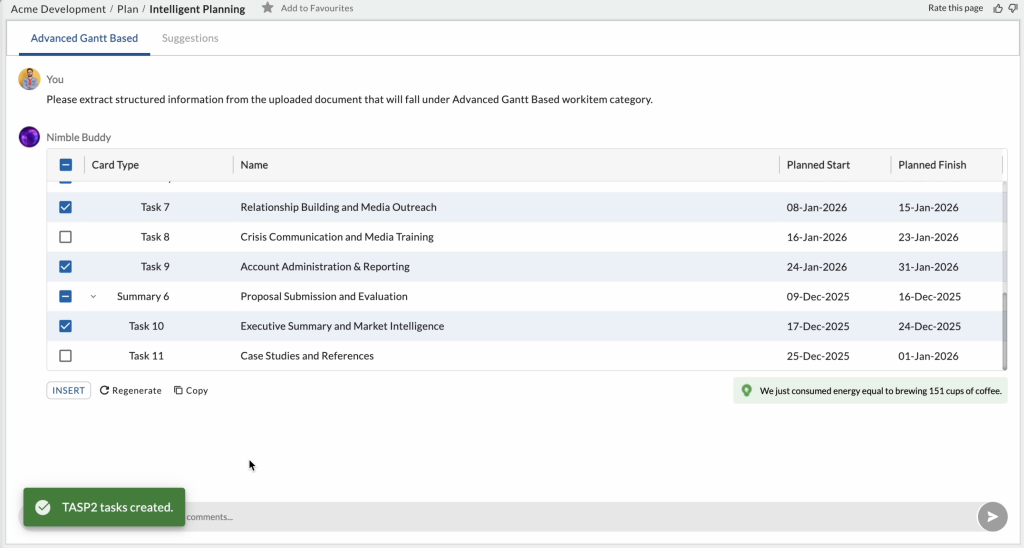
- Select the tasks you want, regenerate if needed, and click INSERT to add them to your project.
-
Notes:
- Intelligent Planning won’t replace your judgment — always validate the AI-generated plan against your project goals.
- Once you leave the Intelligent Planning screen, history is not saved.
Example: Request for Proposal (RFP)
Uploading an RFP document to Intelligent Planning may result in:
- Project scope: Develop a new mobile app
- Objectives: Deliver within 3 months, ensure scalability
- Budget considerations: Extracted from the proposal
- Timeline hints: Submission by end of Q2, delivery by Q4
Based on this, Nimble may suggest tasks such as:
- Review client requirements
- Identify key deliverables
- Draft technical proposal
- Estimate project cost and timeline
- Assign stakeholders
- Prepare client presentation
The project manager can refine, remove, or regenerate tasks. Within minutes, the RFP is transformed into a living project plan inside Nimble.
RFP is just one example — Intelligent Planning works with contracts, Statements of Work (SOWs), and requirement specifications as well.
With Intelligent Planning, you go from documents to actionable project plans in minutes — smarter, faster, and more confidently than ever before.