
Skip Ahead to:
6 topics
Overview
A test event is a planned round of testing, such as the checks you do before a release. It brings together the test suites and test cases that need to be carried out. The whole round can then be run and followed as one.
A test event is run once. That single run covers everything linked to the event. You start it and follow it in Test Management. The event is made up of test suites and test cases.
Note
A test plan works in the same way and has the same fields and sections. Add one from Execute, Test Plan. Unlike a test event, a test plan can be run many times.
Navigation
Point to Execute in the top menu, and then select Test Events.
How to Add a Test Event?
- On the Test Events page, select ADD. The form opens with the next TE ID already filled in.
- Enter a name. The name is the only required field.
- Fill in the other fields you need, described below.
- Link the test suites and test cases, as described in the next section.
- Select SAVE.

| Field | What to enter |
|---|---|
| TE ID | Filled in for you. You cannot change it. |
| Name | Required. A short title, such as Release 9.20 Regression. |
| Assigned to and Priority | The person responsible, and how important the round of testing is. |
| Environment | Where the tests are carried out: Dev, Test, UAT or Production. |
| Testing Phase | The stage of testing: API Test, Automation Test, Data Set, Database Test, Functional Test, Performance Test or Regression Test. |
| Release and Sprint | Choose from the releases and sprints in your project. |
| Description and Tags | Background about the event, and keywords that help you find it later. |
How to Link Test Suites and Test Cases?
The form has two sections. Use the Test Suites for Test Event section for whole suites. Every test case inside a suite is included in the run. Use the Test Cases for Test Event section for single test cases that are not in a linked suite.
- In the section you want, select Add Row.
- In the new row, start typing the name, and then pick the suite or test case from the list.
- Repeat for each item, and then select SAVE.

The Test Events List
The list shows each event with its ID, name, assignee, priority, created and closed dates, and status. It starts with a filter that shows only open events. Select an ID to open the card and edit it. To remove an event, open it and select DELETE.
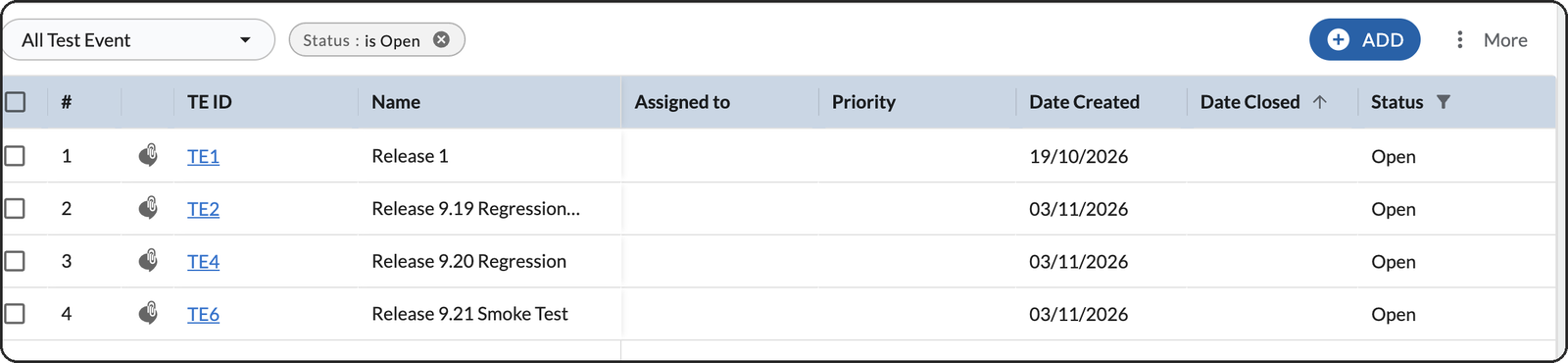
You can perform common operations on this list, such as rearranging column fields, sorting and filtering.
Where Test Events Are Used
In Test Management, choose Test Event and pick the event.
- The Tests tab shows everything linked to the event.
- Select RUN, name the run and select SAVE. Every linked suite and test case is included, and RUN turns grey, because an event is run once.
- The Run tab shows one row for each suite or loose test case. Each row has its status and its pass, fail and pending percentages. Select Details on a row to record results.
- When everything has been worked through, select Complete Run. This completes the run for the whole event. Select RESUME RUN to open it again if you need to.