
Skip Ahead to:
8 topics
Overview
Test Management is one screen for running your tests and tracking the results. Pick an item, see the tests linked to it, run them, and look back at every earlier run.
You do not need a testing background. Think of a checklist. Each test is one line on the list, and a run is one time you work through it.
| Term | What it means |
|---|---|
| Test Case | One check that confirms a single thing works, such as logging in with a valid password. |
| Test Suite | A group of test cases that belong together, so you can run them in one go. |
| Test Event | A planned round of testing, such as a release check. It is made up of test suites and test cases, and it is run once. |
| Test Plan | A grouping of test suites and test cases, added from Execute, Test Plan. In Test Management it works like a test suite and can be run many times. |
| Run | One attempt at working through the tests, saved under a name. |
| Context | The item a run was started for, such as the test event it belongs to. |
When you run something, the results belong to that run only. Earlier runs keep their results, so you can compare releases later.
Navigation
Point to Execute in the top menu, and then select Test Management.
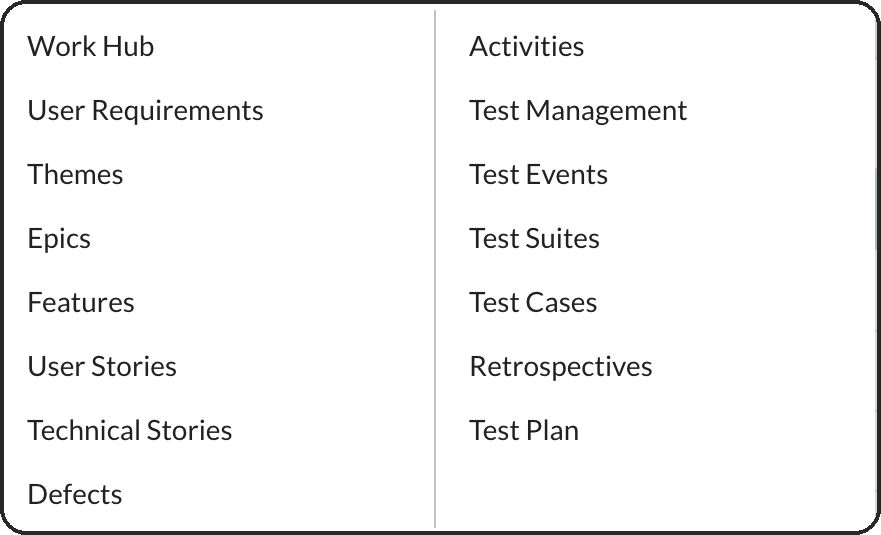
How to Open an Item in Test Management?
- Select Select category, and then choose the type of item you want to work with.
- Select Select test, and then choose the item. Each entry shows its ID and name.
- To find an item quickly, type in the Select test box. If nothing matches, the list shows No options.
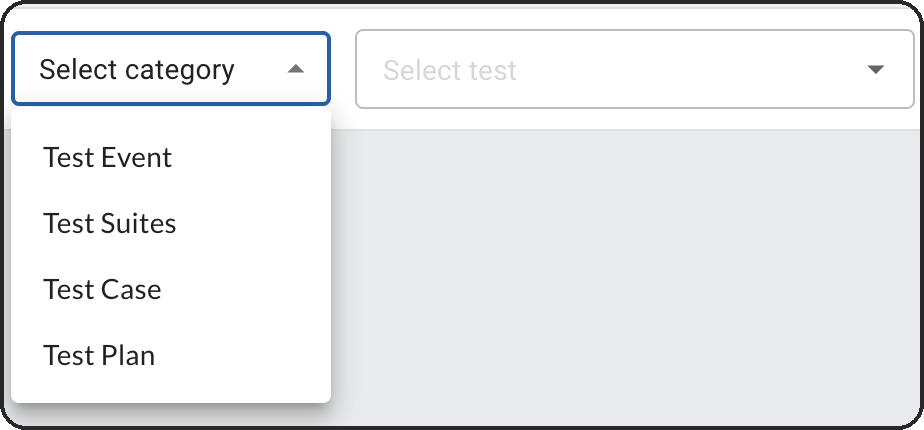
The category list shows only the types that can hold tests in your project. If you change the category, the item is cleared and you choose again. Both lists are also cleared when you leave Test Management.
What You See for an Item
The tabs depend on the type of item you pick.
| You picked | Tabs | What they show |
|---|---|---|
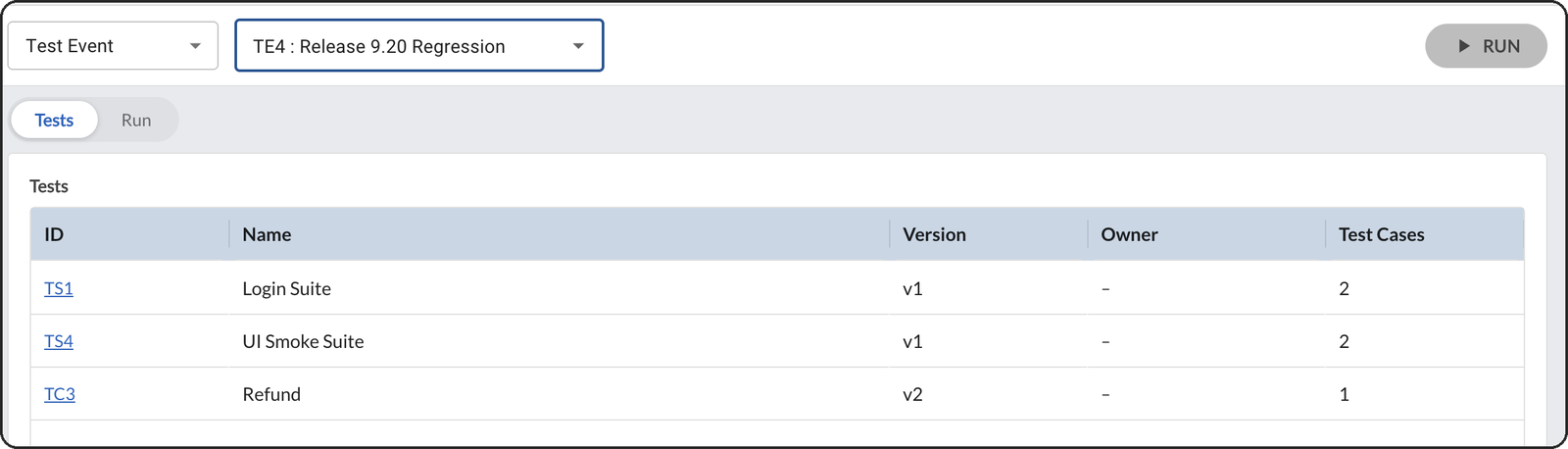
| Test Event | Tests and Run | What is linked to the event, and the progress of its run. |
| Test Suite or Test Plan | Tests and Run Log | What is linked to it, and every run it has been part of. |
| Test Case | Run Log | Every run the test case has been part of. A test case has nothing linked beneath it, so there is no Tests tab. |
The Tests Tab
The Tests tab lists what is linked to the item. It shows the ID, Name, Version and Owner. For suites, it also shows how many test cases are inside. Select an ID to open that card in a pop-up window. Test events and test plans list suites and single test cases together.
Latest Run’s Summary
A test suite or test plan also shows five tiles above its tabs. They give the total test cases, the pass, fail and pending percentages, and when it was last executed. Select View run under any tile to open the latest run.

How to Run Your Tests?
- Pick the item, and then select RUN at the top right.
- In the Run details panel, enter a name in Run name. A name such as Run 1 is already there, and you can change it.
- Check the running context. It shows which item the run is for.
- Select SAVE. Select CANCEL to leave without creating a run.
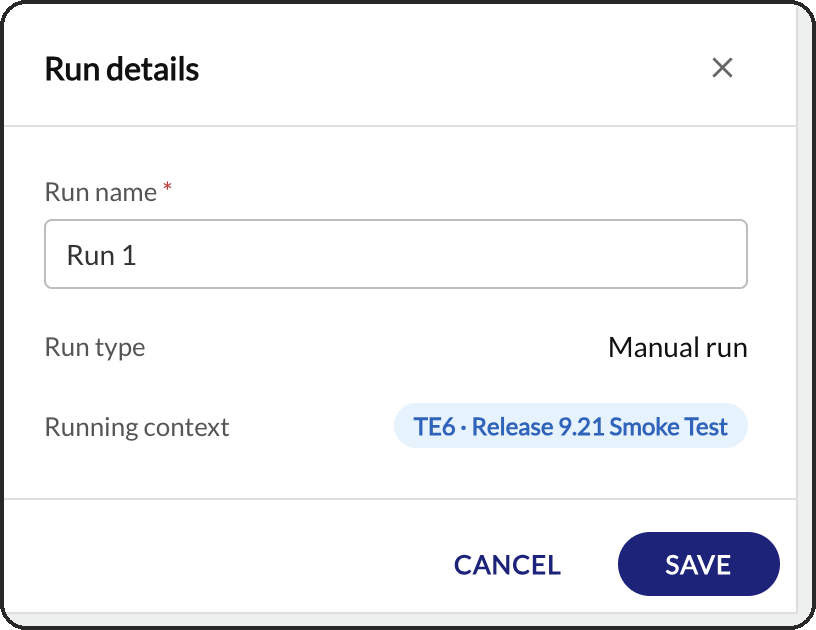
The run name is required. The panel does not save while it is empty or only spaces. After you save, every suite and test case linked to the item is in the run. Each one starts as Pending.
Note
A test event can be run only once. After you start it, RUN turns grey. A test suite, test plan or test case can be run as many times as you like. For a test suite or test case, a message first explains that you are running it independently of the items it is linked to. Select RUN to continue. A test plan opens the Run details panel straight away.
The new run can take a moment to appear. If the Run tab looks empty, open Test Management again and pick the item once more.
Track and Update a Run
For a test event, the Run tab shows one row for each suite or single test case. Each row shows the run status and the pass, fail and pending percentages. It also shows when the row was last worked on, and by whom. A single test case shows NA for the percentages, because it is either passed or failed. Select Details to open the row.
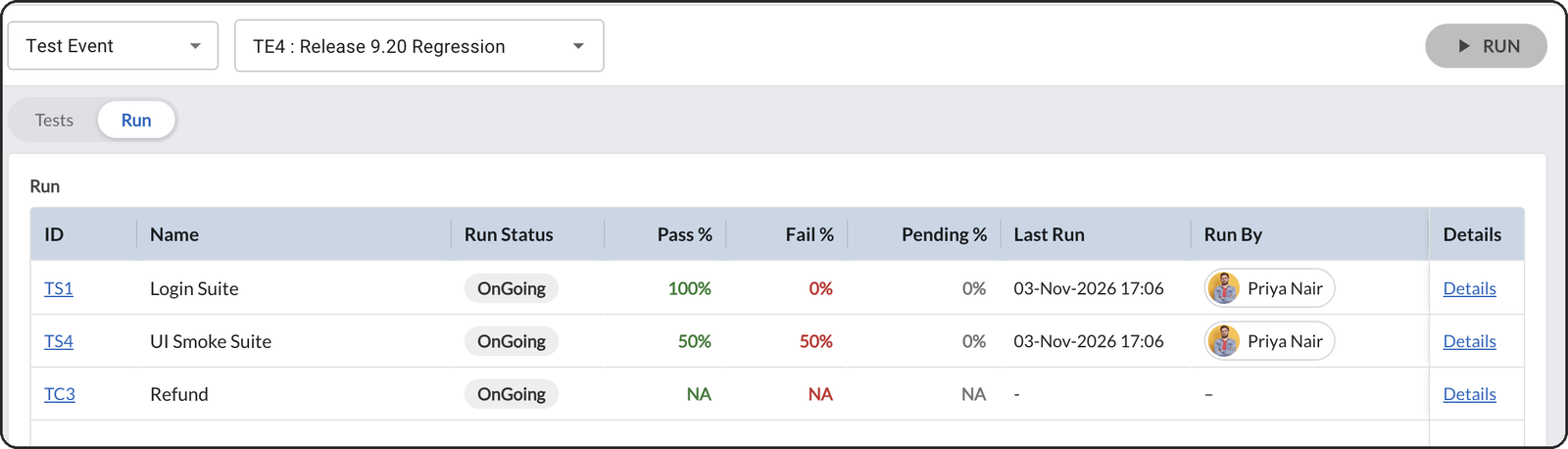
Suites, plans and test cases show their runs in the Run Log instead. Select Details there, or View run on a summary tile, to open the same page.
The Run Details Page
Test cases are grouped under their suite. Each group header shows how many test cases it has and its pass, fail and pending percentages. The percentages update as soon as you change a status.
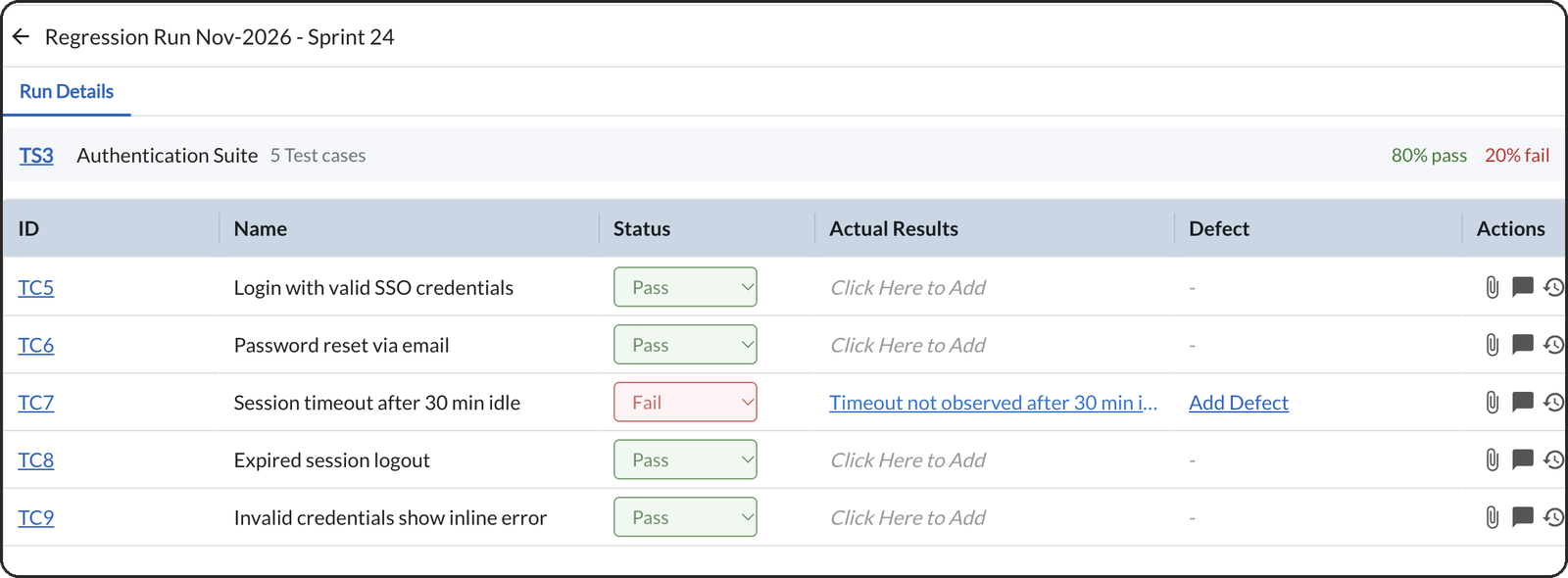
- Select the status of each test case: Pass or Fail. Every test case starts as Pending.
- To record what happened, select Click Here to Add under Actual Results.
- Type a note of up to 1,000 characters, and then select SAVE.
- Use the icons at the end of the row to attach a file, add a comment, or see the activity log.
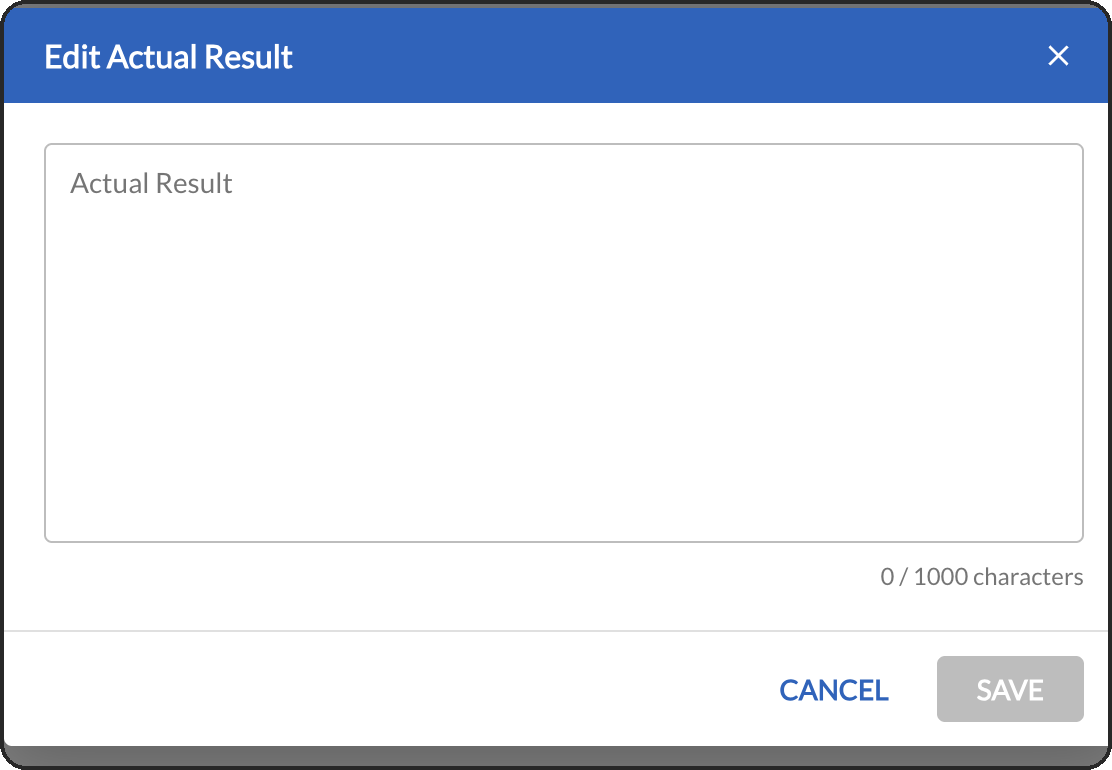
Your changes save as you make them, so the page has no save button. A long note is shortened in the row. Select the note to open it again. A failed test case also shows an Add Defect link in the Defect column.
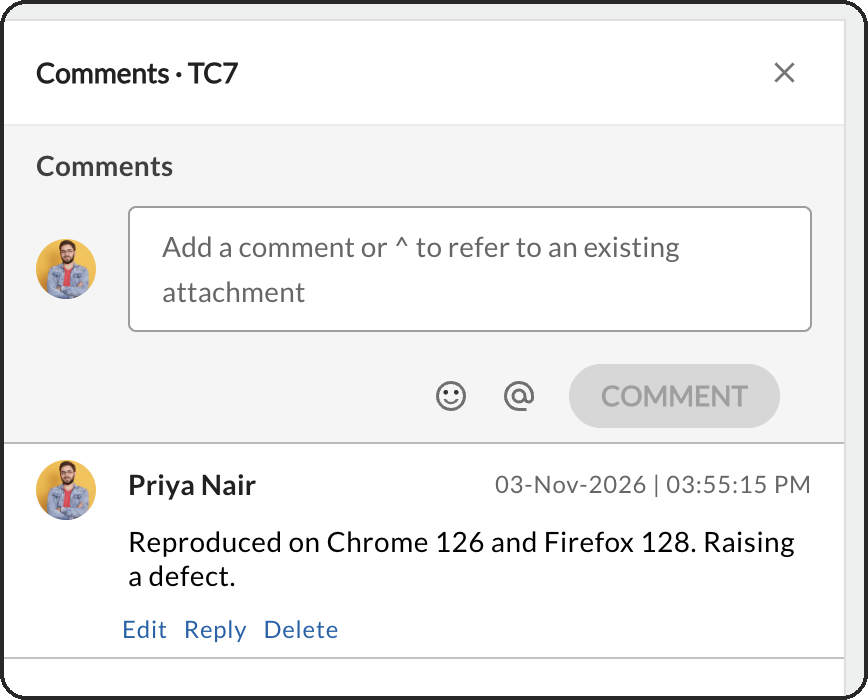
Each icon opens a panel on the right. Attachments lets you drag and drop files or browse for them. Each file is listed with who added it and when. Comments lets you write a comment, mention a colleague, and edit, reply to or delete comments. Activity Log lists each change with who made it and when. You can still add comments and attachments after a run is completed.
Complete, Resume and Rename a Run
Complete a Run
When every test case has been worked through, select Complete Run at the bottom of the page. There is no extra confirmation. The status changes to Completed, the status boxes and actual results are locked, and the footer reads Run completed.
Note
On a test event, one run covers every suite and test case in it. Completing the run from any suite completes it for all of them. Check that each suite has been worked through first.
Resume a Run
- Open the completed run, and then select RESUME RUN.
- In the Resume this run window, select YES. Select NO to leave the run as it is.
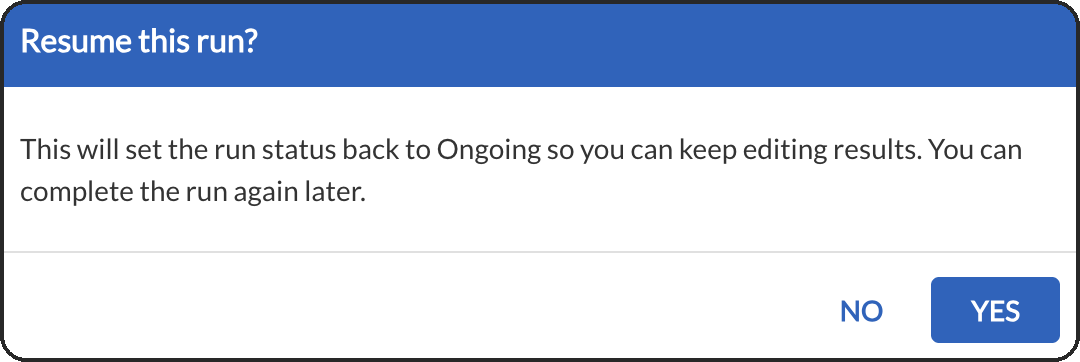
The run goes back to Ongoing and the fields unlock. You can complete it again whenever you are ready.
Rename a Run
While a run is ongoing, select the pencil icon next to its name. Change the name, and then select SAVE. The panel also shows who created the run and when, and who last changed it. The pencil is not shown once the run is completed.
The Run Log
The Run Log lists every run for a test suite, test plan or test case. Select Details on a row to open that run.

| Column | What it shows |
|---|---|
| # and Run | The run number, in the order the runs were created, and the run name. |
| Run Status | OnGoing or Completed. |
| Pass %, Fail % and Pending % | The results of that run. A test case has no percentages. |
| Context and Context Version | The item the run was started for, and its version. Select the context to open its card. A run you start directly from a suite shows the suite itself. |
| Date Created, Executed By and Date Executed | When the run was created, who recorded results and when. The last two stay empty until a first result is saved. |
The Run Log is the quickest way to see an item’s history, such as how a suite did in each release.