
Overview
The Convert Card Type option allows you to convert an existing workitem to a different card type — without losing any of its data. All field mappings, ToDos, linked cards, and history are preserved during the conversion. The original workitem is closed and trace-linked to the newly created card, maintaining full traceability.
Note: This option is available on the Workitem Listing page under More. You must select at least one workitem before using this option. The target card type dropdown displays only the card types for which you have create access.
How to Convert a Card Type
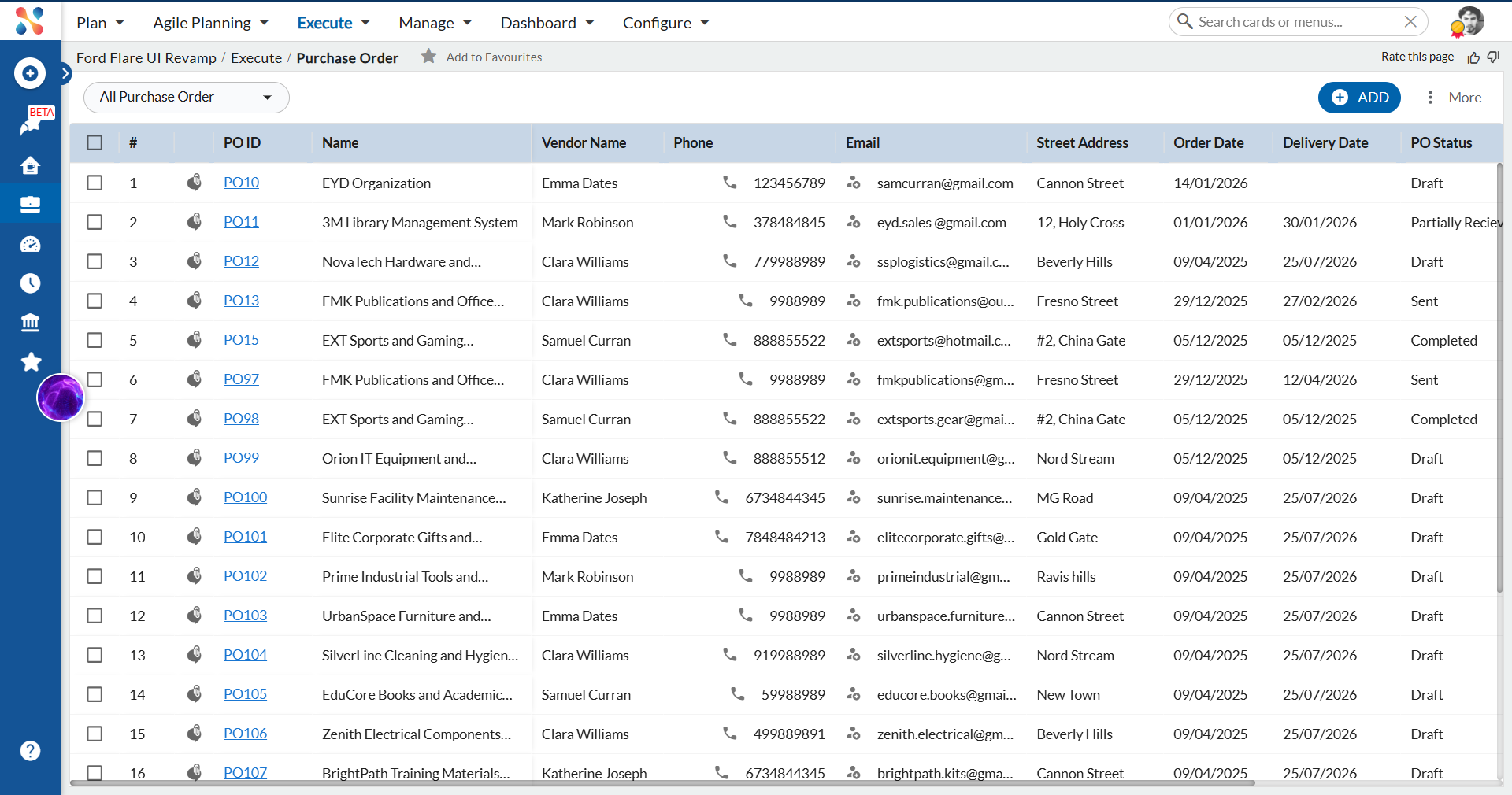
Step 1 — Select a Workitem on the Listing Page
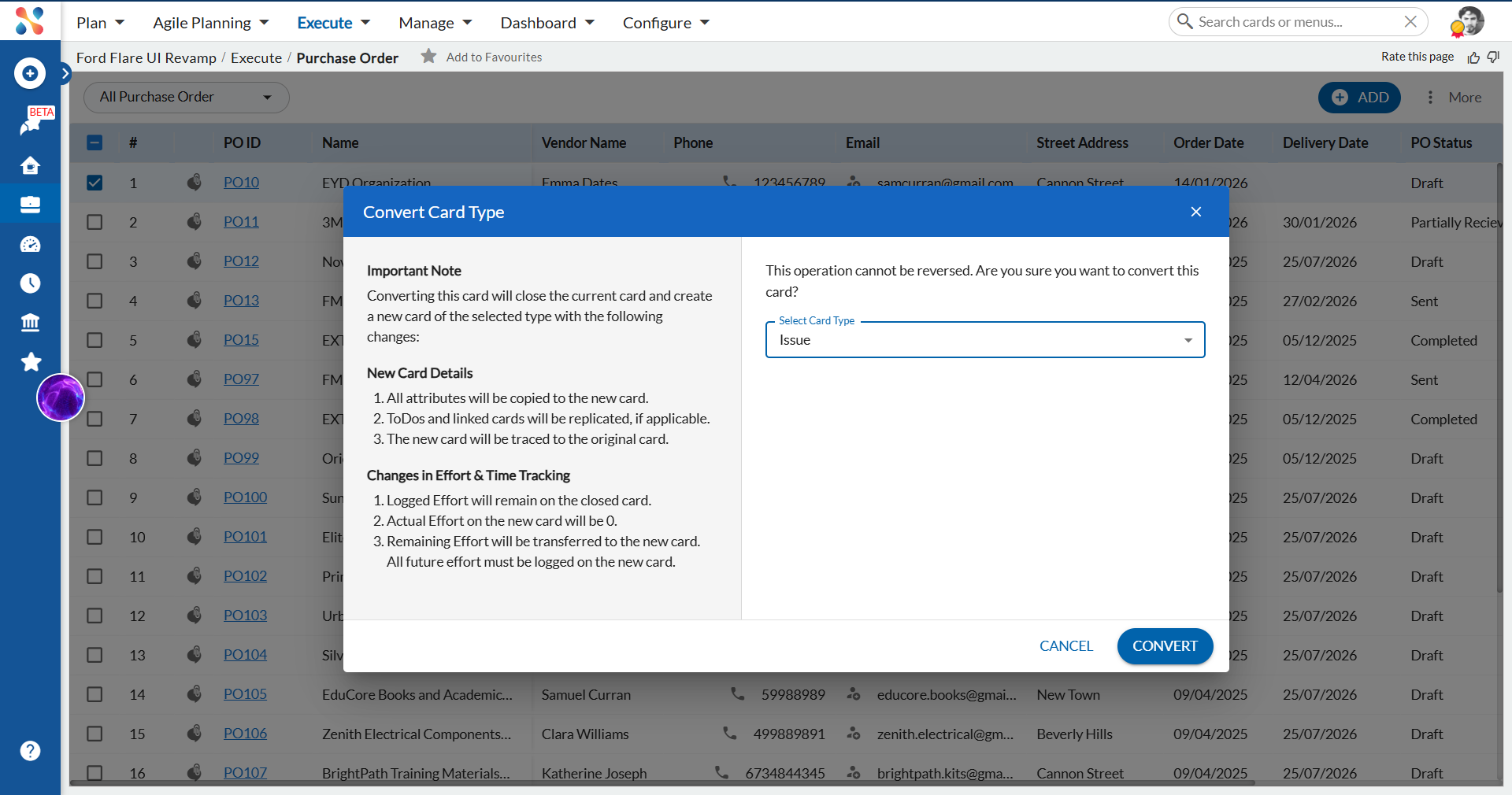
On the Workitem Listing page, select the checkbox next to the workitem you want to convert. In this example, we select PO10 — a Purchase Order workitem.
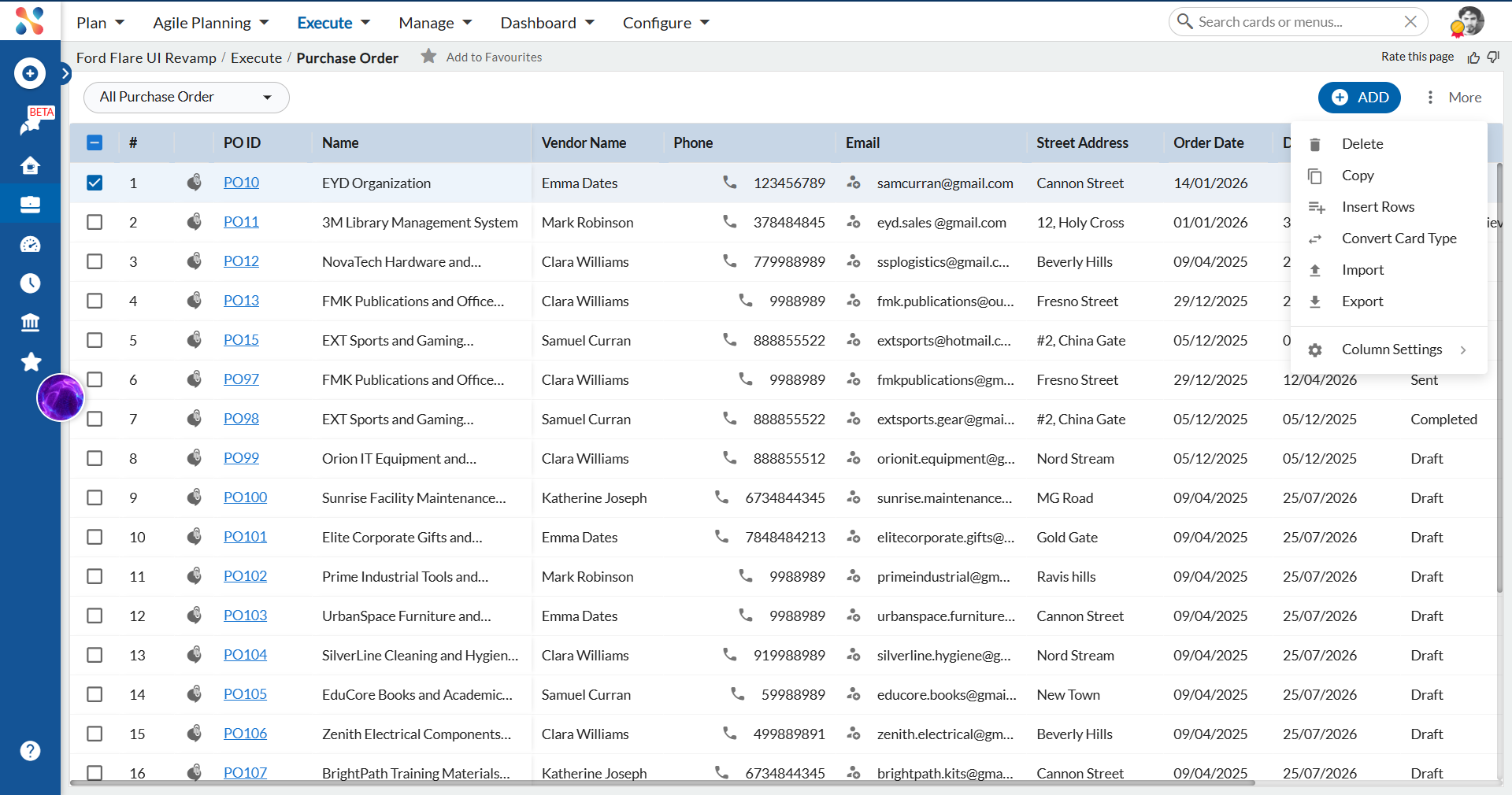
Step 2 — Click More and Select Convert Card Type
Click the More button in the listing toolbar. From the dropdown menu, select Convert Card Type.
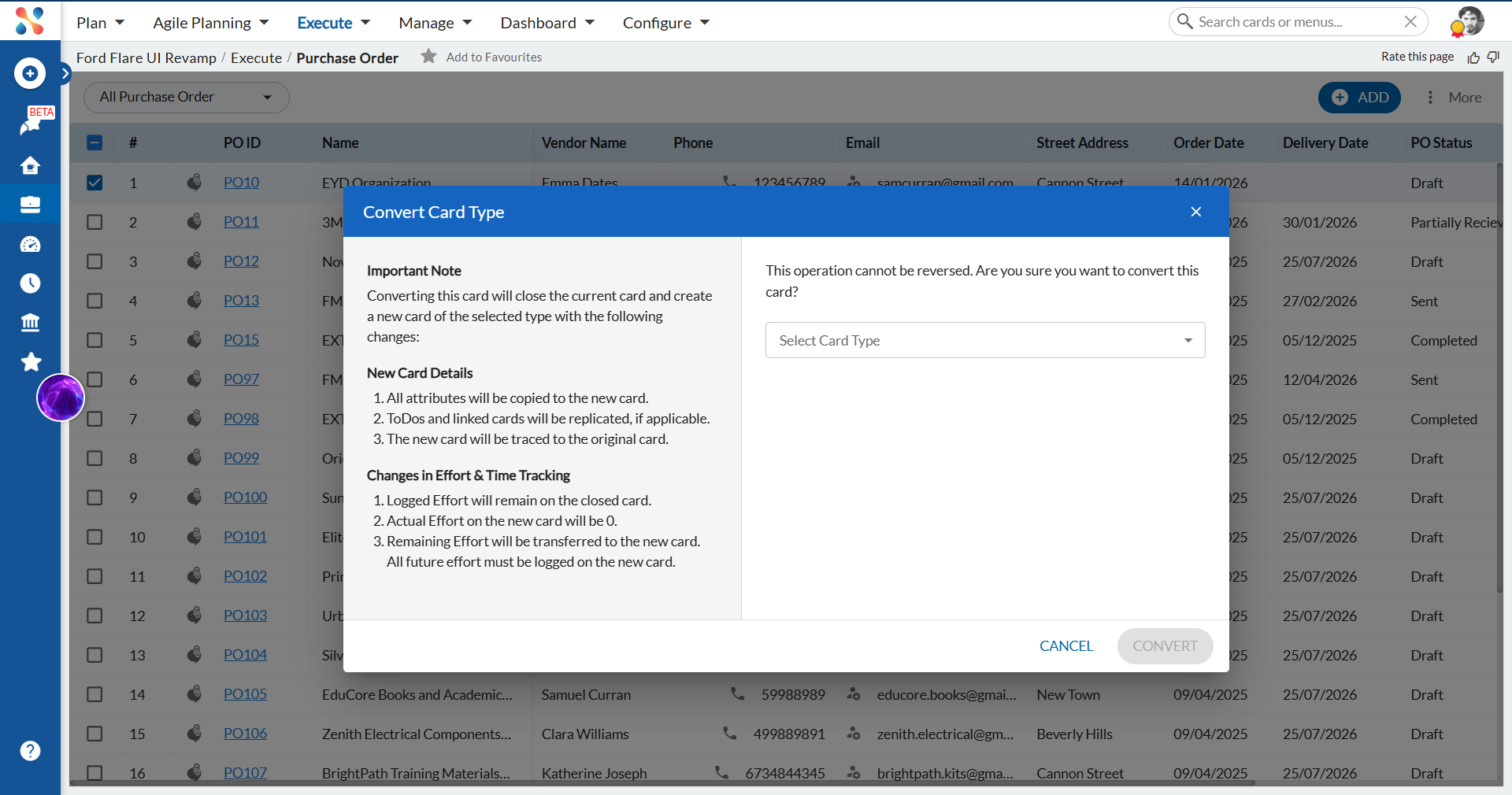
Step 3 — Review the Convert Card Type Modal
The Convert Card Type modal appears with two sections:
- Left — Important Note: Describes what the conversion will do:
- The current card will be closed and a new card of the selected type will be created.
- All field data will be copied to the new card.
- ToDos and linked cards will be replicated, if applicable.
- The new card will be traced back to the original card.
- Logged Effort remains on the closed card; Remaining Effort is transferred to the new card.
- Right — Select Card Type: A warning confirms the operation cannot be reversed, and a dropdown lets you select the target card type.
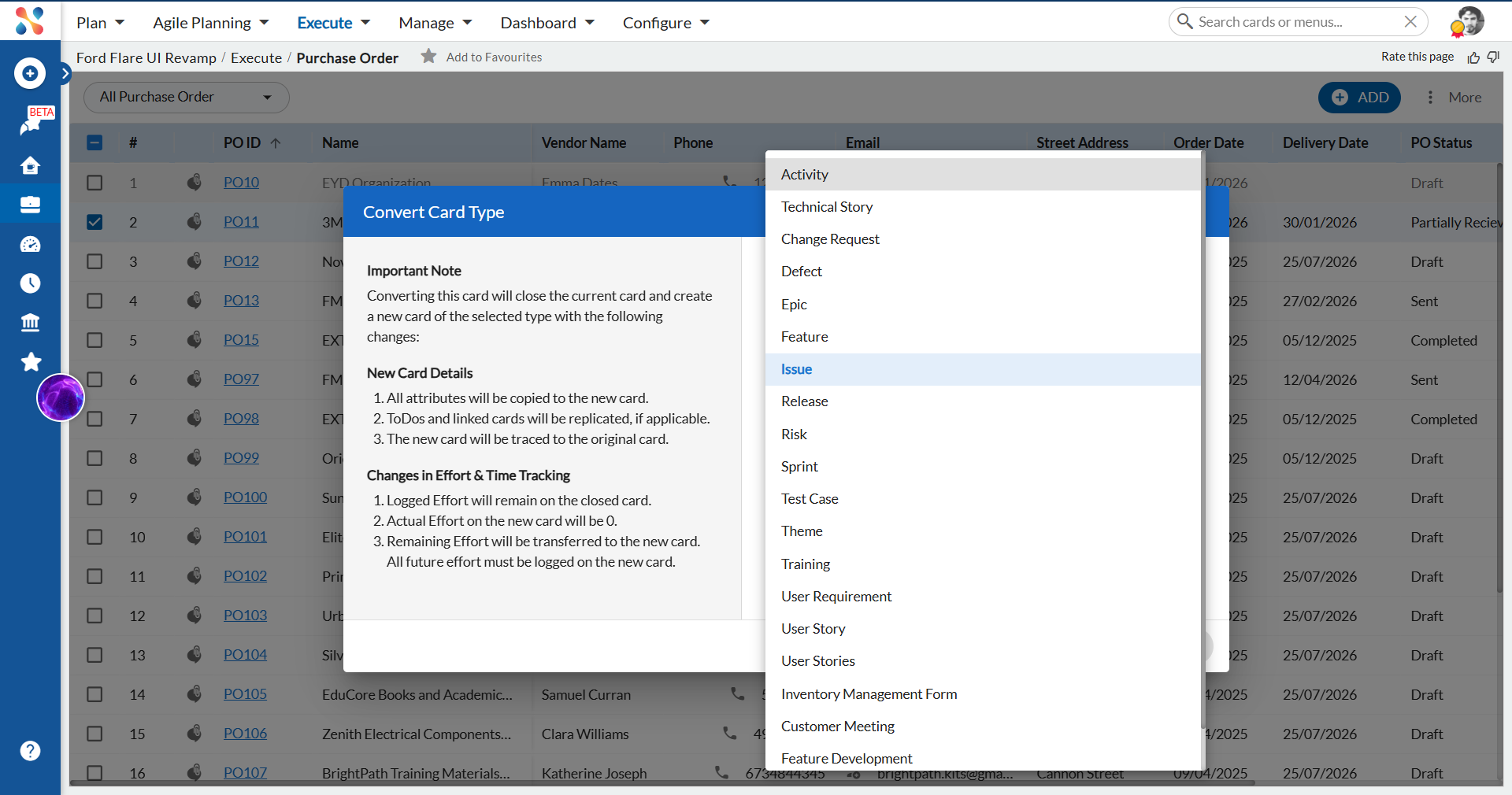
Step 4 — Select the Target Card Type
Click the Select Card Type dropdown. All available card types in your project are listed. Select the target type — in this example, Issue.
Step 5 — Click Convert
Once a card type is selected, the CONVERT button becomes active. Review your selection and click CONVERT to proceed.
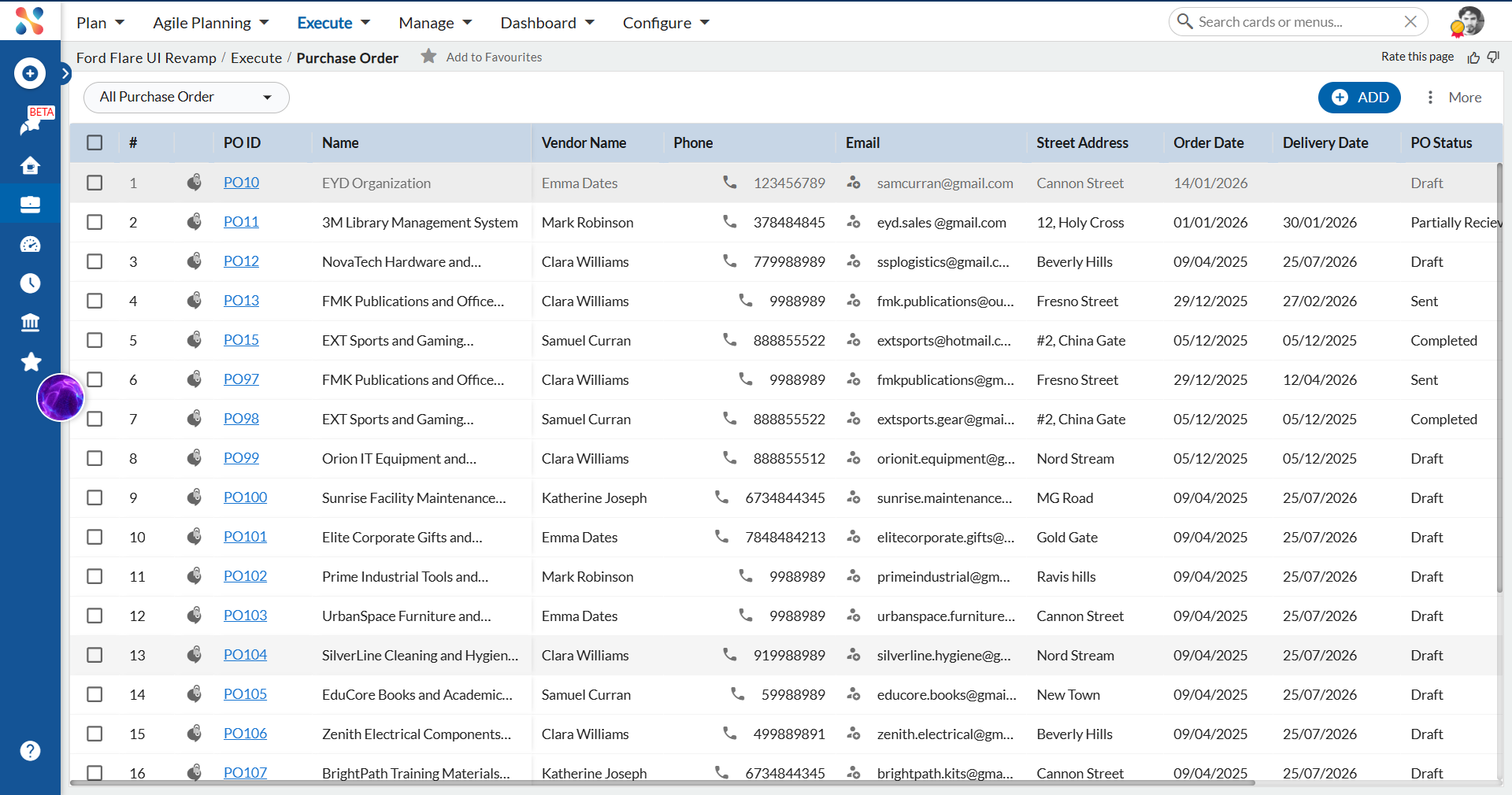
Result
A success notification confirms the conversion. The original PO10 Purchase Order card is now closed and a new Issue card has been created, trace-linked to the original card for full traceability.
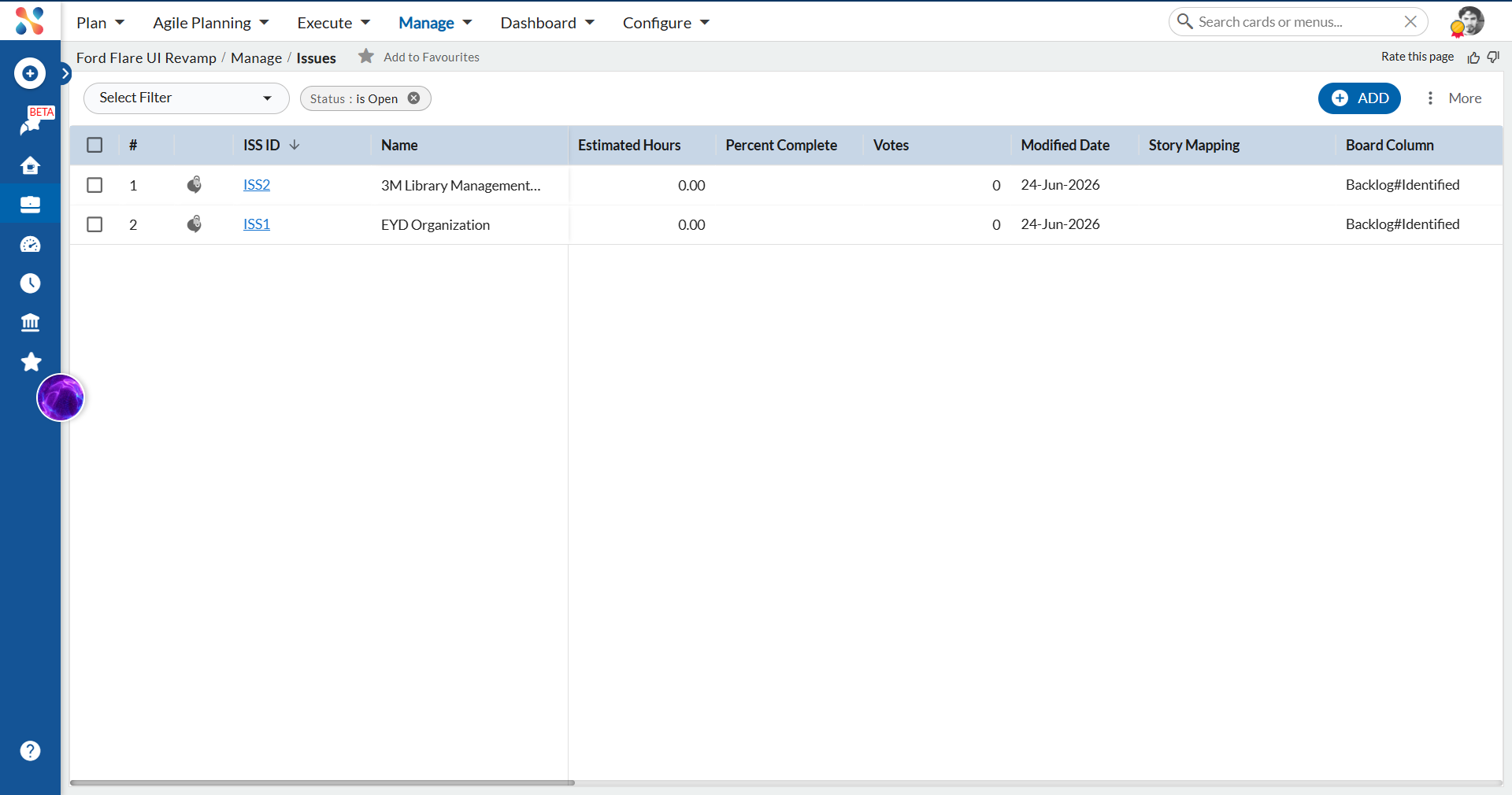
Step 6 — View the New Issue Card in the Issues Listing
After conversion, navigate to the Issues listing (Manage menu) to find the newly created Issue card. The converted card appears in the listing with its new Issue ID.
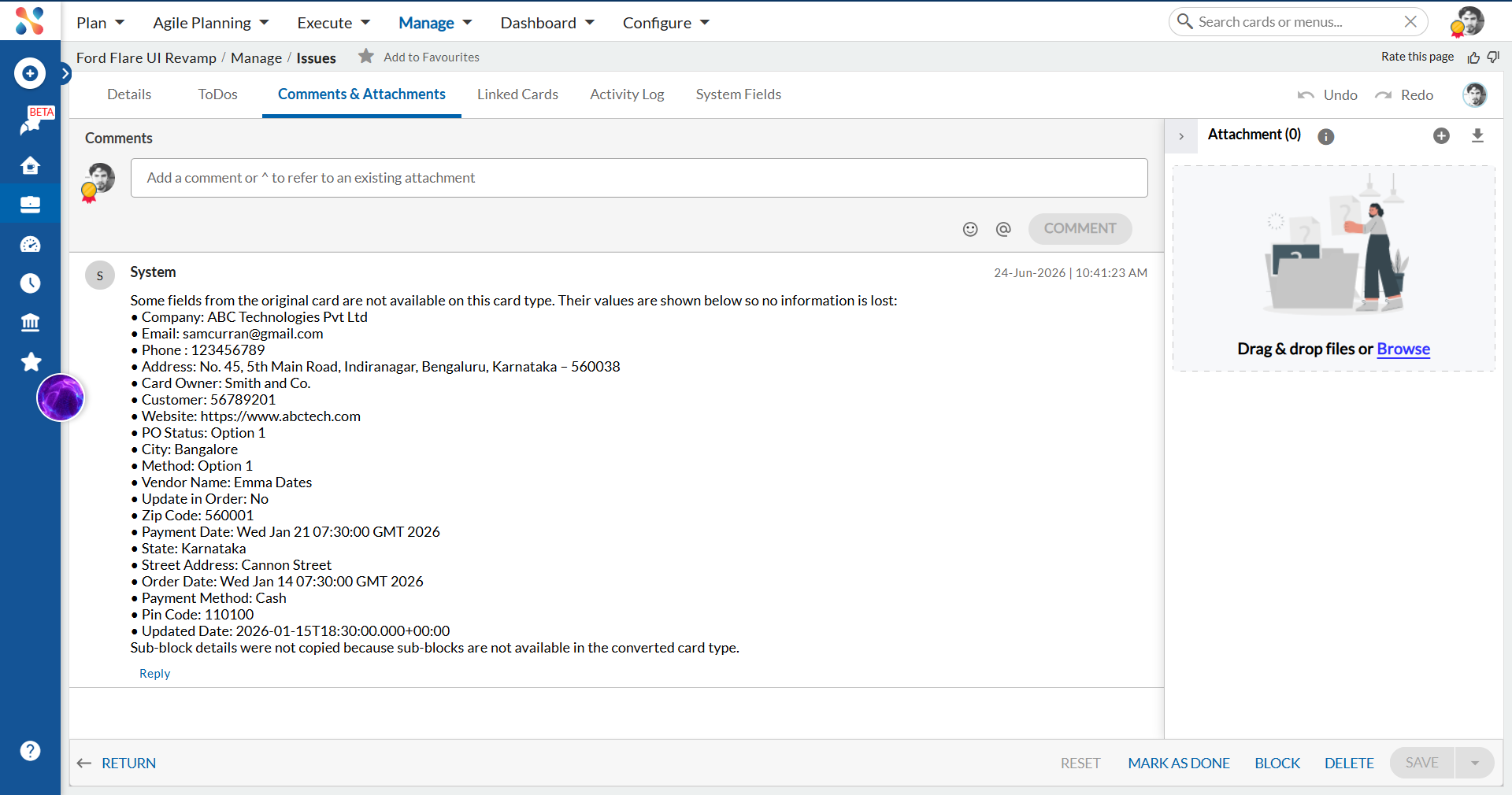
Result — System Comment on Unmapped Fields
Open the new Issue card and click the Comments & Attachments tab. A system-generated comment lists all fields from the original Purchase Order card that could not be mapped to the Issue card type. No data is lost — it is all preserved in this comment for reference.
Important Notes
- Only workitems in an active (non-closed) state can be converted. Closed cards are not eligible for conversion.
- If a card has logged effort pending approval, conversion is blocked until the approval is resolved.
- Only card types for which you have create access are available in the dropdown.
- If mandatory fields in the target card type are not mapped from the source, you will be prompted to fill them in before the conversion completes.
- The conversion cannot be reversed.
- For bulk conversion, you can select multiple workitems. If some are ineligible, the system will display a warning and allow you to proceed with eligible cards only.