
Overview
An MCP Client lets you connect an external application — such as an AI agent, automation script, or backend service — to Nimble using the Model Context Protocol (MCP). It uses OAuth 2.0 client credentials, so the application authenticates on its own, with no user login required at run time.
When you register an MCP Client, Nimble generates a Client ID and a Client Secret. You add these credentials to your tool’s MCP configuration to read and manage your workspace data programmatically.
What You Can Use It For
Register an MCP Client whenever you want a tool or service to work with Nimble automatically. Common examples include:
- Custom AI agents — connect a LangChain, CrewAI, or local LLM agent to your Nimble workspaces.
- Automation scripts — create a card from a webhook, or close overdue cards on a schedule.
- Service integrations — turn a support ticket into a bug card, or a CRM deal into a delivery card.
- Reporting bots — generate a weekly sprint summary, burndown, or overdue report.
- Time logging — log hours from a time-tracking tool to the matching card.
- CI/CD pipelines — update card status on deployment, block on failure, or log build time.
Prerequisites
- You need access to Account Space > Administration (available to administrators).
- An MCP-compatible tool or client that you want to connect to Nimble.
Register an MCP Client
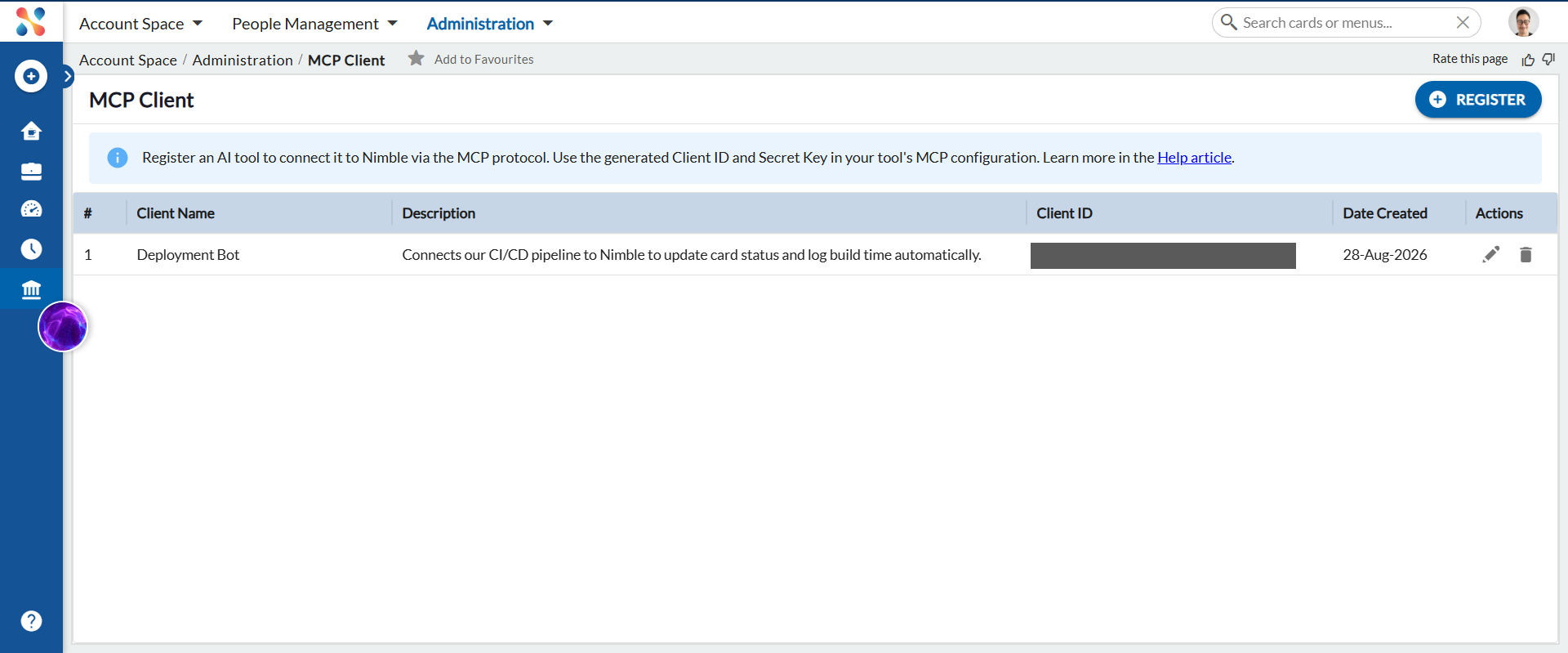
Go to Account Space > Administration > MCP Client. This screen lists your registered clients and lets you add new ones.
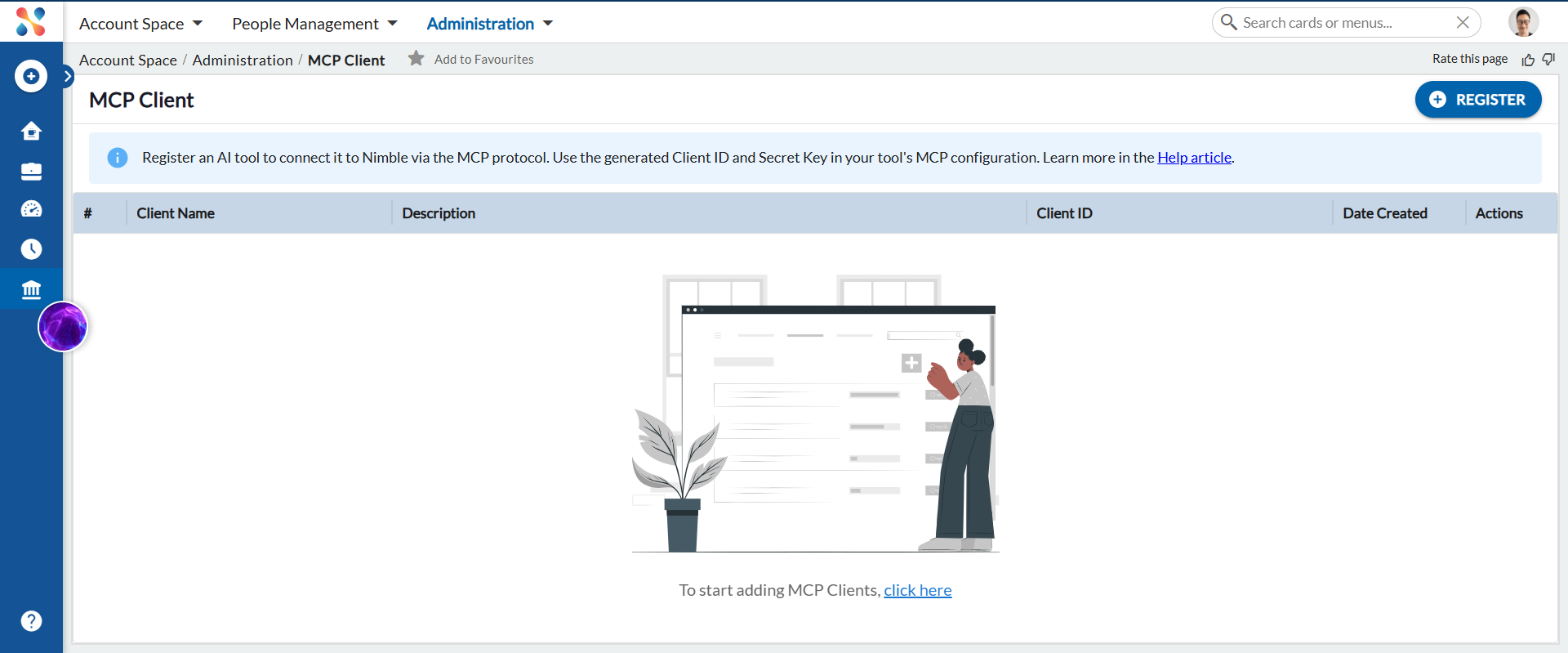
To register a new client:
- Click REGISTER.
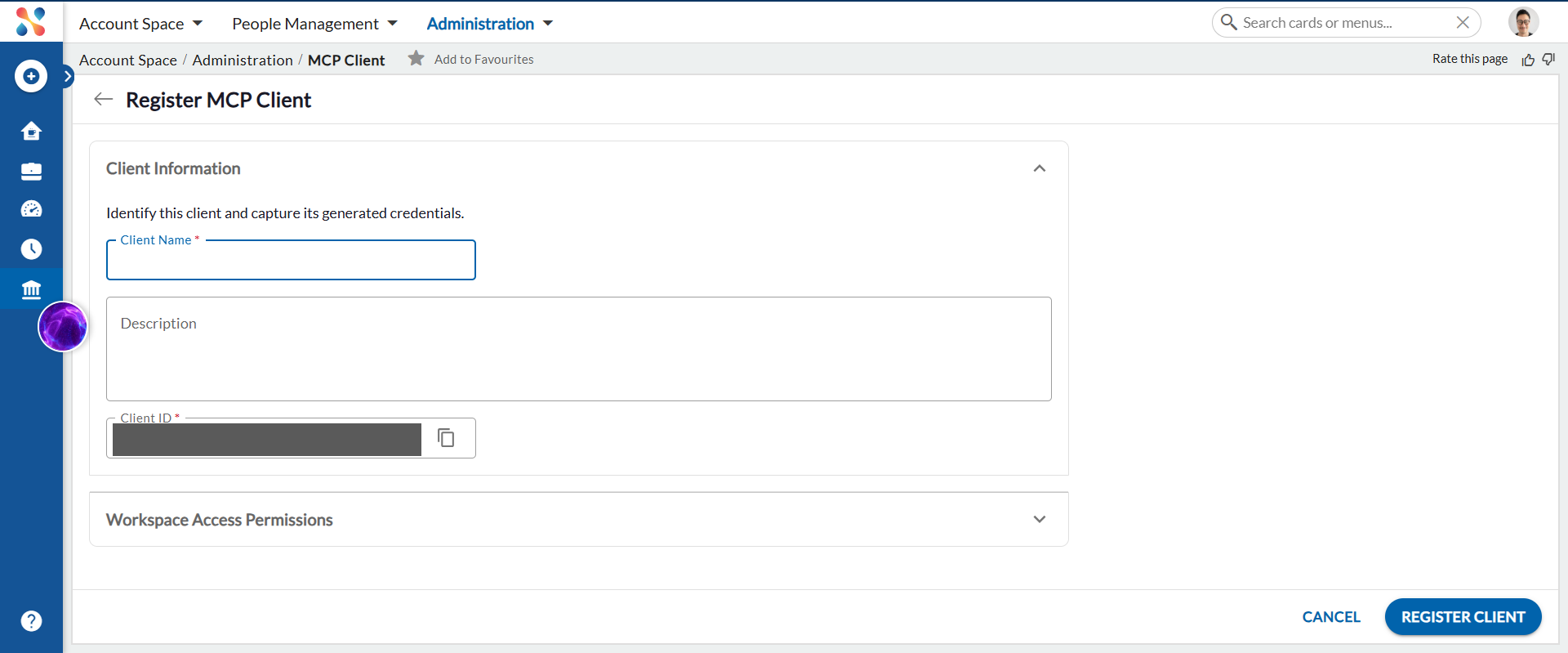
- Enter a Client Name to identify the client, and an optional Description.
- A Client ID is generated automatically. You can edit it before saving if needed.
- Expand Workspace Access Permissions and select the workspaces and operations — Read Card, Create Card, Update Card, Close Card, and Delete Card — that this client is allowed to perform. Grant only the permissions the client needs.
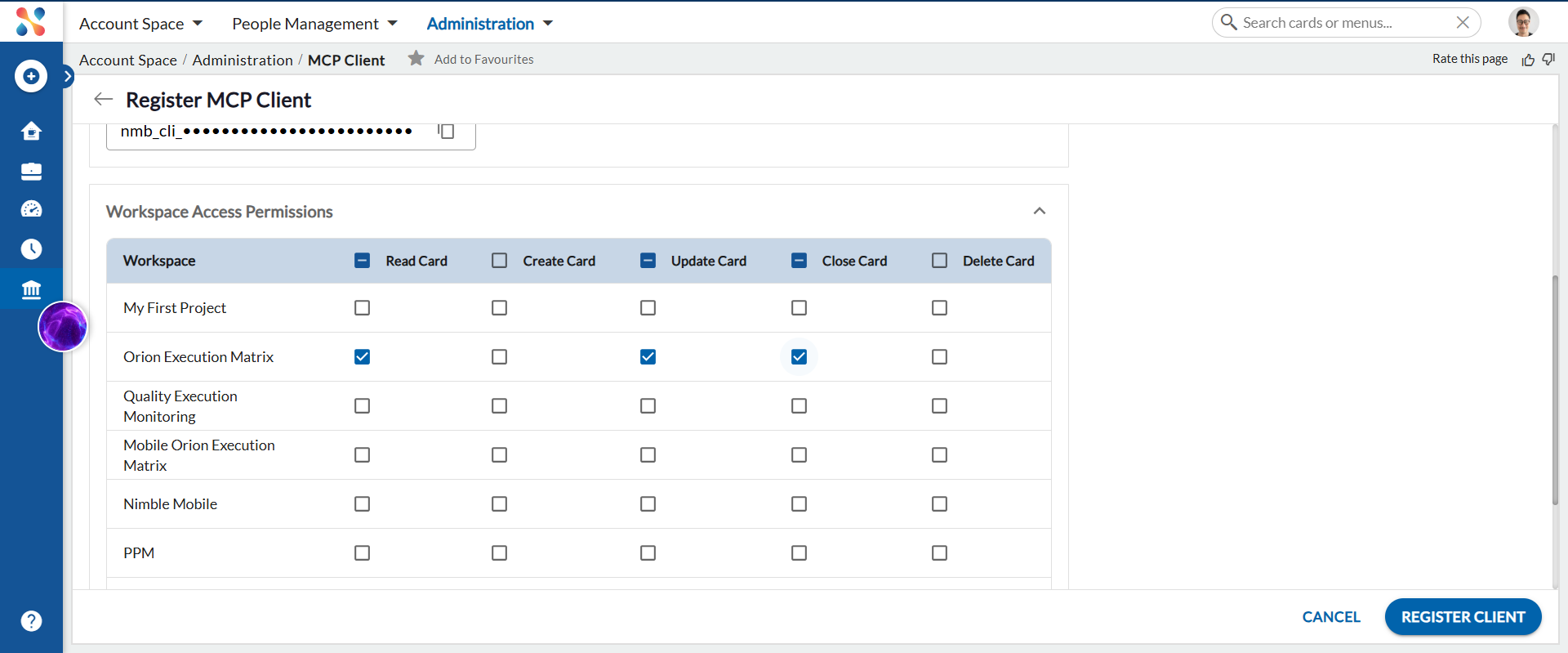
- Click REGISTER CLIENT.
Nimble displays the Client ID and a one-time Client Secret. Copy the Client Secret and store it securely — it is shown only once and cannot be retrieved again (only regenerated).
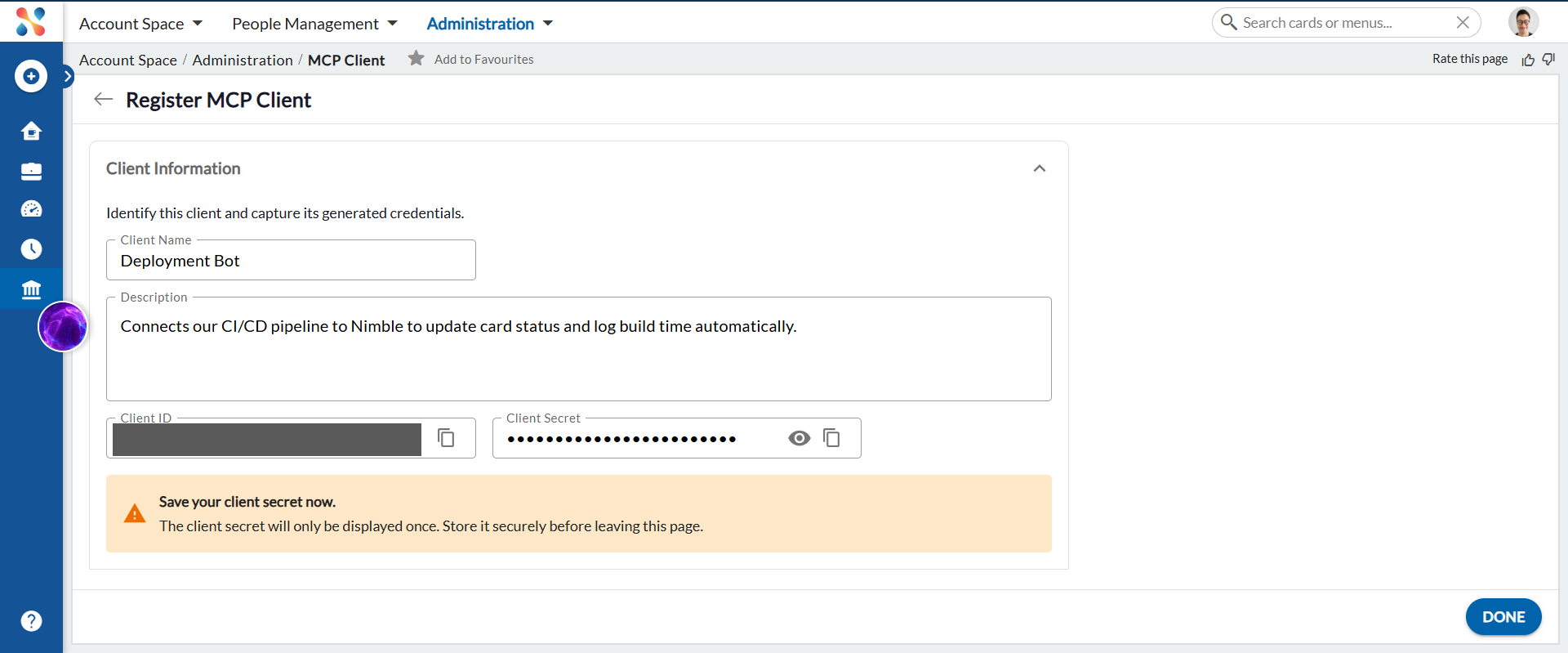
Click DONE. The new client now appears in the list, where you can edit or delete it later.
Get an Access Token
Your application exchanges its Client ID and Client Secret for an access token using the OAuth 2.0 client credentials grant:
POST https://auth.digite.com/rest/v1/oauth/token
Content-Type: application/x-www-form-urlencoded

grant_type=client_credentials
&client_id=nmb_cli_abc123...
&client_secret=<your-secret>
&resource=https://api.digite.com/mcp/v1
The response returns an access token that you use as a Bearer token:
{
  "access_token": "eyJhbGci...",
  "token_type": "Bearer",
  "expires_in": 3600,
  "scope": "read:workspaces read:forms read:instances write:instances"
}
The resource parameter scopes the token to the MCP server. Cache and reuse the token until it expires — do not request a new token for every call.
Connect to the Nimble MCP Server
- Endpoint:
POST https://api.digite.com/mcp/v1 - Transport: Streamable HTTP, with all calls made using JSON-RPC 2.0.
- Authentication: include
Authorization: Bearer <access_token>on every request, includinginitialize.
Follow the standard MCP Streamable HTTP transport protocol to connect to and interact with the server.
Important Points
- An MCP Client connects using its own credentials, with no user login required at run time. Actions performed through it are attributed to the client, not to the user who registered it.
- The Client Secret is displayed only once, at registration. If you lose it, regenerate it rather than creating a new client.
- Grant each client only the workspace permissions it needs.