
Skip Ahead to:
| 1Overview |
| 2Navigation |
| 3Understand the Release & Sprint Status Views |
| 4Monitor Work Using the Parent-Child Tab |
| 5Monitor Work Using the Releases & Sprints Tab |
| 6Parent-Child vs. Releases & Sprints |
Overview
Once work is planned across a program, the next question is how it is going. Release & Sprint Status answers that in one screen.
It reads the whole program at once. Every child project, every release, every sprint and every card sits in one grid, with a progress figure on each row. You do not have to open each project and add the numbers up by hand.
In fact, the screen holds the same information twice, in two views. One arranges it by parent and child card. The other arranges it by project and release. Which you use depends on the question you are asking.
!This Screen Reports, It Does Not Plan
Release & Sprint Status reads work that is already planned. To change which release or sprint a card sits in, use Release Planning at the Program Level or Sprint Planning at the Program Level.
Program Projects and Ordinary Projects
Release & Sprint Status is available on every project. The screen and its two tabs are the same in both cases. However, what changes is how much it covers.
On an ordinary project it reports that project’s own cards. On a Program project it reports the program and every child project linked to it, which makes it cross-project monitoring. Because of that, the Project column on the Parent-Child tab tells you which project each card belongs to, and parent cards can gather children from several projects at once.
The same screen on an ordinary project
On a child project the grid is a flat list of that project’s cards. There are no cross-project parent rows, and the Project column has nothing to distinguish:
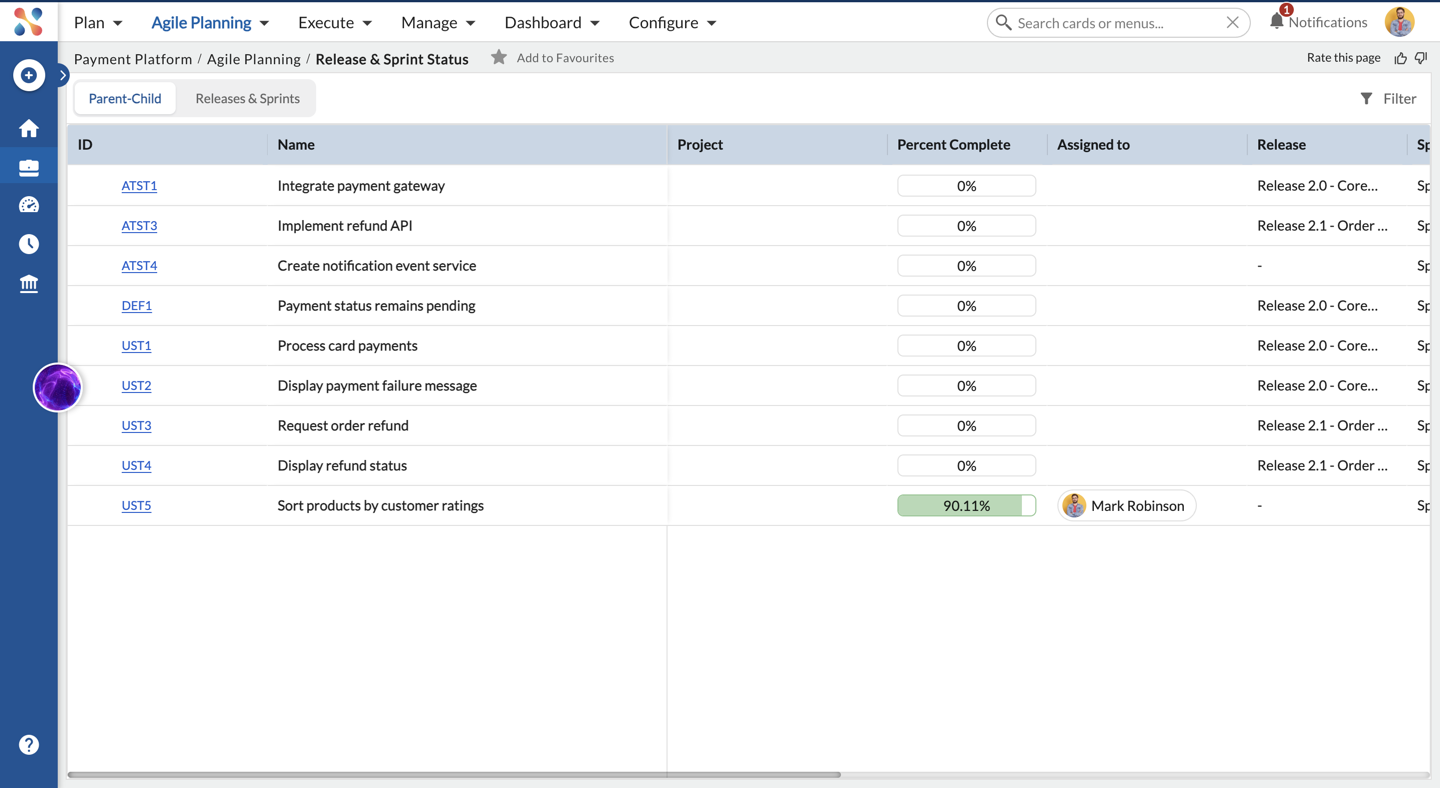
To set the category, see How to Set Up a Program Project.
Navigation
Navigate to the breadcrumb at the top, hover over the program name, expand the Agile Planning module, then select Release & Sprint Status.
Understand the Release & Sprint Status Views
The screen opens with two tabs. However, they show the same cards, arranged differently.

Parent-Child
Arranges the grid by card relationship. Each parent card is a group row, and the cards that roll up to it sit beneath. So use it to follow a piece of work from the epic downwards.
Releases & Sprints
Arranges the grid by delivery window. Rows group by project, then by release, then by sprint. Use it to follow a release or a sprint across the program.
How the Two Views Complement Each Other
A card belongs to a parent, and it belongs to a release and a sprint. Each view surfaces one of those two and reports the other in a column.
So Parent-Child answers “is this epic on track, and who is delivering it?” while Releases & Sprints answers “is this release on track, project by project?”
The Parent Card column is what carries you between them. Spot a card holding a release back, note its parent, then switch to Parent-Child and expand that parent. You will see whether the problem is one card or the whole epic.
Monitor Work Using the Parent-Child Tab
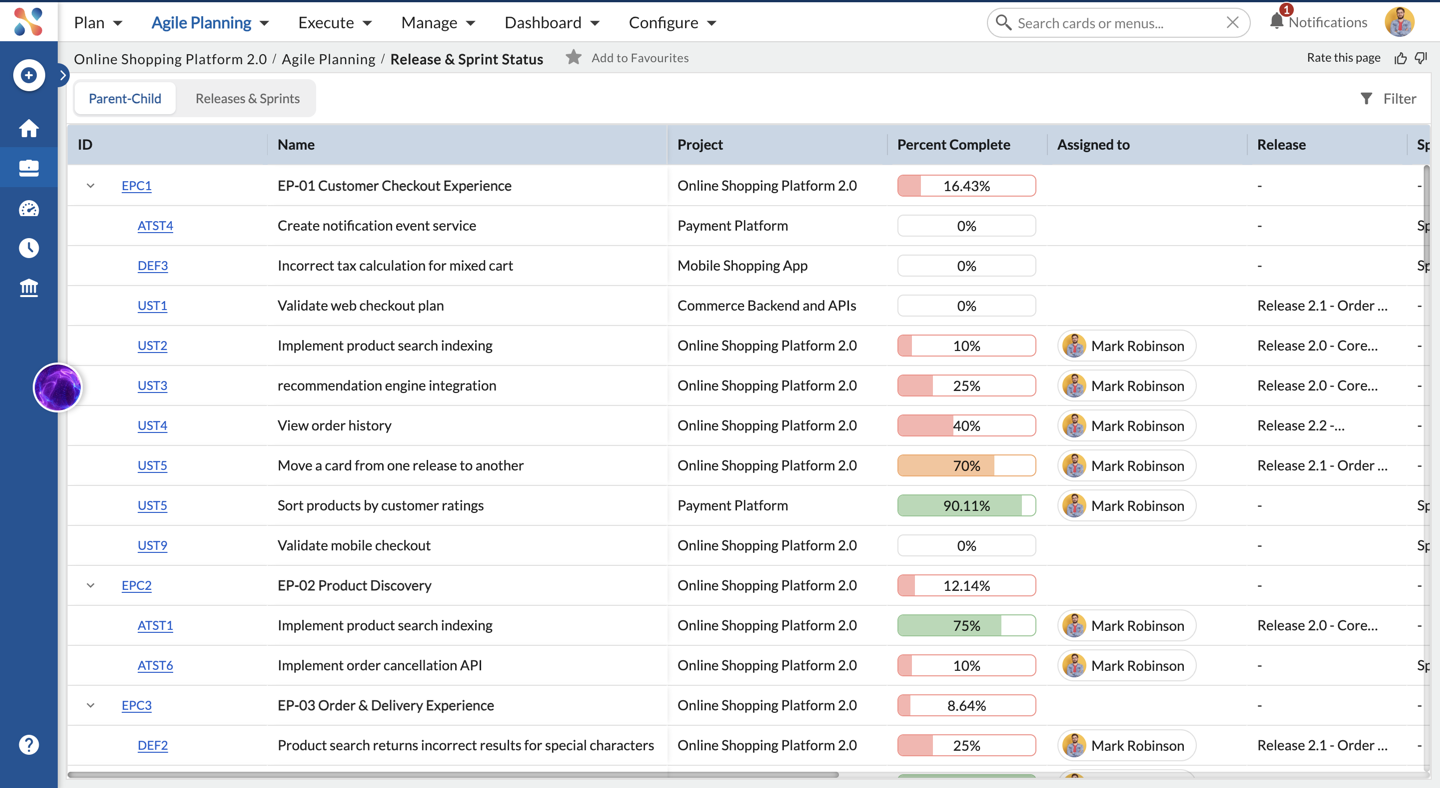
The Parent-Child View
A hierarchical list of the program’s work. Parent cards form the group rows. Expanding one reveals every card that rolls up to it, no matter which project that card lives in.
Columns on This Tab
Every row on the Parent-Child tab carries the same set of columns. Group rows roll the figures up.
Select Filter, at the top right, to narrow the grid by project or by card type. Learn more about it here.
You can also perform common operations such as rearranging column fields and sorting.
Understand the Workitem Hierarchy
Above all, this is the view’s real value on a program. For example, an epic owned by the program can have children sitting in several different child projects. The Project column names the project for each child, so you can see at a glance how many teams a single epic depends on.
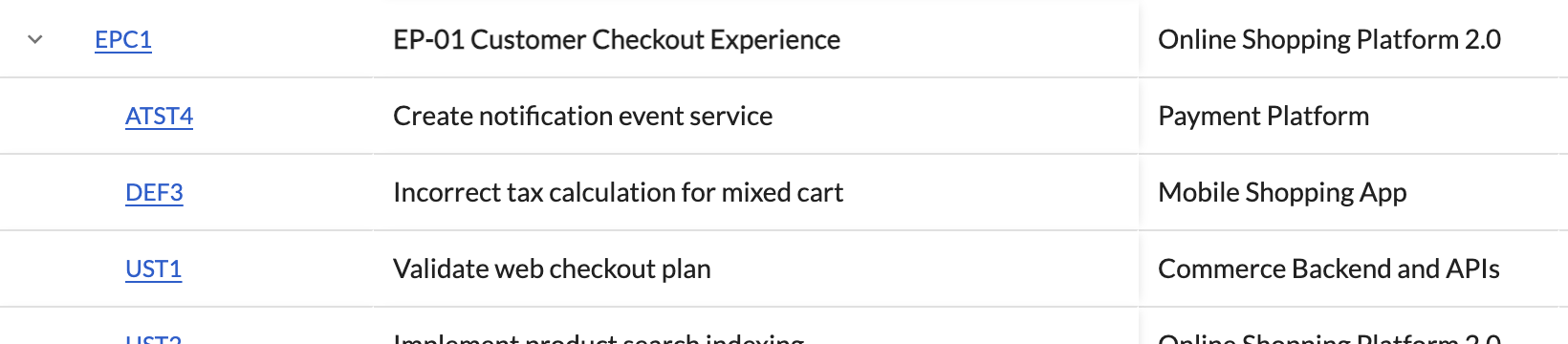
Select the chevron beside a parent card to expand or collapse it. Select a card ID to open that card.
Track Workitem Progress
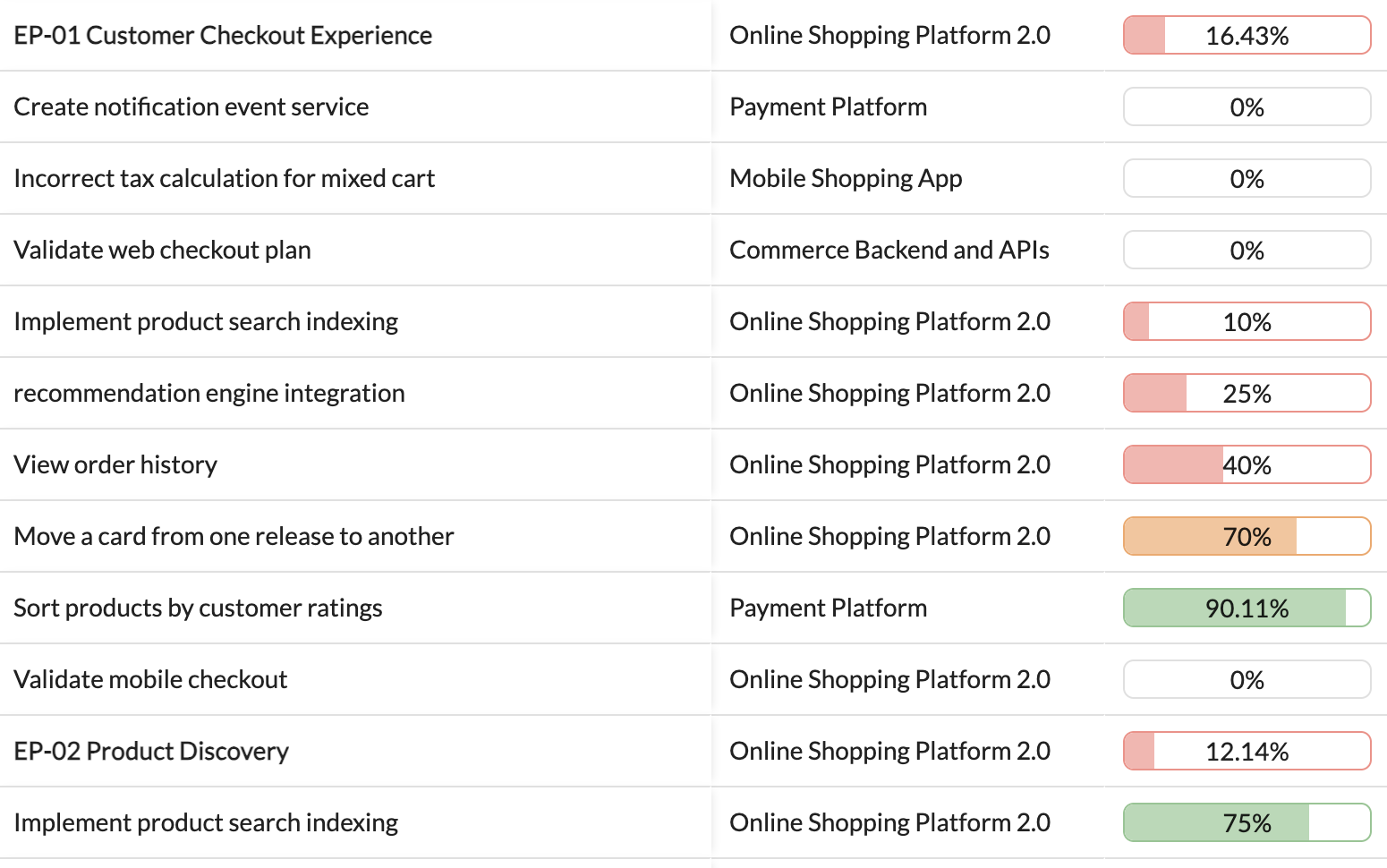
Percent Complete shows how far along each card is, as a colour-coded bar.
On a group row, the figure is the average of its immediate child cards. So an epic at 16% is not 16% of its own work — it is the average across the cards directly beneath it.
Track Ownership and Assignments
Assigned to names the person who owns each card. Scanning this column down an expanded epic tells you who is carrying it, and whether the work sits with one person or is spread across teams.
Track Releases and Sprints
On this tab the Release and Sprint columns report where each card is scheduled. A dash means the card is not yet assigned to one. That is the quickest way to spot work that belongs to an epic but has not been planned into a delivery window.
Track Effort and Estimates
Four columns cover effort: Estimated Points, Estimated Hours, Actual Hours and Remaining Hours.
iWhere the Hours Come From
The hour columns are populated from the To-dos tab of a card. Until to-dos carry values, these columns stay empty.
When to Use the Parent-Child View
- You want to know whether an epic or feature is on track.
- Several projects contribute to one goal, and you need to see which.
- Some cards under an epic have no release or sprint yet, so you want to find them.
Monitor Work Using the Releases & Sprints Tab
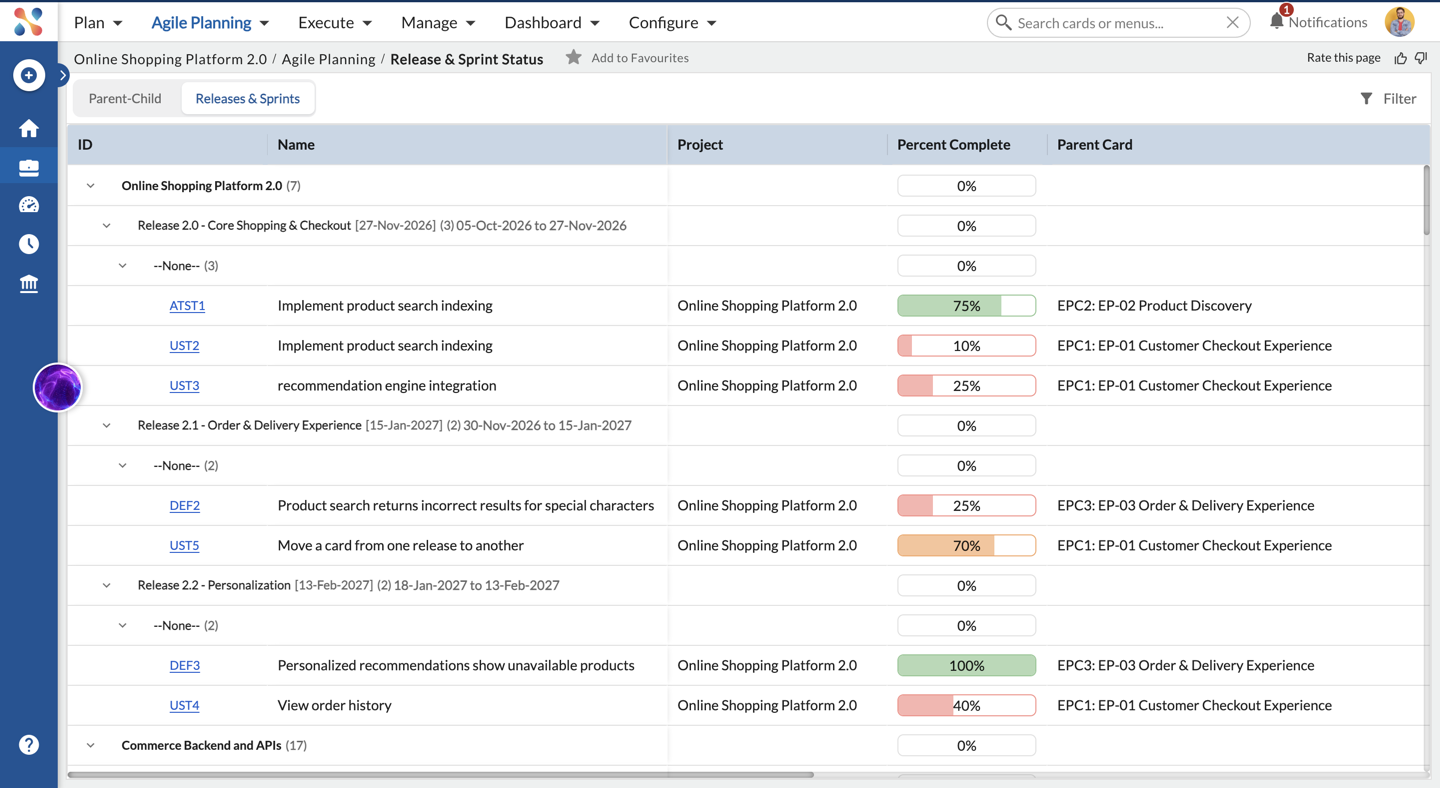
The Releases & Sprints View
The same cards, arranged by delivery window instead of by parent. It answers how each release and sprint is progressing, project by project.
How the Grid Is Organised
The grid nests three levels deep before it reaches the cards.
View the Program
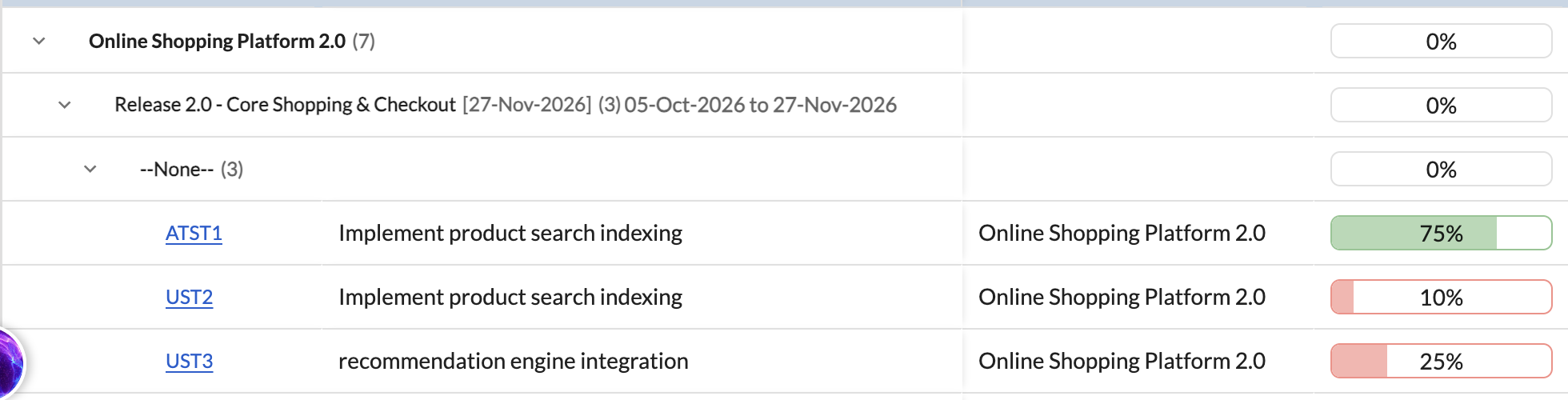
The outermost group row is a project — the program itself first, then each child project linked to it. The number in brackets is how many cards that project has in view. Collapse a project to take it out of your way while you read another.
View Releases
Inside each project sit its releases. A release row shows the release name, its end date in square brackets, its card count, and its full date range. Then expand it to see what is planned.
View Sprints and Workitems
Inside each release sit its sprints, and inside those sit the cards. A card assigned to a release but not yet to any sprint appears under a group named –None–. That group is worth watching: the work is committed to the release but not yet scheduled.
Track Percentage Completion
Every level carries a Percent Complete bar, and each one is the average of its immediate children. A sprint averages its cards, a release averages its sprints, and a project averages its releases. So a low figure high up tells you where to expand next.
Understand Parent Cards
This tab drops the Project, Release and Sprint columns and carries a Parent Card column instead, written as the card ID and name together. It tells you which goal a card serves while you are reading a release, which is the link back to the other view.
It needs no Project column, because the rows are already grouped by project — the project is the outermost group row above each card.
When to Use the Releases & Sprints View
- You want to know whether a release or sprint will land.
- Different projects share the same release, and you need to compare how each is progressing.
- Although a card is committed to a release, it may not yet be scheduled into a sprint.
Parent-Child vs. Releases & Sprints
What Each View Helps You Understand
Parent-Child explains why work exists. It traces every card back to the goal it serves, and shows how many teams that goal depends on.
Releases & Sprints explains when work will land. It traces every card to a date, and shows how loaded each window is across the program.