
Skip Ahead to:
Overview
When several teams work towards one goal, each team plans well on its own and the whole still drifts. Dependencies surface late, two teams discover they need the same backend service in the same fortnight, and nobody can answer “is the quarter on track?” without opening every project and adding it up by hand.
So a Program Project solves the grouping problem. You nominate one project as the program, link the team or child projects beneath it, and from that point the program becomes a planning surface in its own right — one board showing every team’s tasks, one place to share releases/sprints, and one status view across the whole increment.
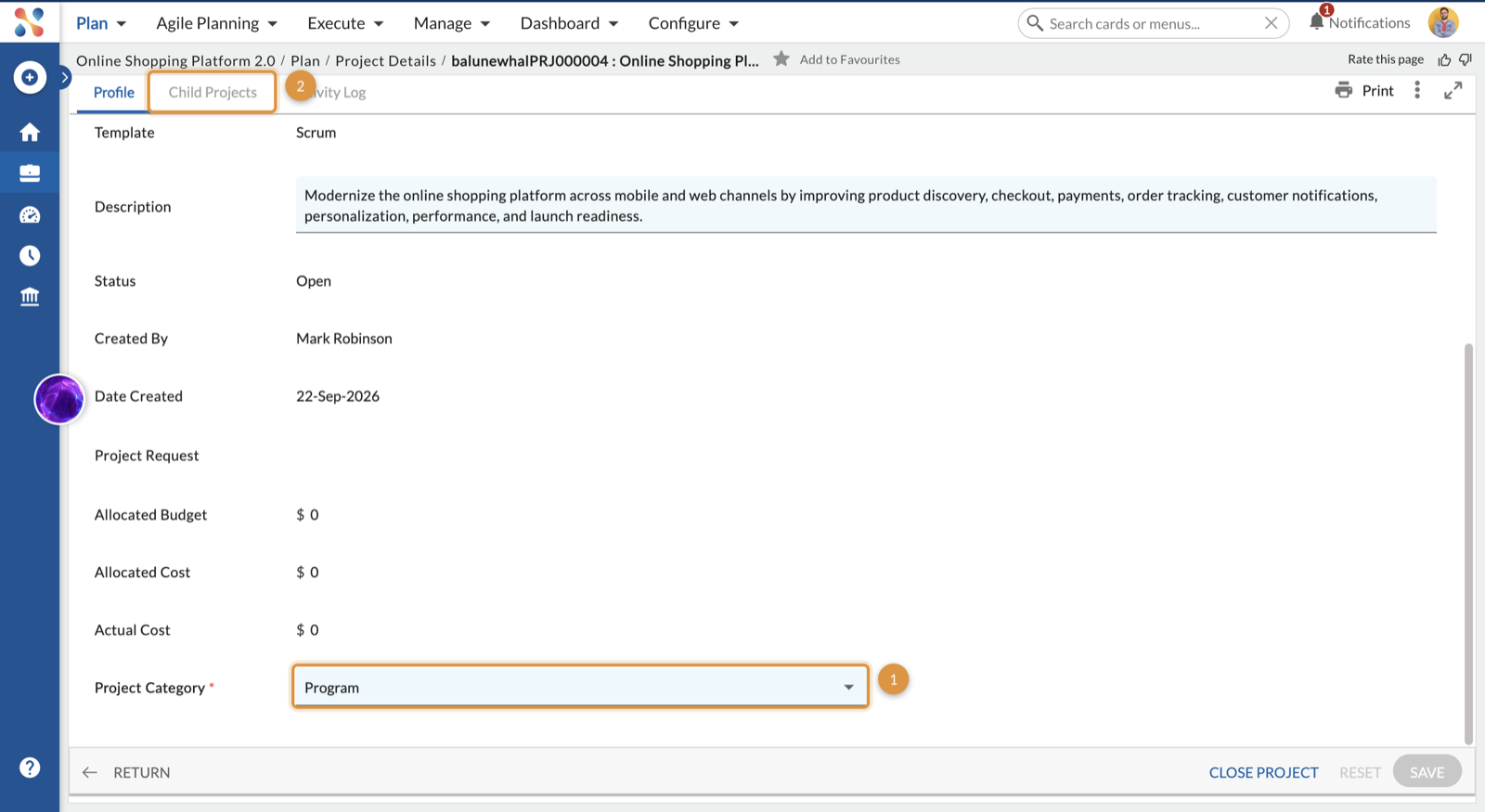
This is the first thing to set up. Release Planning, Sprint Planning and Release & Sprint Status at the program level all depend on the hierarchy existing, and none of the program-level views appear until a project’s category is set to “Program” in the Project Details page.
Note
Nimble has two different parent-child relationships, and they are independent of each other.
- The project hierarchy is a Program Project with child projects beneath it. That is what you build in this article.
- The workitem hierarchy is a card with child cards beneath it, such as an epic and its user stories.
Therefore, building the project hierarchy does not create any workitem hierarchy.
Navigation
Navigate to the breadcrumb at the top and select Plan → Project Details for the project you want to make a program.
How to Set Up a Program Project?
To set up a Program Project, perform the following steps –
- Create the program project and the child projects as ordinary projects first. To learn more on how to create a project/program, click here.
- Open the program project and navigate to Plan → Project Details.
- Set Project Category to Program.
- Select Save. The Child Projects tab appears.
Link Child Projects
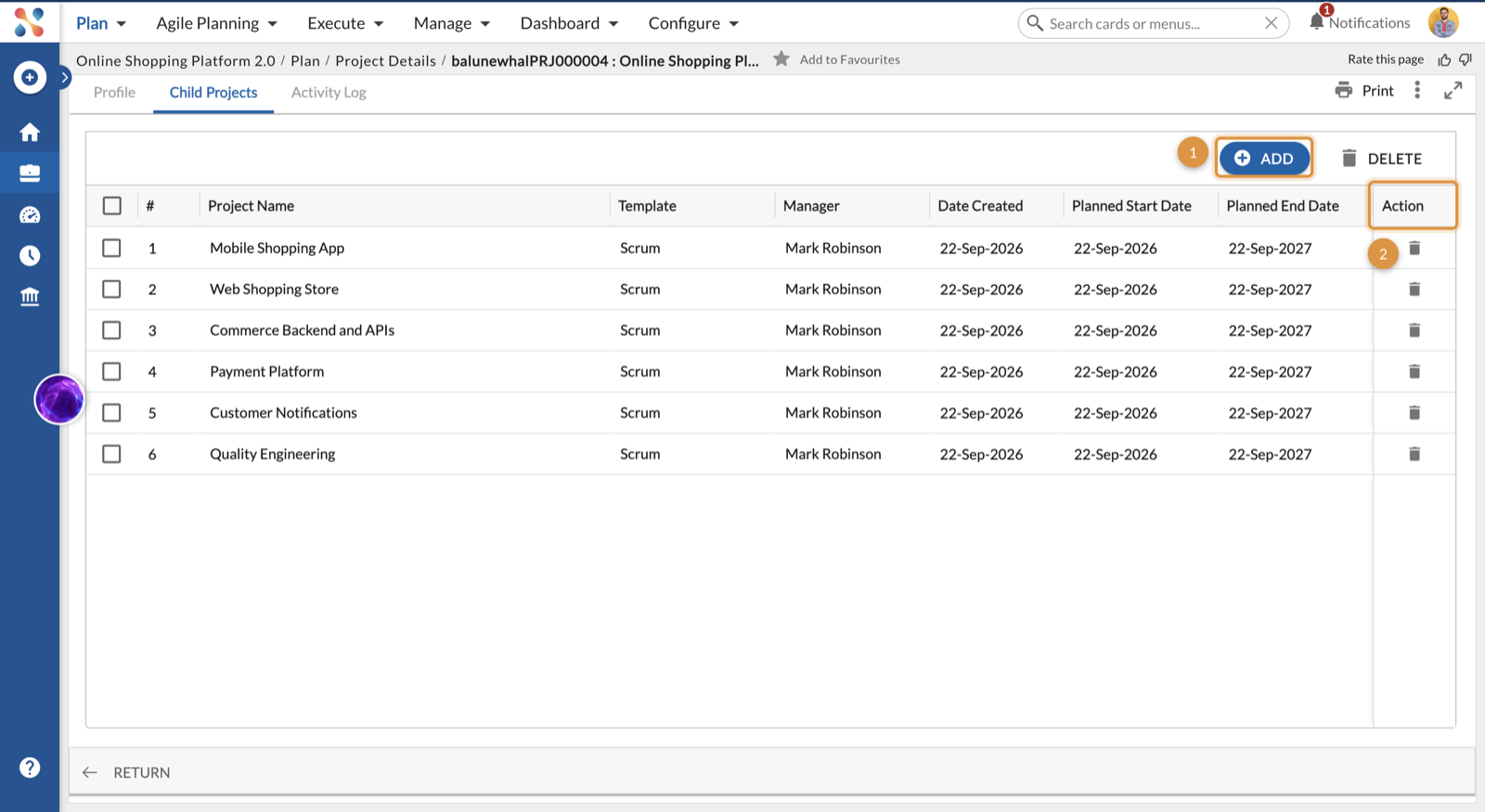
- Open the Child Projects tab and select ADD.
- Select the child projects you want to link and click ADD to confirm.
- Verify the hierarchy in the grid that appears.
Note
Set the category to Program before adding children. The Child Projects tab does not exist while the category is Project, and the selection list only offers projects that already exist.
Layout of the Child Projects Tab
Note that this tab appears only for projects whose Project Category is Program. Before any children are assigned, it shows an empty state inviting you to group existing projects under the program. Selecting ADD opens a searchable, multi-select list of eligible projects. Tick the projects you want to attach and confirm.
Program Hierarchy Grid
Once children are assigned, the tab lists them with Project Name, Template, Manager, Date Created, Planned Start Date and Planned End Date, along with an action to remove/de-link a child project. Above all, this grid is the quickest way to catch a setup mistake. A child project on a different template, or one with dates well outside the program window, shows up here before it causes confusion on the planning board.
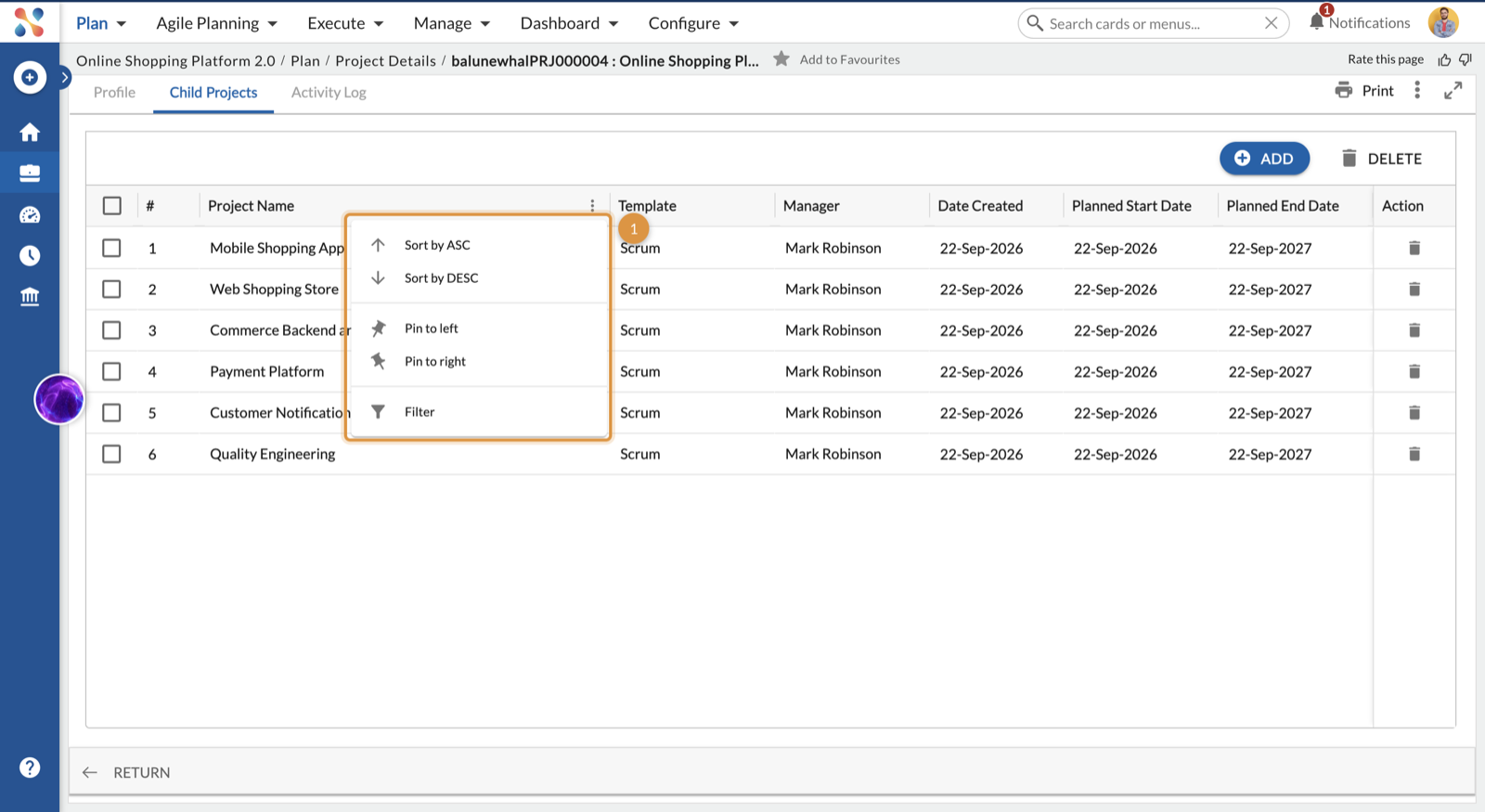
You can perform common operations such as rearranging column fields, sorting, and filtering.
Rules You Should Know
1Which Projects Can Become Children
The selection list only offers eligible projects. It excludes, and does not display at all:
- Projects whose category is Program
- Projects already assigned as a child of another program
- The current project itself
A project can belong to only one program. Once linked, it no longer appears in any other program’s selection list.
Note
The hierarchy is single-level. A child project cannot itself be a Program, so programs cannot be nested inside other programs.
2Changing the Category After Children Exist
- A project that is currently a child of a program cannot be promoted to Program. Remove it from its program first.
- A Program that has at least one child project cannot revert to Project. Remove all child projects first.
3Removing a Child Project
Once you remove a child project from a program, it immediately becomes eligible to join another program. Any releases previously shared with it remain in that project as standalone releases.
4Use the Same Template Across the Program (Recommended)
The template fixes which card types a project has. Mixed templates across a program produce teams whose card types do not line up, which makes the program-level board and status views harder to read.