
Skip Ahead to:
| 1Overview |
| 2Understanding PI Planning |
| 3PI Planning vs. Release Planning vs. Sprint Planning |
| 4How to Run PI Planning in NimbleWork |
Overview
PI Planning is how several teams agree what they will deliver together over the next increment, and how they surface the dependencies between them before the work starts.
NimbleWork has no menu called PI Planning. You run it with a Program project and four screens, each of which already does part of the job.
|
Program Project
the container
|
› |
Child Projects
the contributing teams
|
› |
Release Planning
the increment
|
› |
Sprint Planning
the iterations
|
› |
Release & Sprint Status
the progress
|
This article explains what PI Planning is and when you need it, then shows which screen does what. Each screen has its own article for the detail.
Understanding PI Planning
A Program Increment, or PI, is a fixed block of time in which a group of teams works towards a common set of objectives. It usually spans a quarter and contains several releases and sprints. PI Planning is the event at the start of that block where the teams plan it together.
The idea comes from scaled agile practice, where a single product depends on more teams than one backlog can coordinate.
The Problem It Solves
Sprint planning assumes a team controls its own work. Once delivery depends on several teams, that assumption quietly breaks.
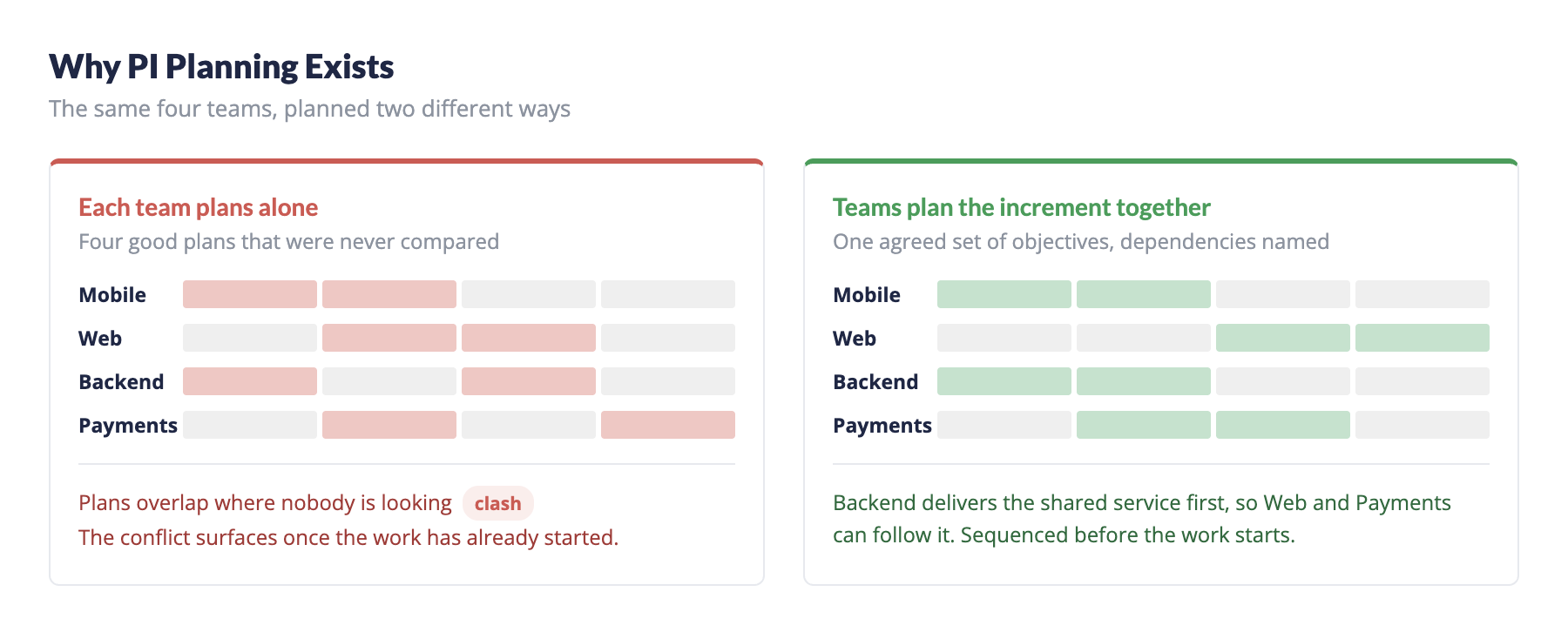
Each team still plans well in isolation. What nobody plans is the space between them. Two teams schedule the same shared service in the same fortnight. A feature waits a month because the team it depends on had other commitments. Nobody can answer whether the quarter is achievable without opening every project and adding it up by hand.
PI Planning closes that gap by moving the conversation up a level. Instead of each team planning privately and discovering the clashes later, they commit to a shared set of objectives in one room, with the dependencies on the table.
What You Get Out of It
- A set of objectives every contributing team has agreed to, rather than several plans that happen to overlap.
- Dependencies named at the start, while there is still room to sequence around them.
- A realistic view of capacity across the whole increment, not team by team.
- One place to answer how the increment is going, once it is under way.
Signs You Need It
PI Planning earns its cost when coordination is the hard part. The usual signals are:
- Several teams or projects contribute to one product or business outcome.
- Work in one team regularly blocks or waits on another.
- Planning has to be coordinated across releases and sprints, not just within a sprint.
- Nobody can give a straight answer about whether the increment will land.
If one team owns the whole outcome, you do not need it. Ordinary release and sprint planning will do.
Who Takes Part
A PI Planning event needs everyone who will commit to the increment, not just the people who manage it.
Organisations that run PI Planning tend to look the same: several related projects under one product, cross-functional teams, and a shared outcome that no single team owns.
PI Planning vs. Release Planning vs. Sprint Planning
The three sit inside one another. PI Planning sets the frame, release planning divides it into shippable pieces, and sprint planning turns a piece into a fortnight of work.
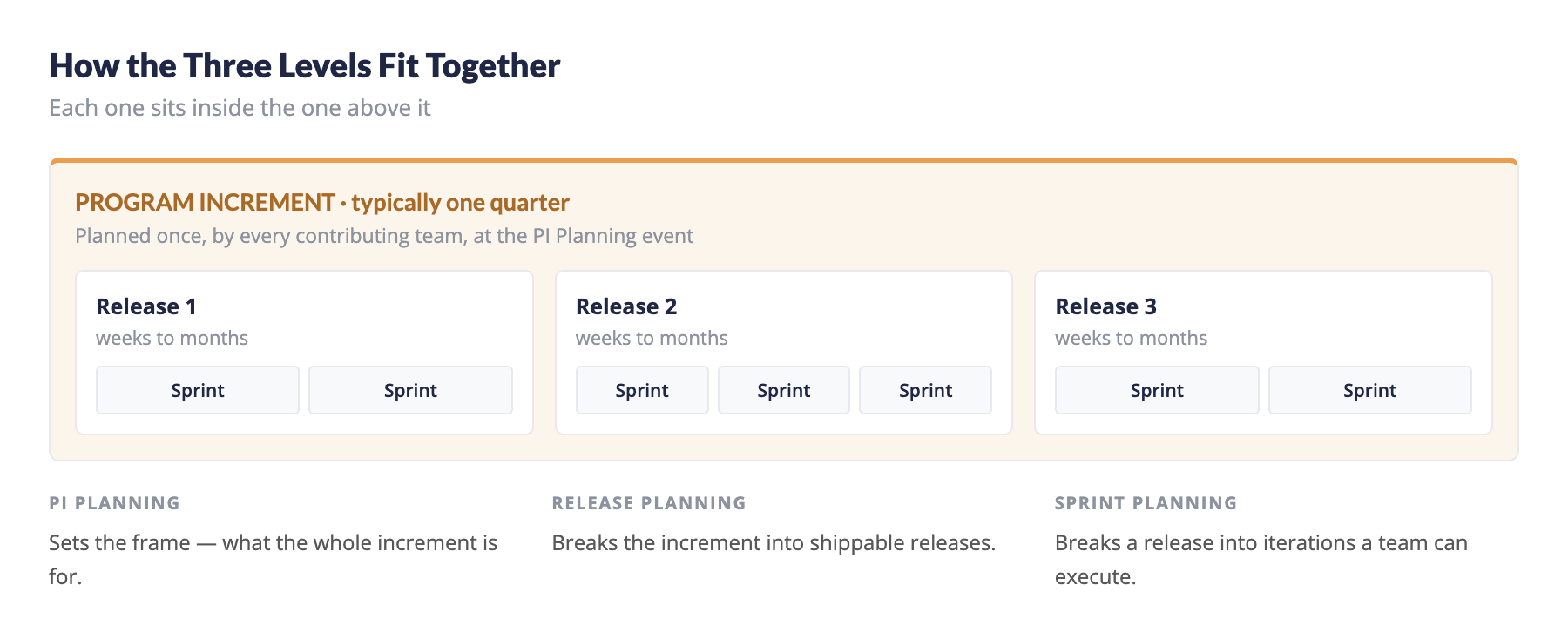
So release and sprint planning still happen exactly as they always did — see Release Planning and Sprint Planning. PI Planning does not replace them. It decides what they are planning towards.
How to Run PI Planning in NimbleWork
The event itself is a conversation. What follows is how you record it in NimbleWork, in order. Each step links to the article that covers it in full.
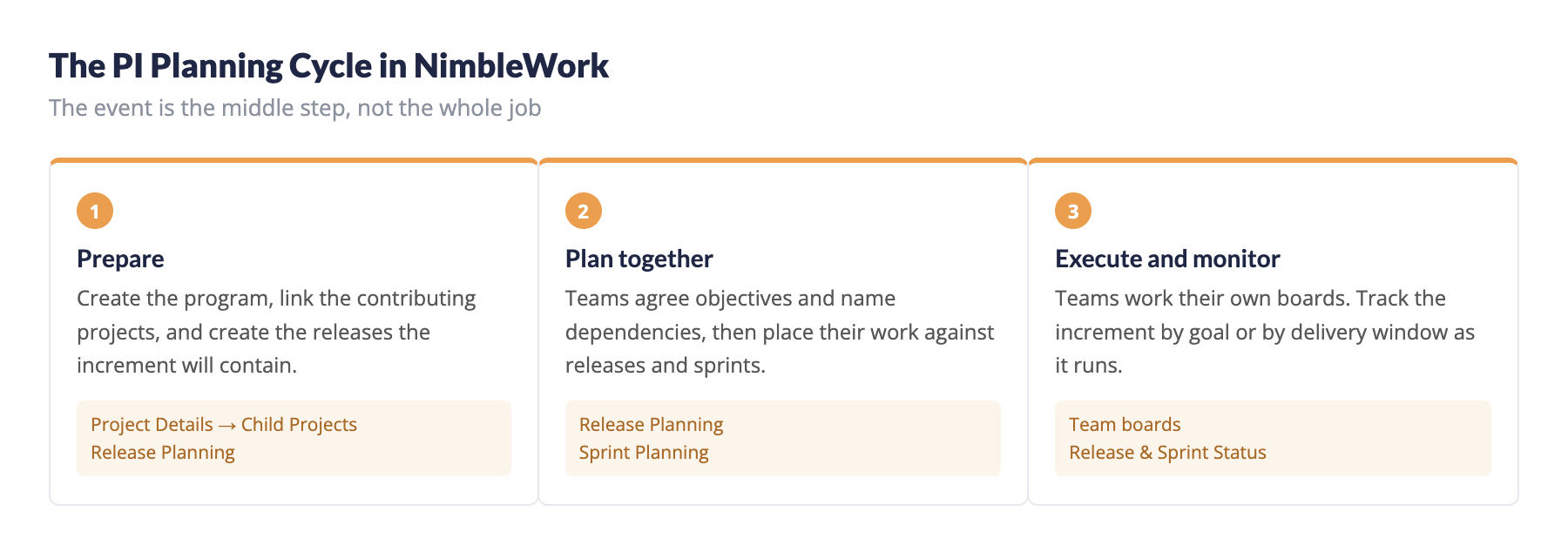
1Set up the Program. Create the project that will hold the increment and set its Project Category to Program. See How to Set Up a Program Project.
2Link the child projects. Attach every project contributing to the increment, so the program-level screens can see their work.
3Create and share the releases. Create the increment’s releases on the program, then share each one with the teams that will deliver against it. See Release Planning at the Program Level.
4Identify and plan the work. Add the cards each team is committing to, against the release they belong in. This is the output of the event: who is doing what, in which release.
5Plan the work into sprints. Break each release into the sprints that will deliver it, per project. See Sprint Planning at the Program Level.
6Execute. Teams now work their own boards as usual. Where a commitment moves to a different team, transferring the card keeps the history intact — see Common Operations on the Workitem Listing Page.
7Monitor progress. Track the increment as it runs, by goal or by delivery window. See How to Monitor Program Progress.
!Plan the Increment, Not Just the First Sprint
The point of the exercise is the whole increment. Create every release it contains and share them before the event, so teams can place work across the full horizon rather than filling the first sprint and deferring the rest.