
Skip Ahead to:
| 1Overview |
| 2Splitting the Program into Child Projects |
| 3Dividing the Increment into Releases |
| 4Tracing One Epic Across Teams |
| 5What to Check Before You Commit |
Overview
This article walks through one program end to end, so the ideas in How to Run PI Planning in NimbleWork have something concrete behind them.
Member Health Platform 2.0 is a health plan’s member-facing platform being rebuilt over one increment: claims, benefits and coverage, and the guidance members get along the way. Its shape:
iAbout This Example
The program below is an illustrative scenario, not a live system. The shape it describes — a capability split, a front-loaded increment, epics that cross team boundaries — is what matters, and it transfers to any program of a similar size.
Splitting the Program into Child Projects
The six child projects are split by capability, not by feature.
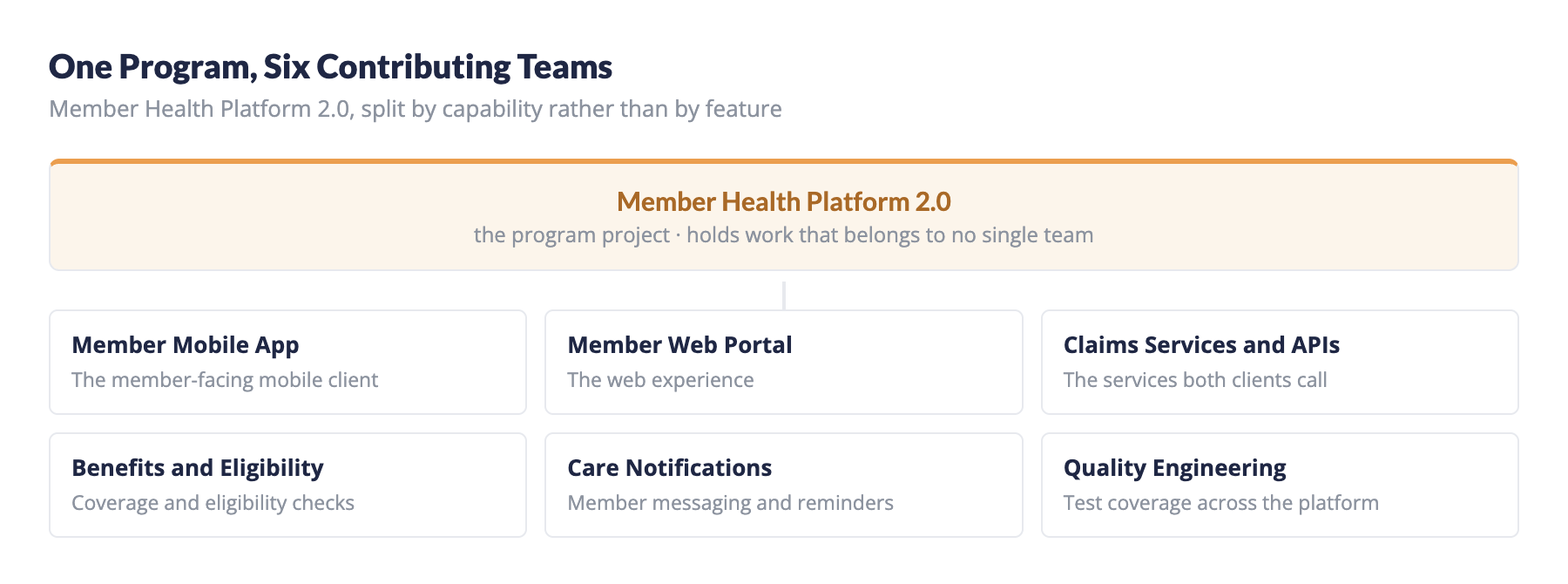
That choice has a direct consequence. Something a member would name — checking what a claim cost them, say — is never owned by one project. It needs the mobile client, the web portal, the claims service and the benefits platform, so it lands as work in four places at once.
iWhy This Shape Needs Program-Level Planning
Splitting by capability keeps each team’s code and ownership clean, but it guarantees that every member-facing outcome crosses team boundaries. That is precisely the problem the program-level boards exist to solve.
Had the split been by feature instead, each team would own an outcome end to end and need far less coordination — but teams would overlap in the same code.
In regulated work the cost of missing a dependency is higher than a slipped date. A change to how a claim is calculated has to reach the mobile client, the web portal and the member notification together, or members see different numbers in different places. Planning across the program is what makes that visible before the work starts.
The program itself is also a planning row, and it carries work that belongs to no single team — shared concerns such as the member search index and the eligibility rules engine. See How to Set Up a Program Project for how the hierarchy is created.
Dividing the Increment into Releases
The increment is divided into four releases. Read the names in order and the shape of the plan is visible: foundations first, refinement last.
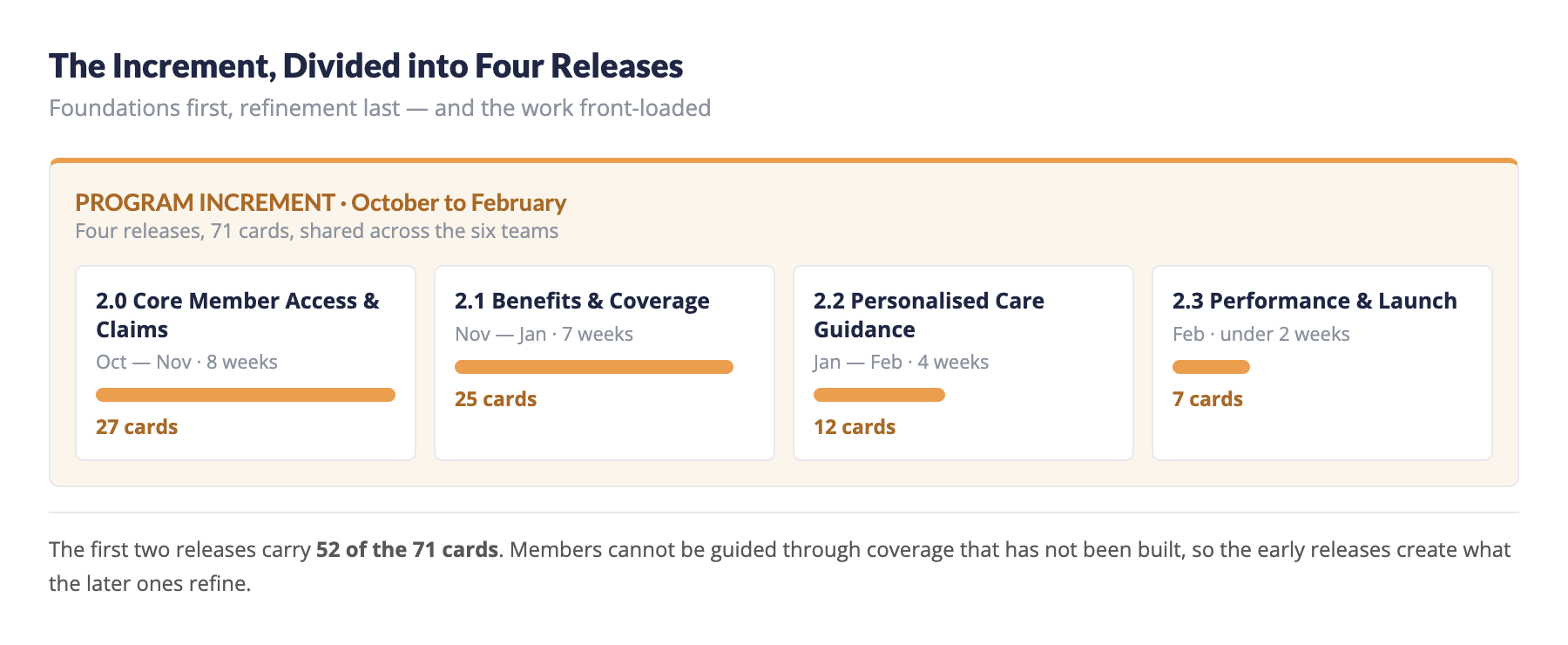
Two things stand out in those numbers.
The Work Is Front-Loaded
Release 2.0 and 2.1 carry 52 of the 71 cards between them — roughly three quarters of the increment. That is deliberate in a plan like this: the early releases build what the later ones depend on. You cannot guide a member through coverage that has not been built yet.
The Releases Get Shorter
The first release runs eight weeks, the last runs under two. Later releases are smaller and tighter because they refine rather than build, and because a shorter final window leaves room to absorb slippage from earlier ones.
Each release is created on the program and then shared with the teams that will build against it. See Release Planning at the Program Level.
Tracing One Epic Across Teams
Six epics carry the increment. EP-01 Member Claims Experience shows what the capability split does to a single goal.
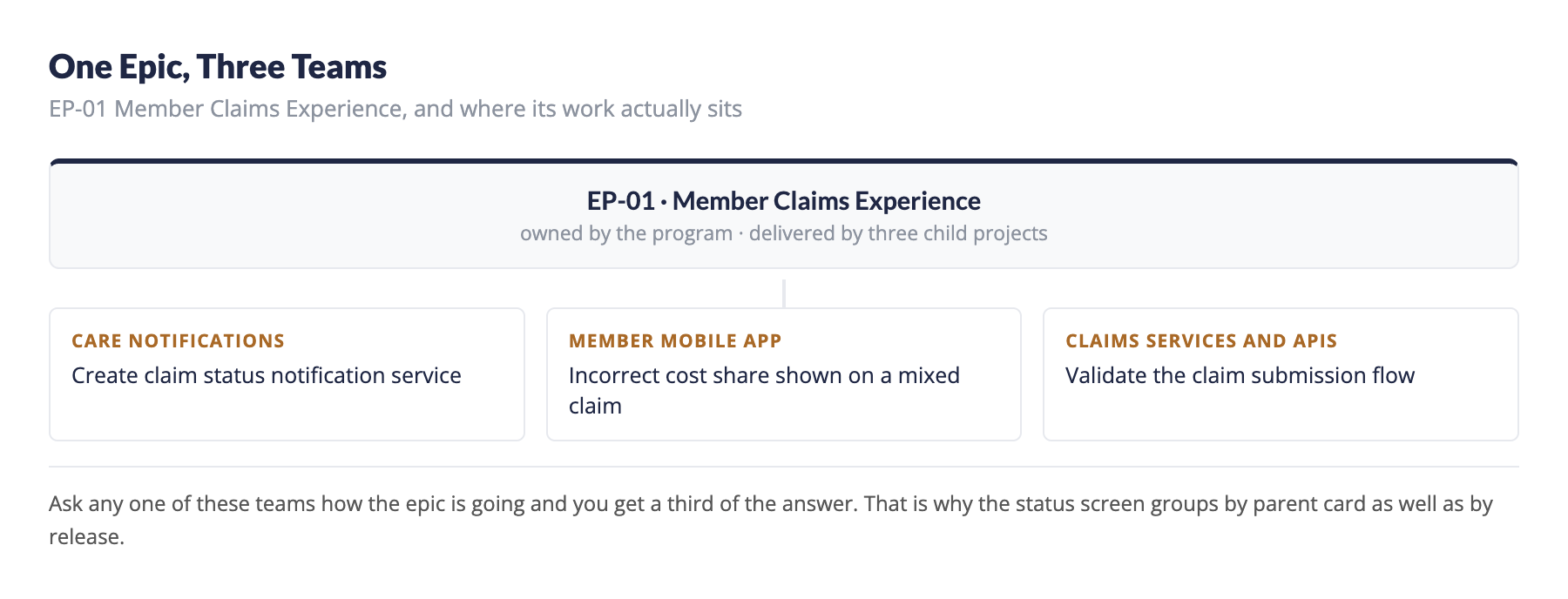
One epic, and its work sits in three different projects: a claim status notification service in Care Notifications, a cost share defect in Member Mobile App, and a submission flow story in Claims Services and APIs.
No single team can report on this epic. Ask any one of them and you get a third of the answer. That is why the status screen groups by parent card as well as by release — see How to Monitor Program Progress.
The other five epics are the same story: EP-02 Benefits Discovery, EP-03 Coverage and Care Journey, EP-04 Payments and Reimbursements, EP-05 Personalised Care Guidance and EP-06 Platform Performance each span several of the six projects.
What to Check Before You Commit
Before a program like this leaves the planning event, it is worth running the same few checks. Each one takes a minute on the screens you already have open.
1Is any release carrying more than the teams can deliver? Compare Planned against Capacity on each release header. If capacity still reads zero, it has not been entered — worth fixing before anyone treats the plan as agreed.
2Is work sitting in a release but not in a sprint? On the Releases & Sprints tab those cards collect under a group named –None–. They are committed to a date but not scheduled to anyone’s iteration.
3Is an epic spread so thin that nobody owns it? Expand each epic on the Parent-Child tab. If its children sit in four projects and no one row carries the majority, decide who is accountable for the outcome before the increment starts.
4Does every contributing project actually have the release? A project that was never shared a release shows Add release to this project in that cell instead of a card area. Its work cannot be planned until you share it.
5Do the child projects run the same template? Mixed templates mean card types do not line up, which makes both the board and any transfer between teams harder to read.
!Capacity Is the One Most Often Skipped
Until capacity is entered on a release, the planned bar has nothing to plot against and the board cannot tell you whether that release is over-committed. It is the quickest check to run and the easiest to forget.
Once the increment is under way, the same program is tracked on the status screen, by goal or by delivery window. Sprint-level planning continues per release — see Sprint Planning at the Program Level.