
Skip Ahead to:
6 topics
Overview
Every Business Rule 2.0 is built from the same parts: a trigger, optional conditions, and one or more actions. This article therefore describes each part and every option the rule editor offers.
A rule reads like a sentence. When the trigger fires, if the conditions are met, then the actions run. Also, the rule editor draws this as a visual flow, with a WHEN node, an IF or ELSE IF branch for each set of conditions, and a THEN node for the actions.
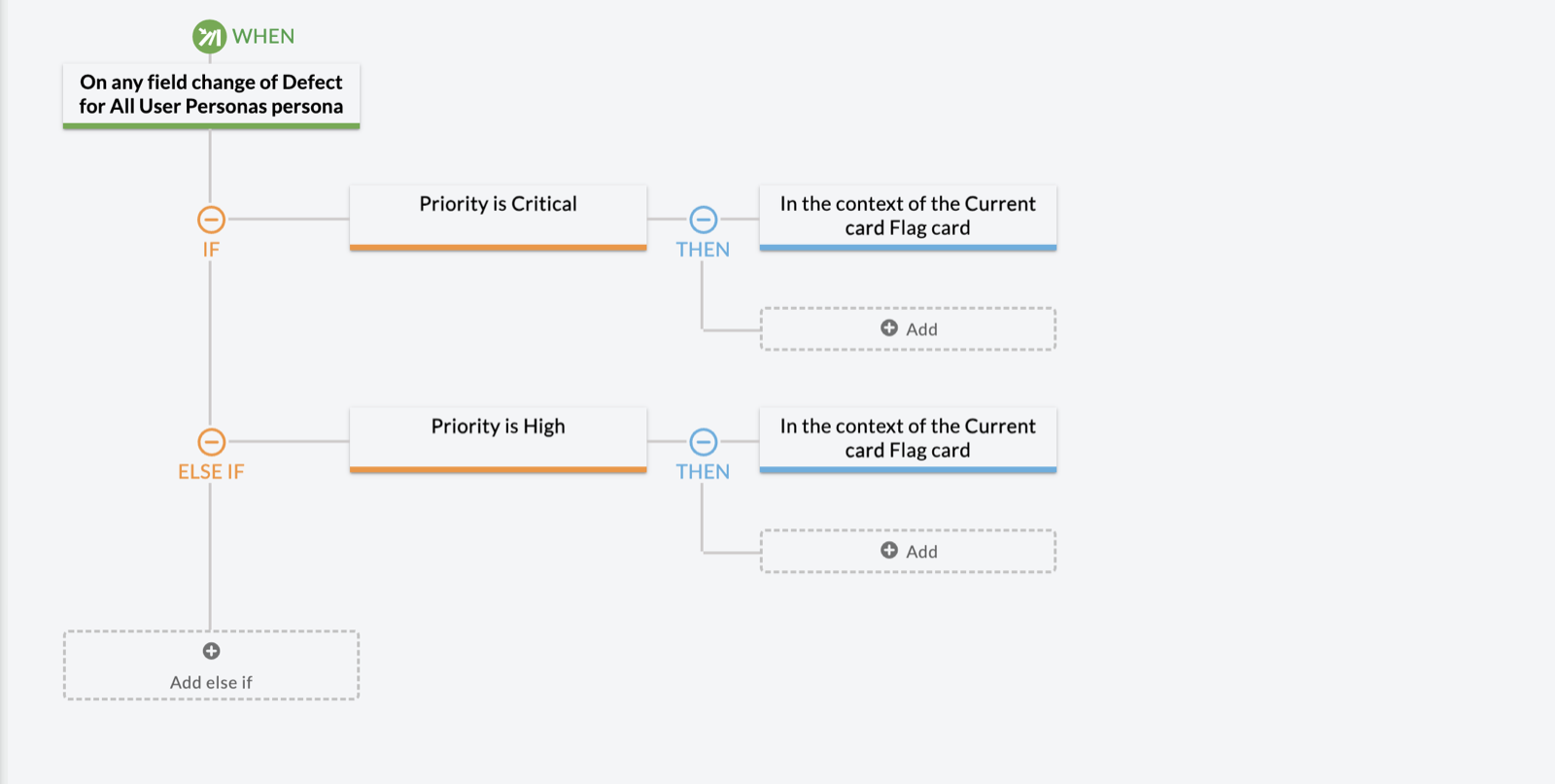
You can create rules only for forms configured through Forms 2.0. The card type you choose decides which fields and actions the rule offers. For the steps to build a rule, see How to Create a Business Rule 2.0.
Triggers
Triggers are the events that kick off a rule. In other words, a trigger listens for events in the application, such as a form loading, a field value changing, or a card being blocked. To pick one, select the Select event trigger to call the rule box and choose from the Event Triggers panel. Then choose the card type the rule works on. For example, On create reacts to new cards, while On schedule runs at set times.
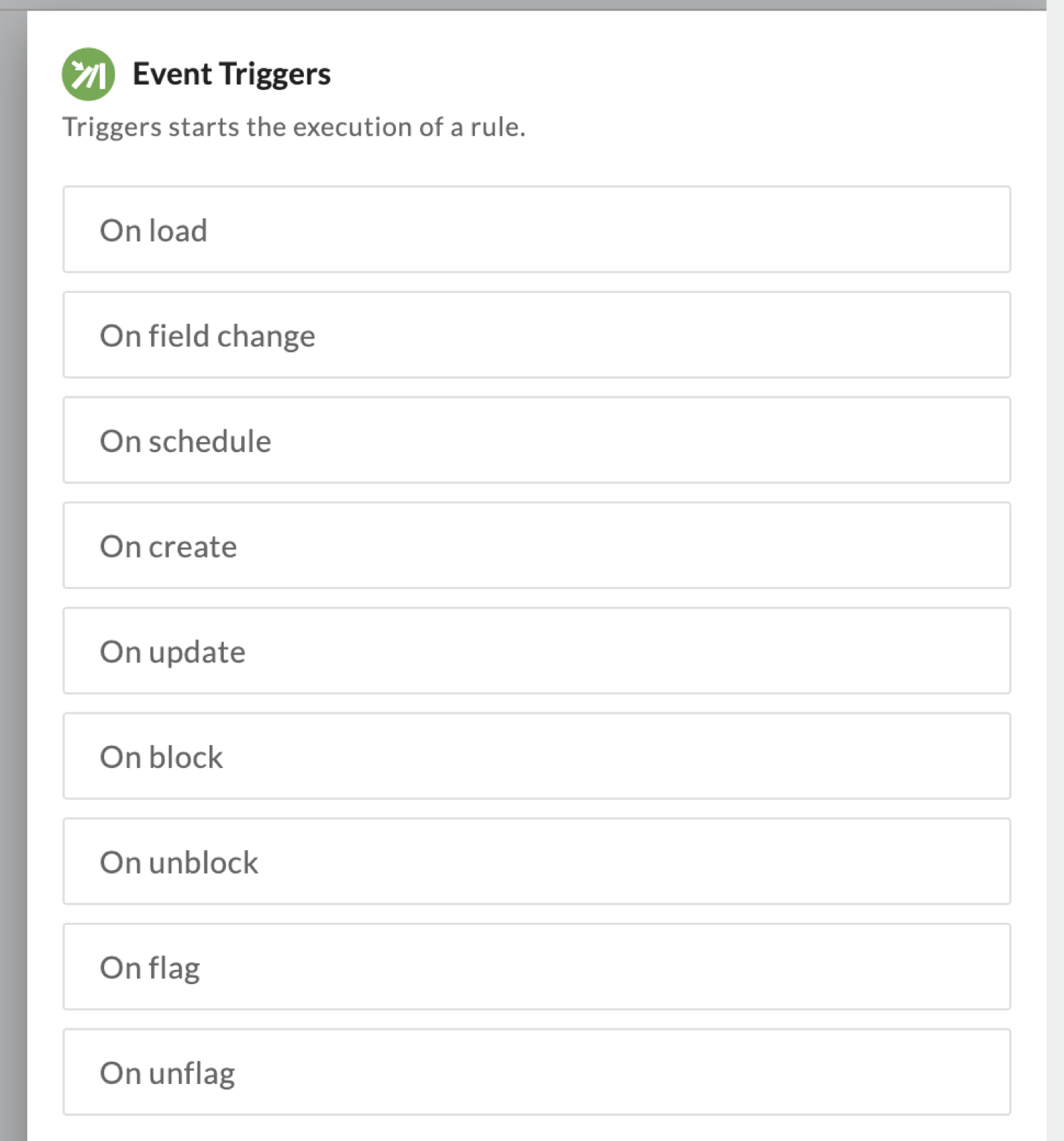
| Trigger | When the rule runs | Extra setup |
|---|---|---|
| On load | When the form is loaded or reloaded. | None. |
| On field change | When the value of the selected field changes. | Select one field. |
| On schedule | At the recurring times you define, for example every day or every month. | Set the recurrence, the range, and the time. |
| On create | When a new instance of the form is created. | None. |
| On update | When an instance of the form is updated. | Optionally select the fields to watch. |
| On block | When a card is blocked. Use it to create, update, or further block or unblock cards. | None. |
| On unblock | When a card is unblocked. Use it to create, update, or further block or unblock cards. | None. |
| On flag | When a card is flagged. Use it to create, update, block, unblock, or further flag or unflag cards. | None. |
| On unflag | When a card is unflagged. Use it to create, update, block, unblock, or further flag or unflag cards. | None. |
Choose Fields for On Update
When you select On update, a Select field(s) box appears. Pick the fields that should start the rule. However, if you select no fields, the rule runs on any field change.
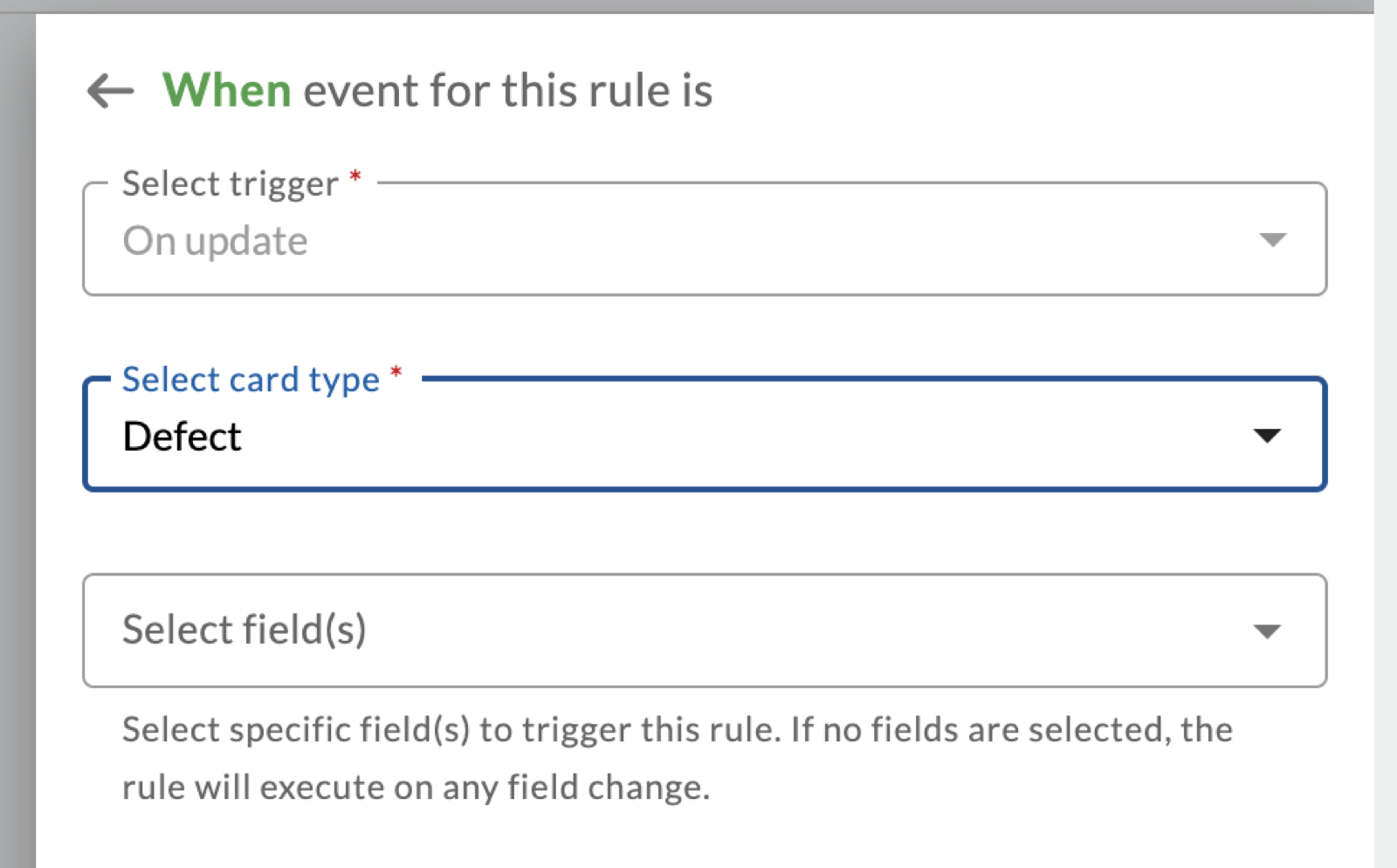
Likewise, On field change works the same way. However, you must select exactly one field. For the On schedule options, see Schedule a Rule.
Note
On load and On field change act on the form while a user works on it, so they offer form actions such as showing or hiding fields. However, the other triggers act on cards, so they offer card actions.
Conditions
Conditions let you refine the scope of the trigger. They must be met for the rule to continue. For example, if Priority is High, then set Mark Robinson as the card owner. Also, you can select a single condition or several.
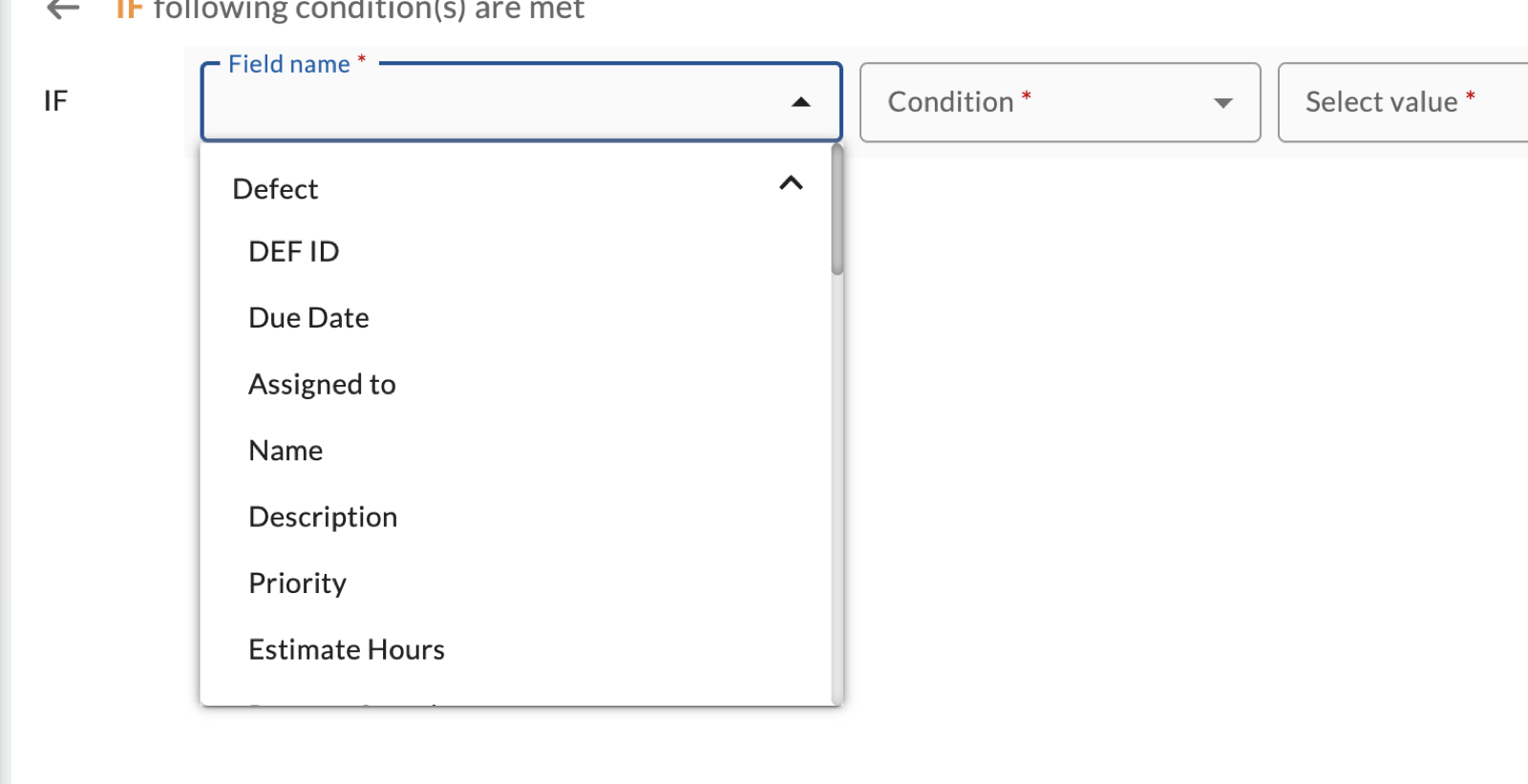
To add one, first select Add and then Condition. Next, note that each condition row has three parts: the field name, the condition, and the value. The field list has three sections: the fields of the form, System Fields such as Created By, Date Created, and Status, and Context Fields (Current Project Name and Current User).
Operators by Field Type
The operators you see depend on the type of the field you select.
| Field type | Operators |
|---|---|
| Text, for example Name or Status | Is Null, Is Not Null, is, is not, contains, does not contain |
| Long text, for example Description | Is Null, Is Not Null, contains, does not contain |
| Number, for example Estimate Hours or Percent Complete | Is Null, Is Not Null, is equal to, is not equal to, is greater than, is less than |
| Date and time, for example Due Date | Is Null, Is Not Null, is, is not, is after, is before |
| Drop-down and lookup fields, for example Priority, Release, or Class of Service | is, is not, is any of, is not any of |
| Created By and Current User | is, is not, is any of, is not any of |
| Assigned to | is, is not, contains, does not contain |
With is any of and is not any of, you can also pick several values for one field.
Combine Conditions with AND, OR, and Groups
Select the add icon at the end of a row to add another condition or a condition group. The editor joins new rows with AND. However, you can switch a row to OR: select AND in front of the row and choose OR. In addition, a group holds its own rows, so you can express logic such as “Priority is High AND (Due Date is before a date OR Status is In progress)”.
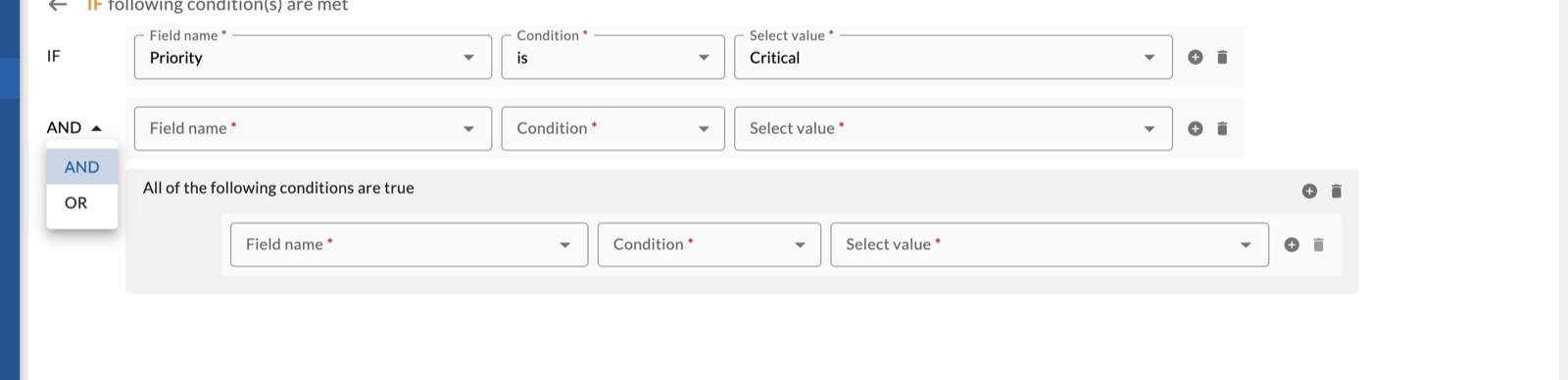
To run different actions when the first condition is not met, you can also add an Else if branch. See Add an Else If Branch.
Contexts
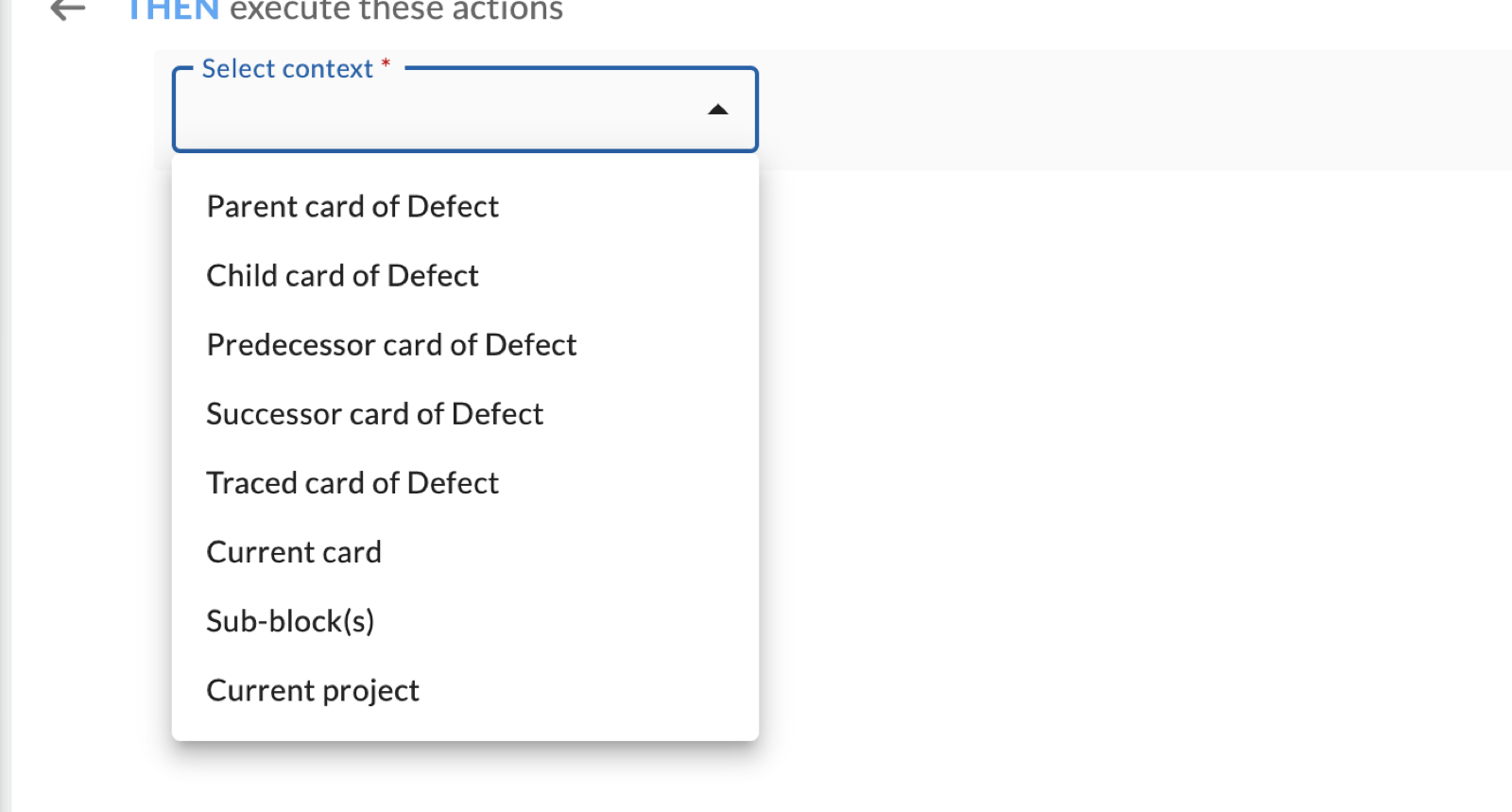
Select the context for an action to say which card or record it acts on. For example, if the context is Child card of Defect, a Block card action blocks every child card of the Defect that met the condition. On load and On field change do not use contexts.
| Context | The action acts on |
|---|---|
| Current card | The card that triggers the rule. |
| Parent card of the card type | The immediate parent of the current card. |
| Child card of the card type | The immediate child cards of the current card. |
| Predecessor card of the card type | The predecessors of the current card. |
| Successor card of the card type | The successors of the current card. |
| Traced card of the card type | The cards that trace back to the current card. |
| Sub-block(s) | The records in a data table sub-block of the form. |
| Current project | The project that holds the card. Use it to create new cards in the project. |
Note
Parent and child contexts apply to the immediate parent or child cards only. They do not reach the whole hierarchy.
Actions
Actions are the doers of the rule. They let you automate your activities, such as editing a card, sending an email, or creating a new card. The actions available depend on the trigger and on the context.
Form Actions for On Load and On Field Change
These two triggers offer no context. Instead, you pick the action directly, and the available actions are the same for both.
| Action | What it does |
|---|---|
| Show Tab(s) / Hide Tab(s) | Shows or hides tabs on the form. |
| Show Block(s) / Hide Block(s) | Shows or hides blocks on the form. |
| Show Field(s) / Hide Field(s) | Shows or hides fields on the form. |
| Set field as mandatory / Set field as optional | Makes fields required or not required. |
| Enable Fields / Disable Fields | Makes fields editable or read-only. |
| Set field value | Sets a field to a value you choose. |
| Increment field(s) / Decrement field(s) | Increases or decreases a numeric field. |
Card Actions on the Current Card
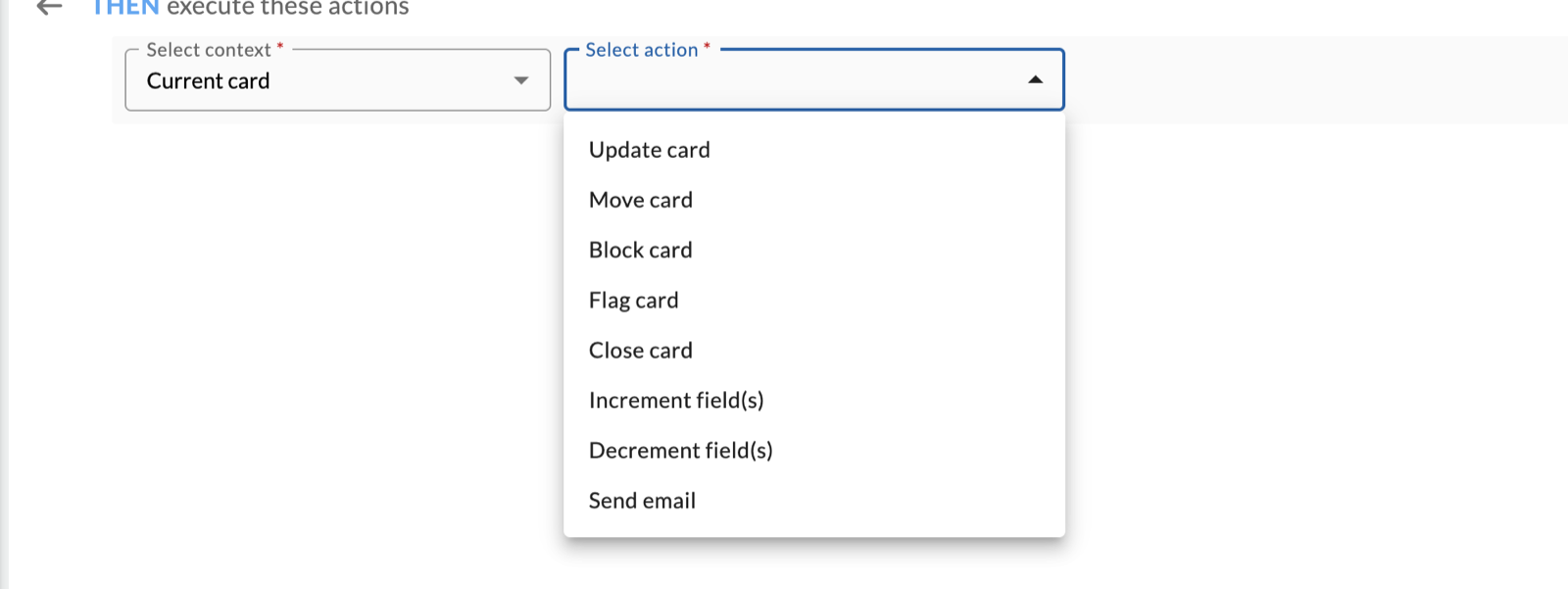
The actions on the current card vary by trigger. A card action never repeats the event that started the rule. For example, a rule that starts on block does not offer Block card on the current card.
| Trigger | Actions on the current card |
|---|---|
| On create | Update card, Move card, Block card, Flag card, Close card, Increment field(s), Decrement field(s), Send email |
| On update | Move card, Block card, Unblock card, Flag card, Unflag card, Close card, Send email |
| On block | Update card, Unblock card, Flag card, Unflag card, Close card, Increment field(s), Decrement field(s) |
| On unblock | Update card, Block card, Flag card, Unflag card, Close card, Increment field(s), Decrement field(s) |
| On flag | Update card, Block card, Unblock card, Unflag card, Close card, Increment field(s), Decrement field(s) |
| On unflag | Update card, Block card, Unblock card, Flag card, Close card, Increment field(s), Decrement field(s) |
| On schedule | Update card, Block card, Unblock card, Flag card, Unflag card, Close card, Increment field(s), Decrement field(s) |
Actions on Other Contexts
| Context | Actions |
|---|---|
| Parent, Child, Predecessor, Successor, and Traced card | Create card, Update card, Block card, Unblock card, Flag card, Unflag card, Close card, Increment field(s), Decrement field(s). Under On create, these contexts offer only Create card. |
| Sub-block(s) | Insert records in sub-block, Update records in sub-block, Increment field(s), Decrement field(s). Under On create, only Insert records in sub-block. |
| Current project | Create card |
Settings for Each Action
| Action | What you provide |
|---|---|
| Update card | The field, and the value to set. The card type always matches the card type of the rule. |
| Move card | The Lane and the Column to move the card to. |
| Block card | A Blocking reason and a Blocking comment. Both are required. |
| Flag card | A Flagging comment, which is required. |
| Close card | Nothing. The rule closes the card. |
| Increment field(s) / Decrement field(s) | The field, and the amount to change it by. |
| Send email | The recipients, subject, and body. See Send Email Notifications. |
| Insert records in sub-block | The sub-block, and whether to use Direct Input or Fetch and Populate. See Fetch and Populate. |
Choose a Value for Update Card
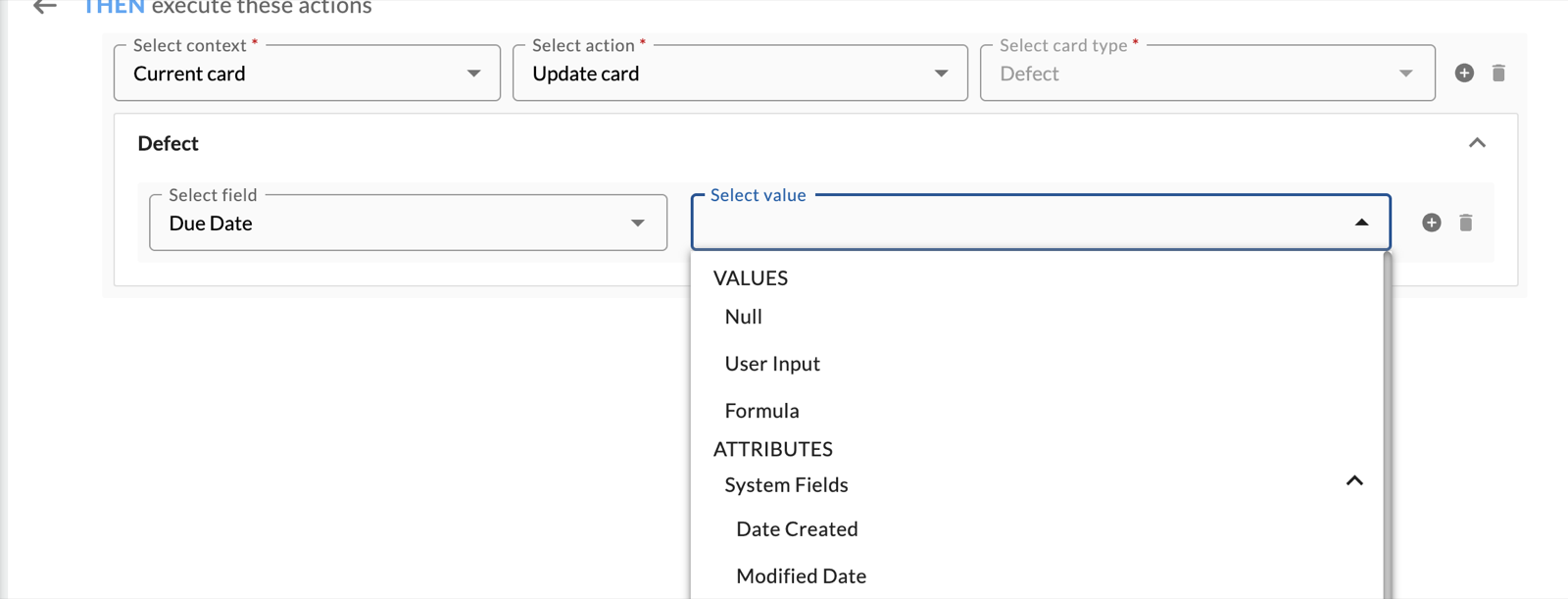
When you select a field in Update card, the Select value list then offers two groups. Under VALUES, first choose Null to clear the field, User Input to type a fixed value, or Formula to calculate the value. Under ATTRIBUTES, instead choose another field of the card, such as Date Created, to copy its value.
Formula Builder
Use a formula when the value depends on a calculation, such as setting the Due Date to three days from today. To start, select Formula as the value, and then select Configure formula to open the Formula Builder.
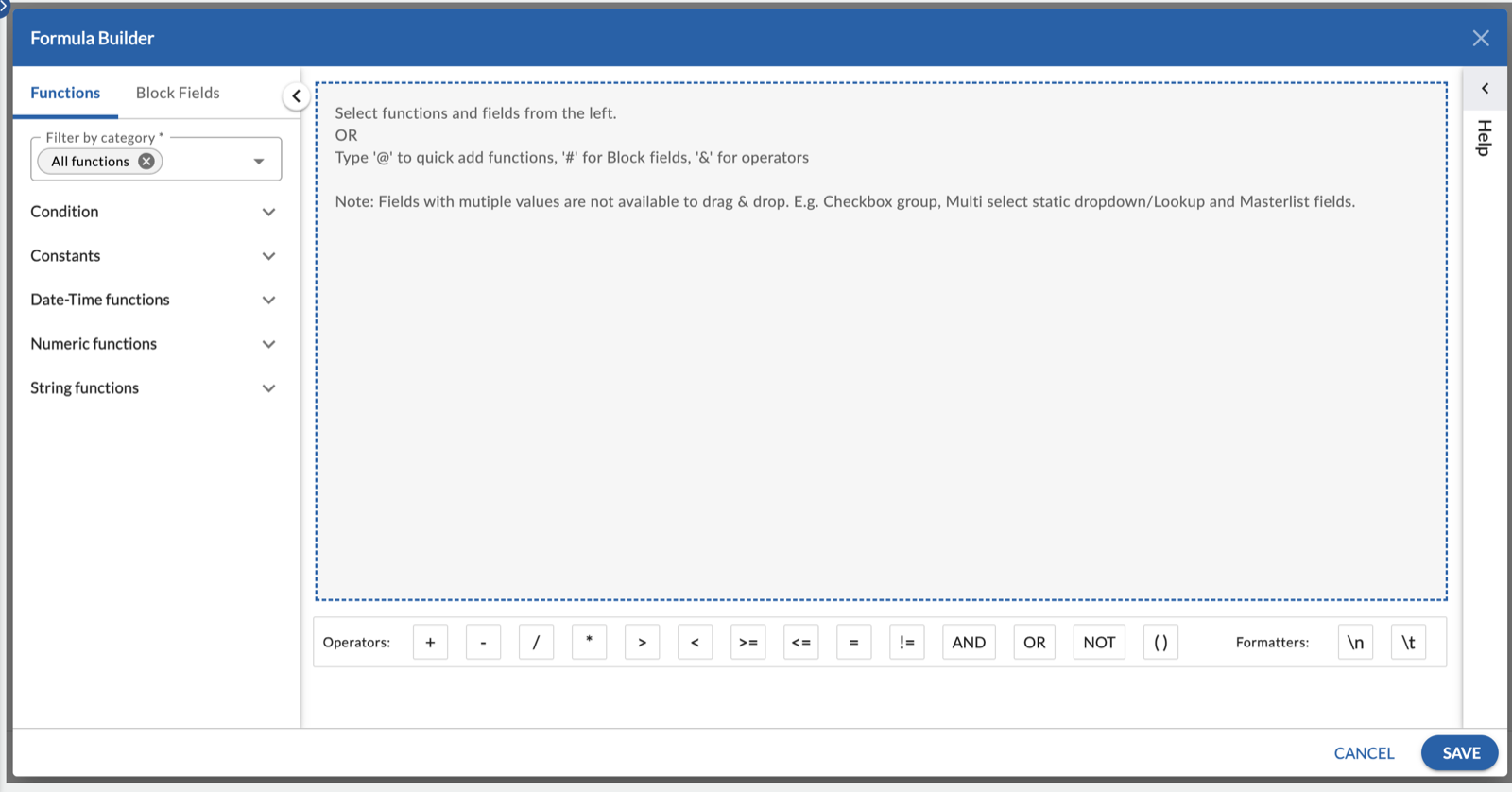
Next, build the formula in the large area. Then pick functions on the Functions tab and fields on the Block Fields tab. Also, you can type to add items quickly: @ for functions, # for block fields, and & for operators. The operator bar under the area adds +, -, /, *, >, <, >=, <=, =, !=, AND, OR, NOT, and brackets. Finally, use the Help panel on the right for guidance.
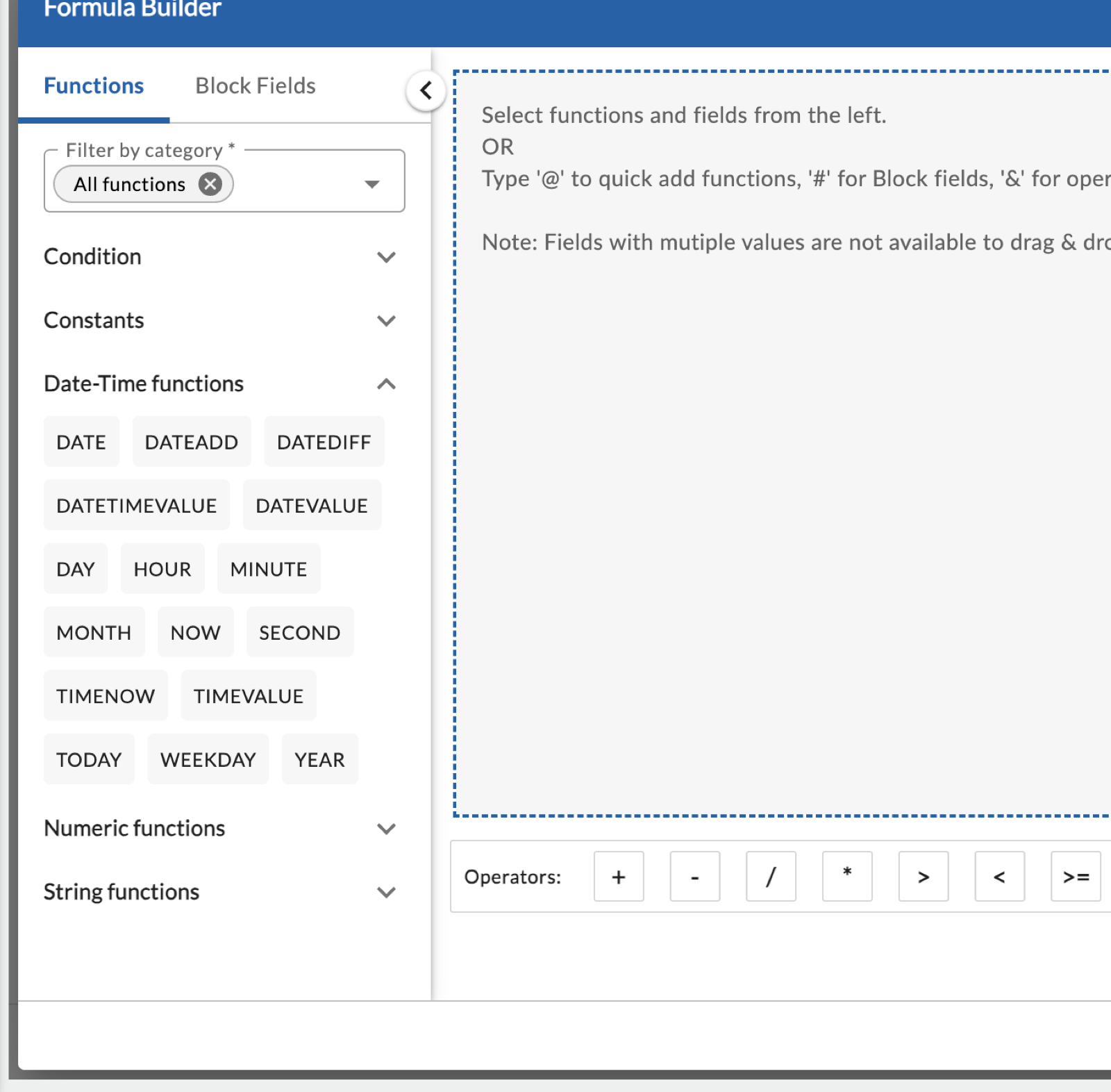
| Category | Functions |
|---|---|
| Condition | IF THEN ELSE |
| Constants | TRUE, FALSE |
| Date-Time | DATE, DATEADD, DATEDIFF, DATETIMEVALUE, DATEVALUE, DAY, HOUR, MINUTE, MONTH, NOW, SECOND, TIMENOW, TIMEVALUE, TODAY, WEEKDAY, YEAR |
| Numeric | ABS, AVERAGE, CEILING, COUNT, EXP, FLOOR, LOG, MAX, MIN, MOD, POWER, ROUND, SQRT, SUM |
| String | CONCAT, CONTAINS, ENDSWITH, FIND, LEFT, LEN, LOWER, MID, NOTCONTAINS, RIGHT, STARTSWITH, SUBSTITUTE, TEXT, TRIM, UPPER |
Note
You cannot drag fields that can hold several values into a formula. Examples are a Checkbox group, a multi-select static drop-down or lookup, and Masterlist fields.