
In this article, we will help you to understand how to close and reopen a closed workitem.
|
Skip Ahead to: |
Overview
You can close a workitem before the workitem undergoes all stages in the workflow and closes automatically. Also, if you have decided to resume work on a closed workitem, you can reopen the workitem and make updates to it.
Steps to Close a Workitem
A workitem can be closed when you do not want any updates to happen for the workitem, team members work on it and subsequently enter time for it.
To close a workitem,
1. Go to the workitem from its List view, and click the MARK AS DONE button.
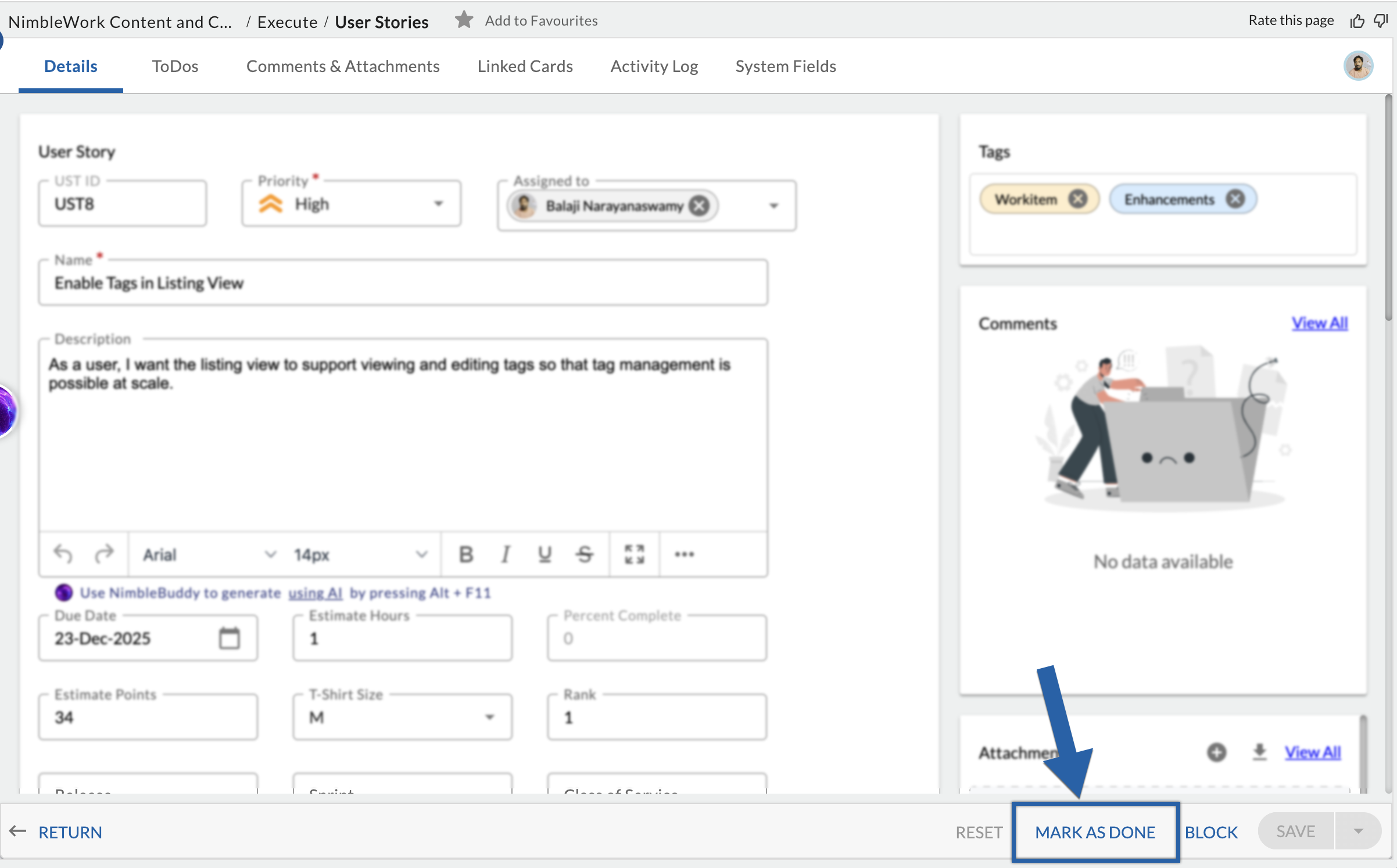
2. A pop-up appears asking for closing the corresponding ToDos. On clicking the OK button, the workitem along with its ToDos gets closed and their statuses change to Closed. Also, the efforts logged against the ToDos get auto-approved.

- In a closed workitem, all the fields of the workitem are shown in the read-only view.
- In its List view, the status of that particular requirement is displayed as ‘Closed’.
Reopening a Workitem
Work can start from the required workflow stage i.e. the assigned team member in that workflow stage can work and enter time for it.
To reopen a workitem,
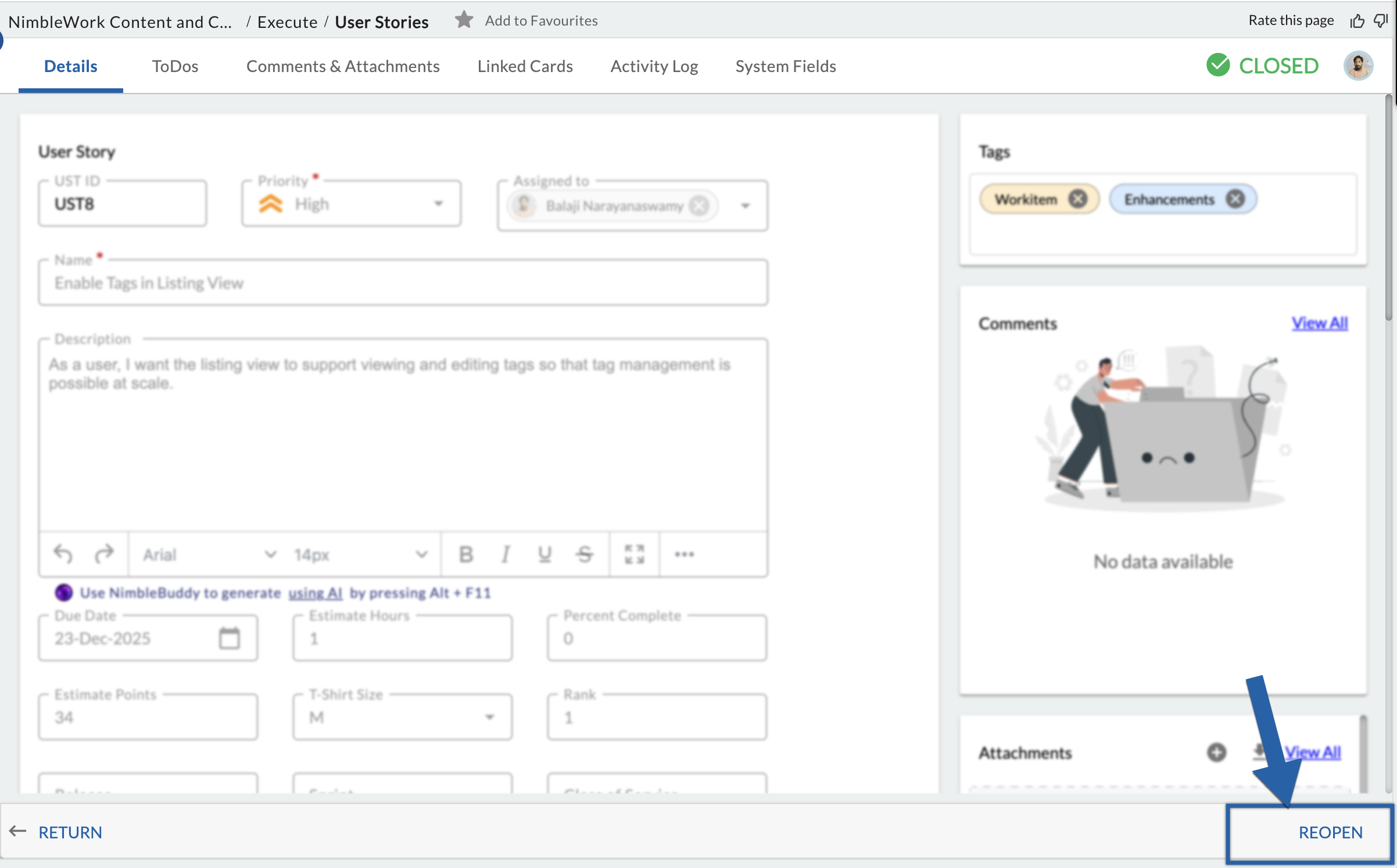
- Go to the workitem from its List view, and click the REOPEN button.
- Select the workflow stage in the list and click OK to proceed.
Undo and Redo Actions in Workitems
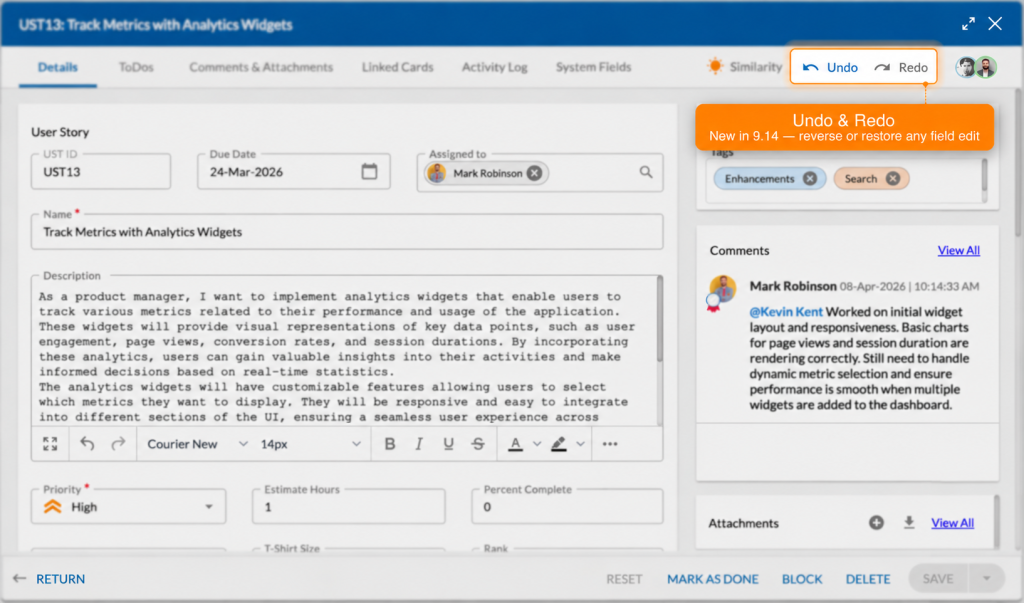
The Undo and Redo actions help you quickly reverse or restore changes made while editing a workitem. These actions are available directly in the workitem header, making it easier to correct edits without using keyboard shortcuts.
Use:
- Undo to reverse the most recent change.
- Redo to restore a change that was previously undone.
The Undo and Redo actions work for supported field edits, including text updates in fields such as Description, Name, and other editable workitem fields.
Undo a Change
Use the Undo action to reverse the latest modification made in the workitem.
For example, if you accidentally remove text from the Description field, click Undo to restore the deleted content.
To undo a change:
- Open the required workitem.
- Edit any supported field.
- Click Undo from the action bar.
The most recent change is reversed immediately.
Redo a Change
Use the Redo action to restore a change that was previously undone.
For example, if you undo a text deletion and later decide to reapply it, click Redo.
To redo a change:
- Perform an undo action.
- Click Redo from the action bar.
The previously undone change is restored.