User Profile
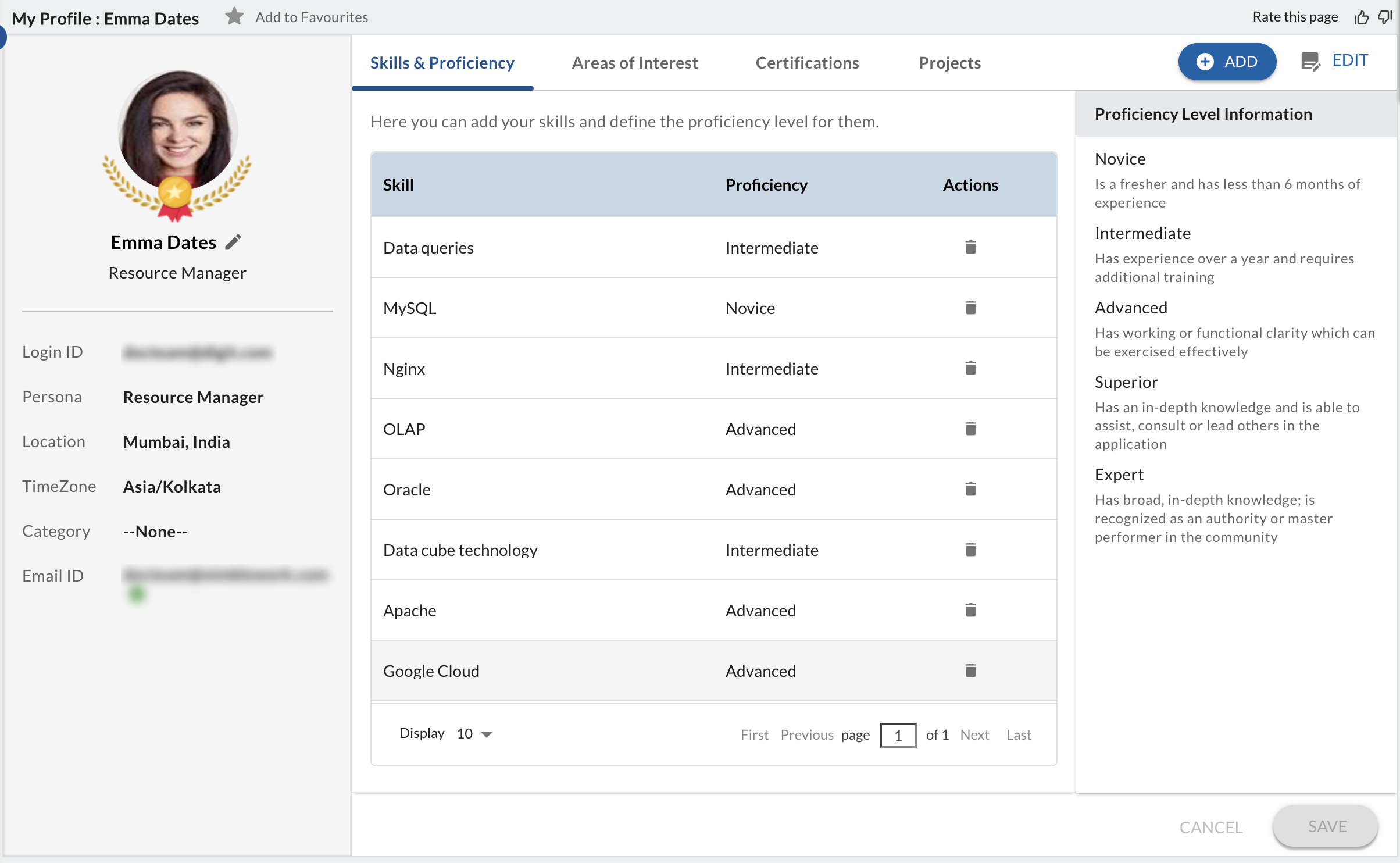
Use User Profile to view and update your personal details, such as your name and profile picture. This section helps you keep your profile information up to date and consistent across the application. Your profile picture is reflected in multiple areas of Nimble, helping team members easily identify you.
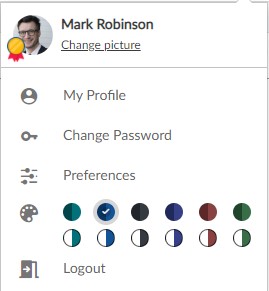
You can easily update or track your profile from the My Profile link in the User Profile panel.
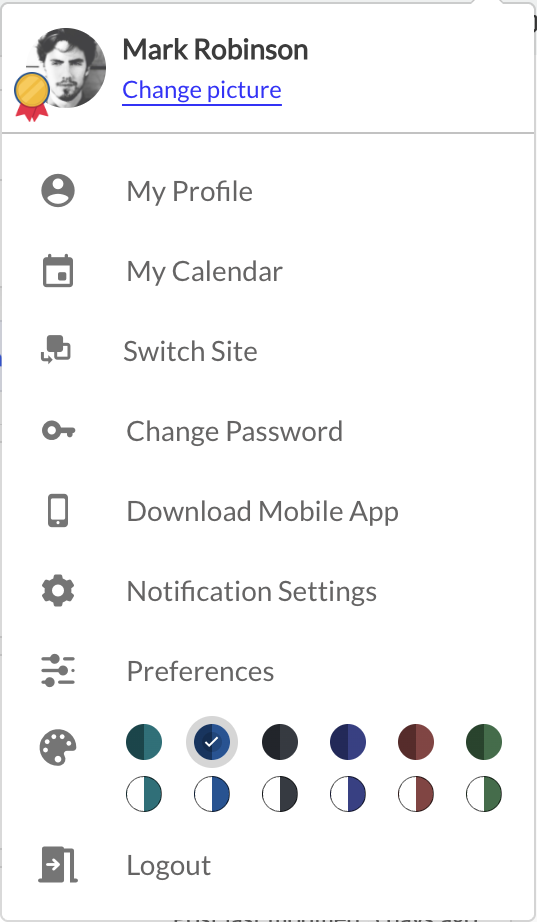
| Option | Description | |
|---|---|---|
| My Profile | My Profile lets you view and update your personal information. You can also manage your skills, proficiency levels, and view your project-related information from this page.
This information helps provide better visibility into your expertise and project involvement. |
|
| My Calendar | Each resource in the organization can modify their personal calendars to customize their standard working hours, as the default working hours are inherited from the organization calendar. To know more, click here. | |
| Switch Site | Use Switch Site to move between different Nimble slug URL sites that you have access to, without signing out.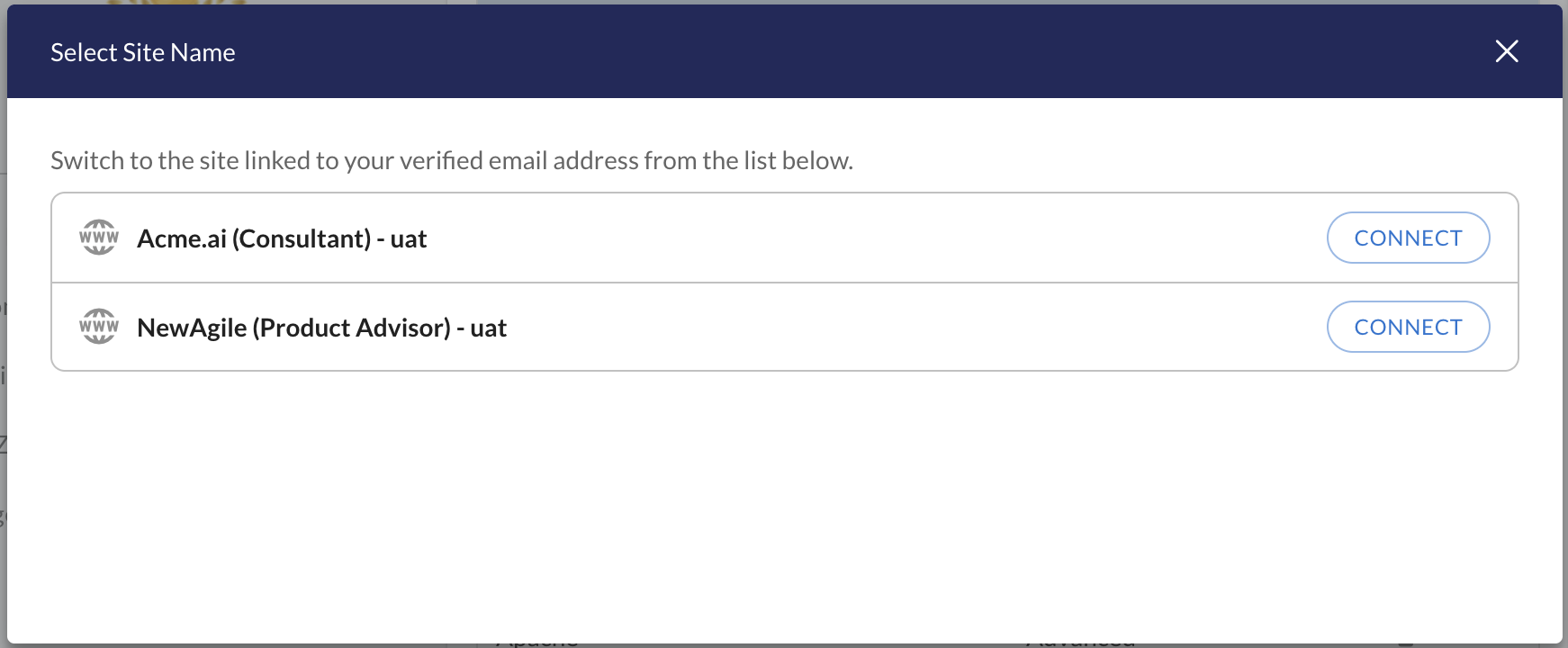 |
|
| Change Password |
Change Password allows you to update your account password to keep your account secure. Steps to Reset Your Password
Password Requirements: The password must be an alphanumeric string with a minimum of 8 characters and a maximum of 20 characters. Password Recall Question: You can set a Password Recall Question to confirm your identity if you forget your password. The new password and recall question take effect for all subsequent logins. |
|
| Download Mobile App | Use Download Mobile App to get the Nimble mobile application and stay connected to your work on the go. For more details, refer to the Mobile App help article.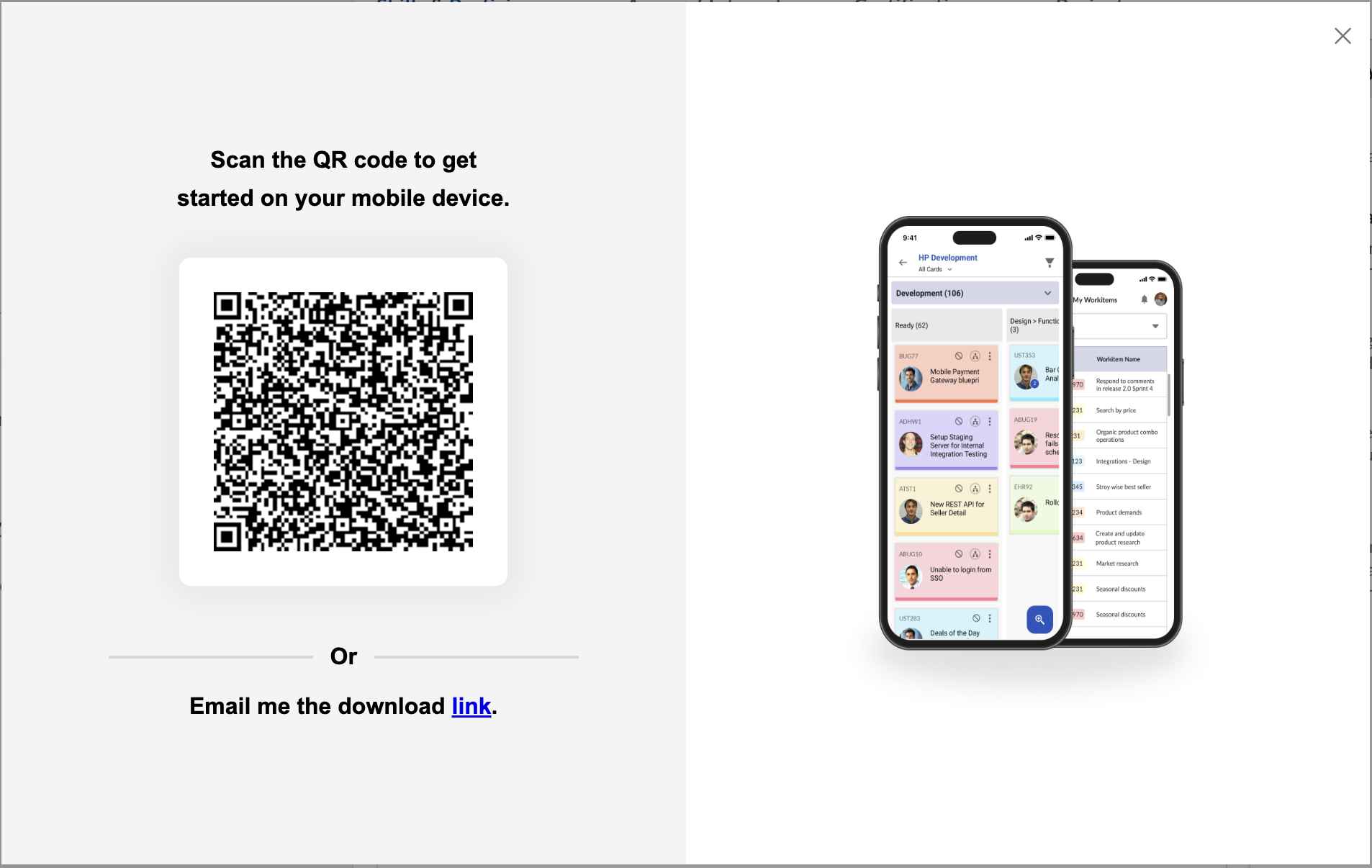 |
|
| Notification Settings | Notification Settings lets you manage how and when you receive notifications for workitems. This is the centralized place to configure all notification preferences. For step-by-step guidance, refer to the Notifications help article. | |
| Preferences |
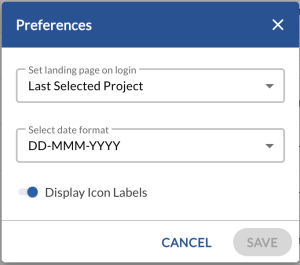
The Preferences menu lets you customize how Nimble looks and behaves. It includes the following options:
Set a Landing Page on Login: This preference allows you to choose the page that appears when you log in to the application. For example, if you set Work Hub as the landing page, the Work Hub opens automatically after login. You can select from the available application pages. Select Date Format: Use this preference to choose the date format displayed across different areas of the application. Select the format that best matches your regional or personal preference. Display Icon Labels: This preference lets you show or hide menu labels in the application. Enabling labels makes navigation clearer, while hiding them provides a more compact view. |
|
|
Themes |
Use this preference to personalize the appearance of Nimble by selecting from 12 available themes. Changing the theme updates the overall look and feel of the application to suit your visual preference. |
|
| Logout | Logout signs you out of Nimble securely when you finish your session. For more details, refer to the Logout help article. | |
Profile Picture
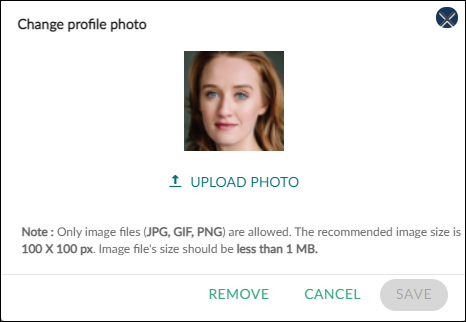
Your profile picture is displayed here if it was added previously, the First name and Last name initials of the user will be shown if no profile picture is set. To change the profile picture:
Steps to Add or Update Profile Photo
- Hover over your Profile picture in the top-right corner and click My Profile.
- Click the Change Picture link.
- In the screen that appears, click UPLOAD PHOTO.
- Browse and select the required image file from your computer.
- You can also drag and drop an image file into this area.
- Once the image finishes uploading, click SAVE.
The updated image is displayed as your profile picture and is reflected across the application.