
The Work Hub offers quick actions that let you manage workitems directly from the board without opening the full details view. This article covers the following actions:
- Right-click actions on the Board
- Card Options (three-dot menu on a card)
Move All Cards to Another Column
To move all the cards in a column to another column, right-click on the column header and select the Move All option. All cards in that column move to the column you select.
Note:
- You can’t move blocked cards using this option. Unblock the card first before moving it.
- You can’t move cards to a Percent-Progress column (named “In-Progress”).
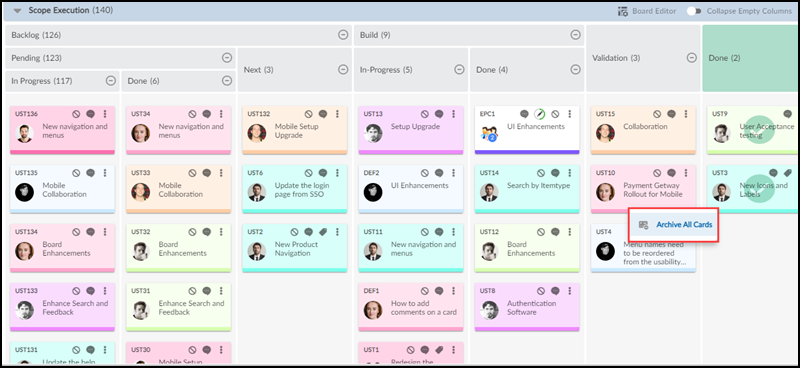
Archive All Cards
To archive all closed cards from the Done column, right-click on the Done column header and select Archive All Cards. All closed cards in the Done column are removed from the Board and moved to the Backlog system.
Card Options
Each card on the Work Hub has a Card Options menu (the three-dot icon) that gives you quick access to actions for that specific card. Hover over a card to reveal the icon, then click it to see the available actions.
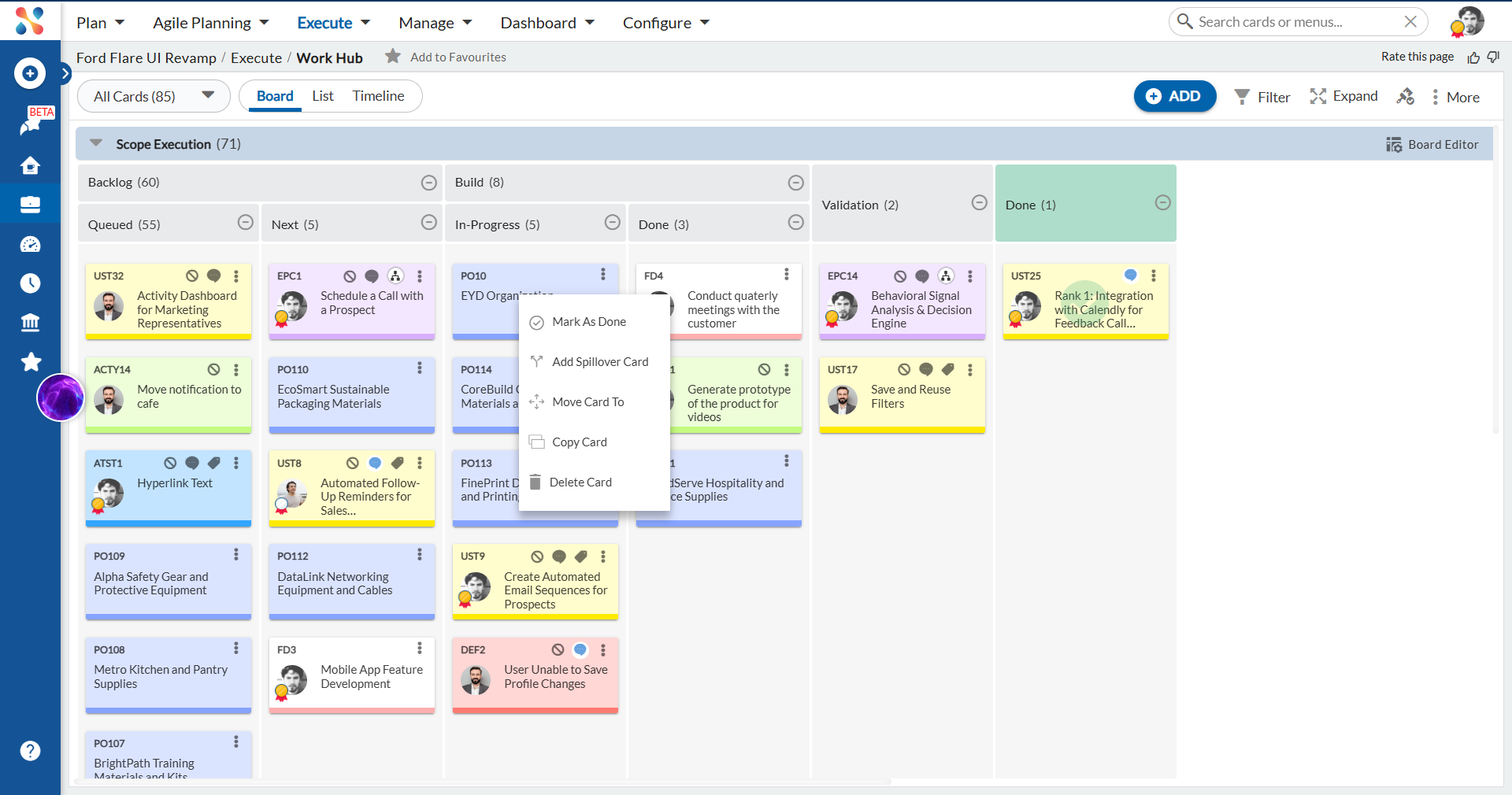
Mark As Done
Use Mark As Done to close a workitem directly from the Board without opening its details view.
When you select this option:
- The workitem status is updated to Closed on the Board, in the Timesheet, and in the eForm listing.
- The card remains visible on the Board with a closed-card watermark.
- All open ToDos on the card are closed and logged effort is published as actual effort.
Note: The Board can display a maximum of 100 closed cards. When the count reaches 85, 95, and 100 you will receive alerts to archive the closed cards.
Add Spillover Card
Use Add Spillover Card when a workitem cannot be completed in the current sprint. It creates a new card to carry forward the remaining work, giving you control over what gets copied from the original.
Prerequisite: The card must have at least one time log entry. If no time has been logged, the following message appears instead of opening the window: No timelogs present for this card to indicate work done on it. So, you can change the release/sprint for the card directly.
To create a spillover card:
- Hover over the card and click the three-dot Card Options icon.
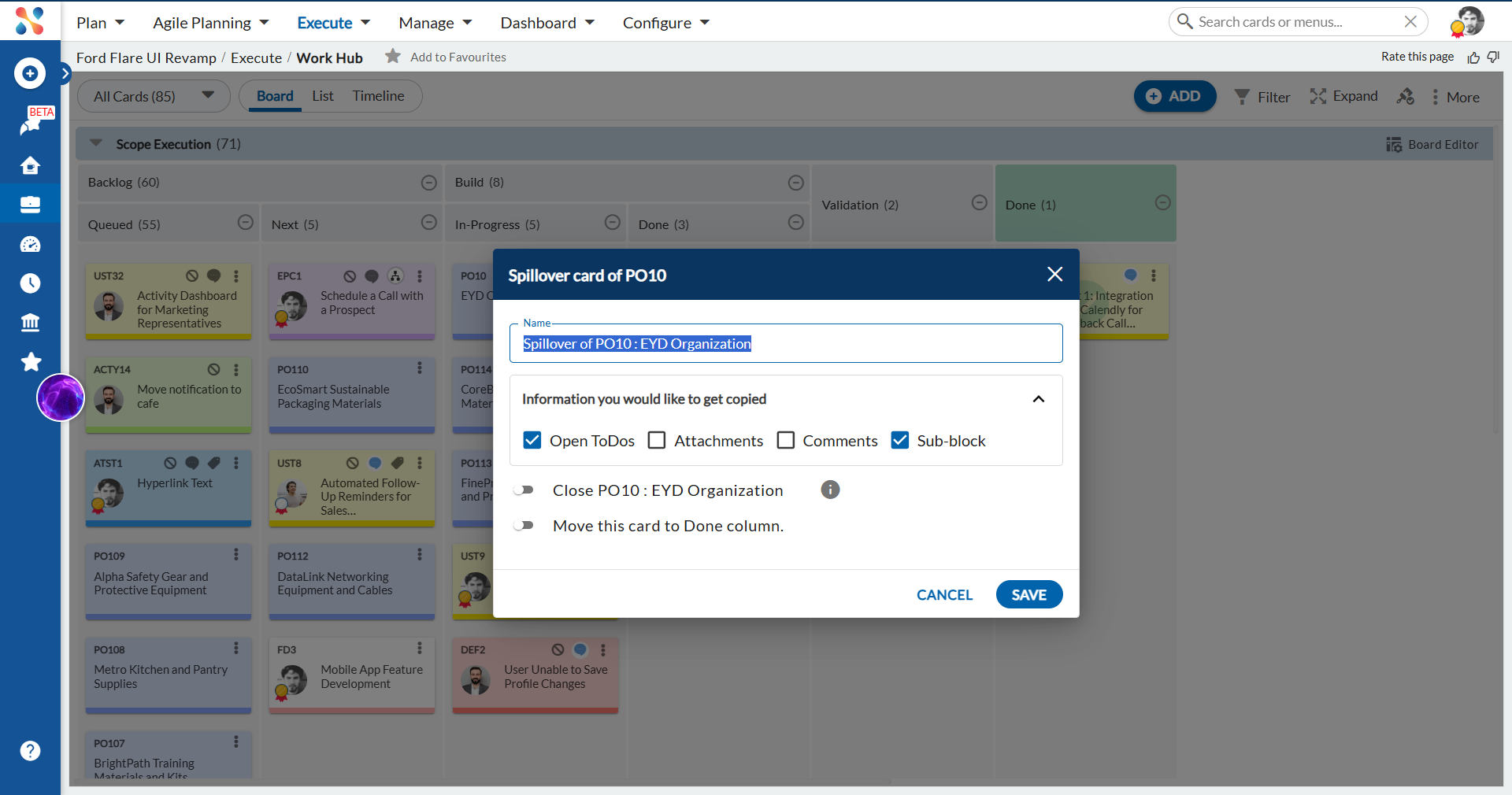
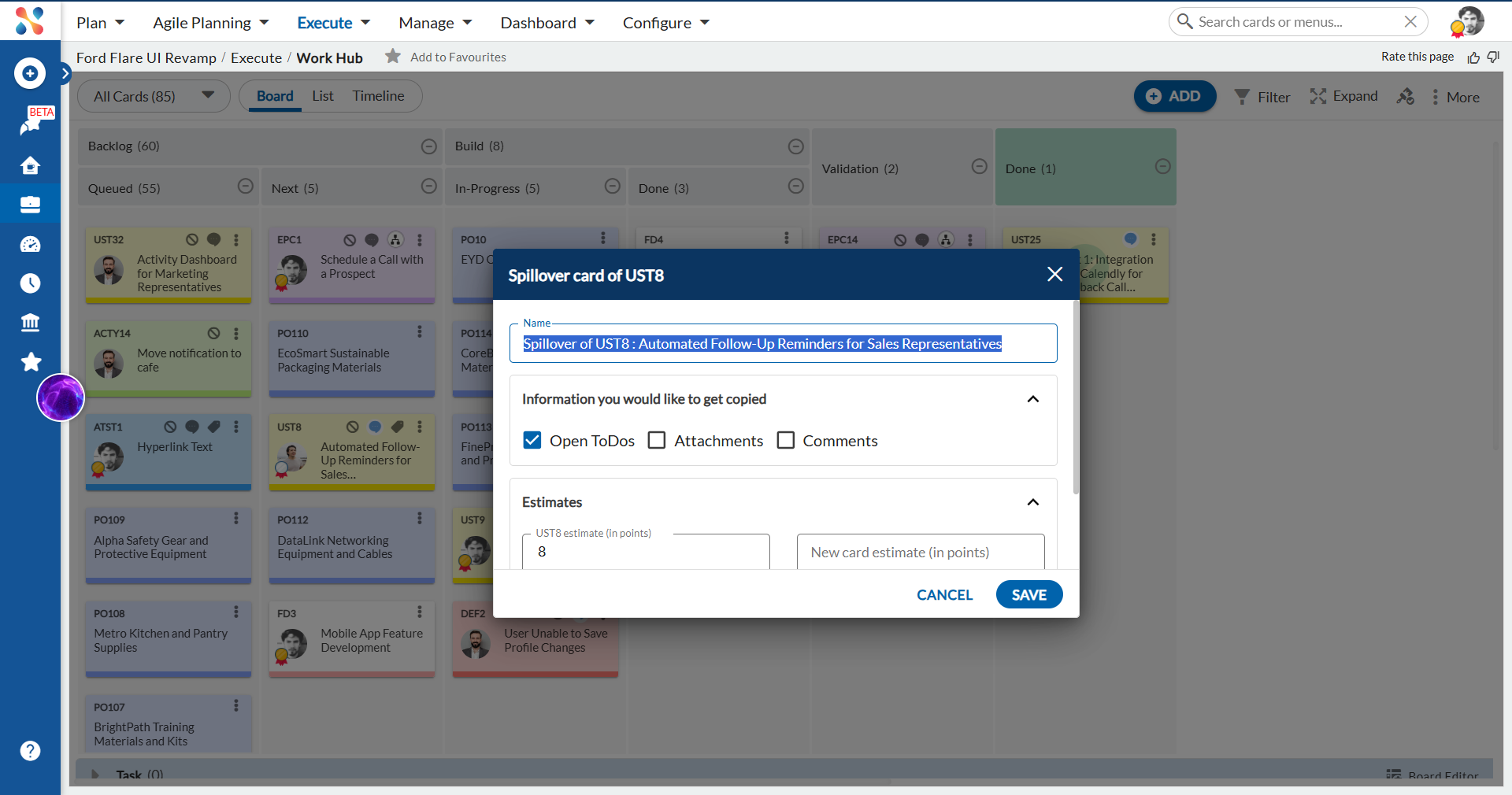
- Select Add Spillover Card. The Spillover card window opens.
- In the Name field, review or edit the spillover card name. By default it is set to Spillover of <CardID> : <Card Name>.
- Expand Information you would like to get copied and select what to carry forward:
- Open ToDos — Selected by default. Copies open ToDos. The Remaining Effort of each ToDo becomes the Estimated Effort on the spillover card.
- Attachments — Select to copy all attachments from the original card.
- Comments — Select to copy all comments from the original card.
- Sub-block — Shown only when the card type has sub-blocks configured. Select to copy sub-block content to the spillover card.
- If Estimate Points are enabled for the card type, expand Estimates and update the values:
- <Original Card ID> estimate (in points) — Pre-filled with the original card’s estimate. Revise this to reflect work already completed.
- New card estimate (in points) — Enter the estimate for the spillover card based on the remaining work.
- To close the original card, enable the Close <CardID> toggle. The card status will update to Closed on the Board, in the Timesheet, and in the eForm listing.
- If the card’s lane has a Done-type column and the Close toggle is enabled, an additional option appears: Move this card to Done column. Enable this to move the original card to the Done column as part of the closure.
- Click SAVE.
After saving, the following is reflected on the spillover card:
- The original card is linked in the Linked Cards section of the spillover card.
- The Activity Log records the original card from which it was created.
- Sprint, Flag Status, and Votes are not copied to the spillover card.
- If a ToDo owner is no longer a team member, the Card Owner is assigned as the ToDo Owner. If the Card Owner is also unavailable, the Project Manager is assigned. This fallback is recorded in the spillover card’s Comments.
Move Card To
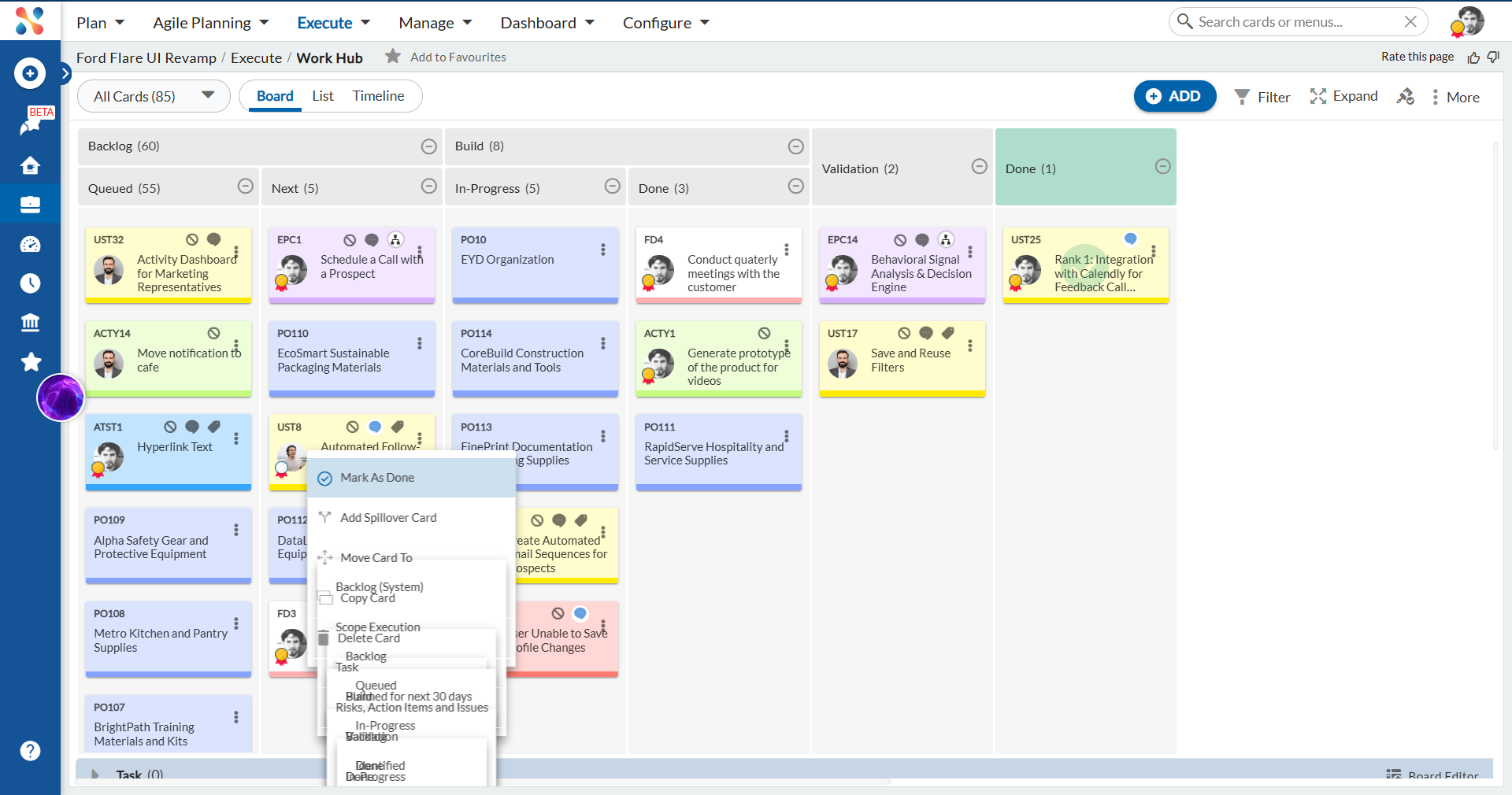
Use Move Card To to move a card to a different lane or column on the Board without dragging it.
When you select this option, a submenu displays all available lanes and columns. Select the target lane and then the column to move the card immediately.
Note:
- To remove a card from the Board entirely, select Backlog (System) as the destination. The card will no longer appear on the Board; you can find it in the Backlog.
- You can’t move a blocked card. Unblock it first.
- You can’t move a card to a Percent-Progress column (named “In-Progress”).
Copy Card
Use Copy Card to create a duplicate of a workitem on the Work Hub. The new card is created immediately with the name Copy of <Card Name>.
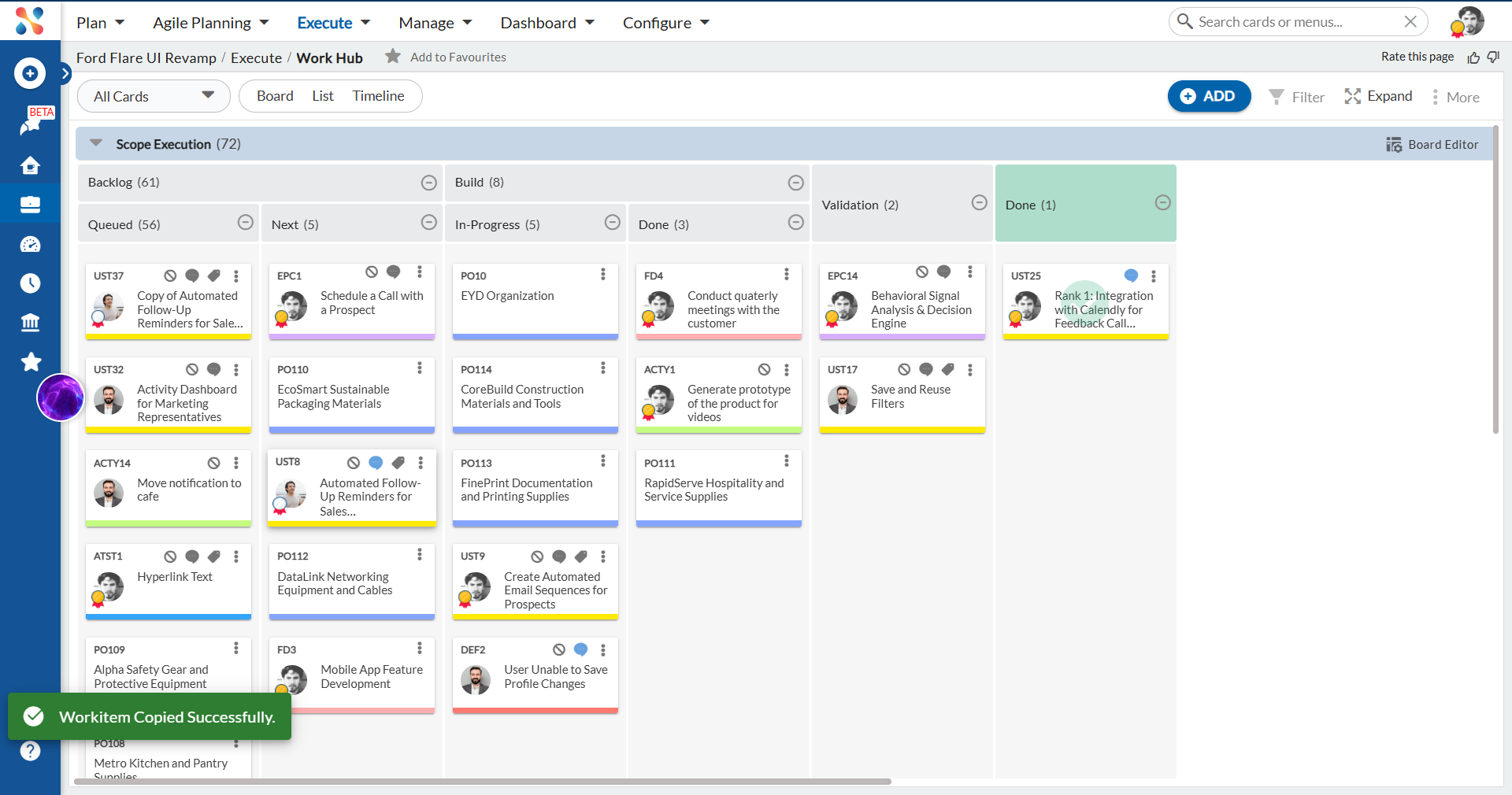
The copied card includes the following from the original:
- All field values, including the Card Owner.
- ToDos with their ToDo Owners and Estimated Effort. If a ToDo Owner is no longer a team member, the ToDo is created without an owner and this is noted in the Comments of the new card.
- The Date Identified of the copied card is set to the current date.
The following are not copied:
- Flag Status
- Votes
The Activity Log of the copied card records the original card from which it was created.
Delete Card
Use Delete Card to permanently delete a workitem and remove it from the Board.
Note: This action permanently deletes the workitem and cannot be undone. The card and all its data — including comments, ToDos, and attachments — are removed from the system.