
|
Skip Ahead to: |
Overview
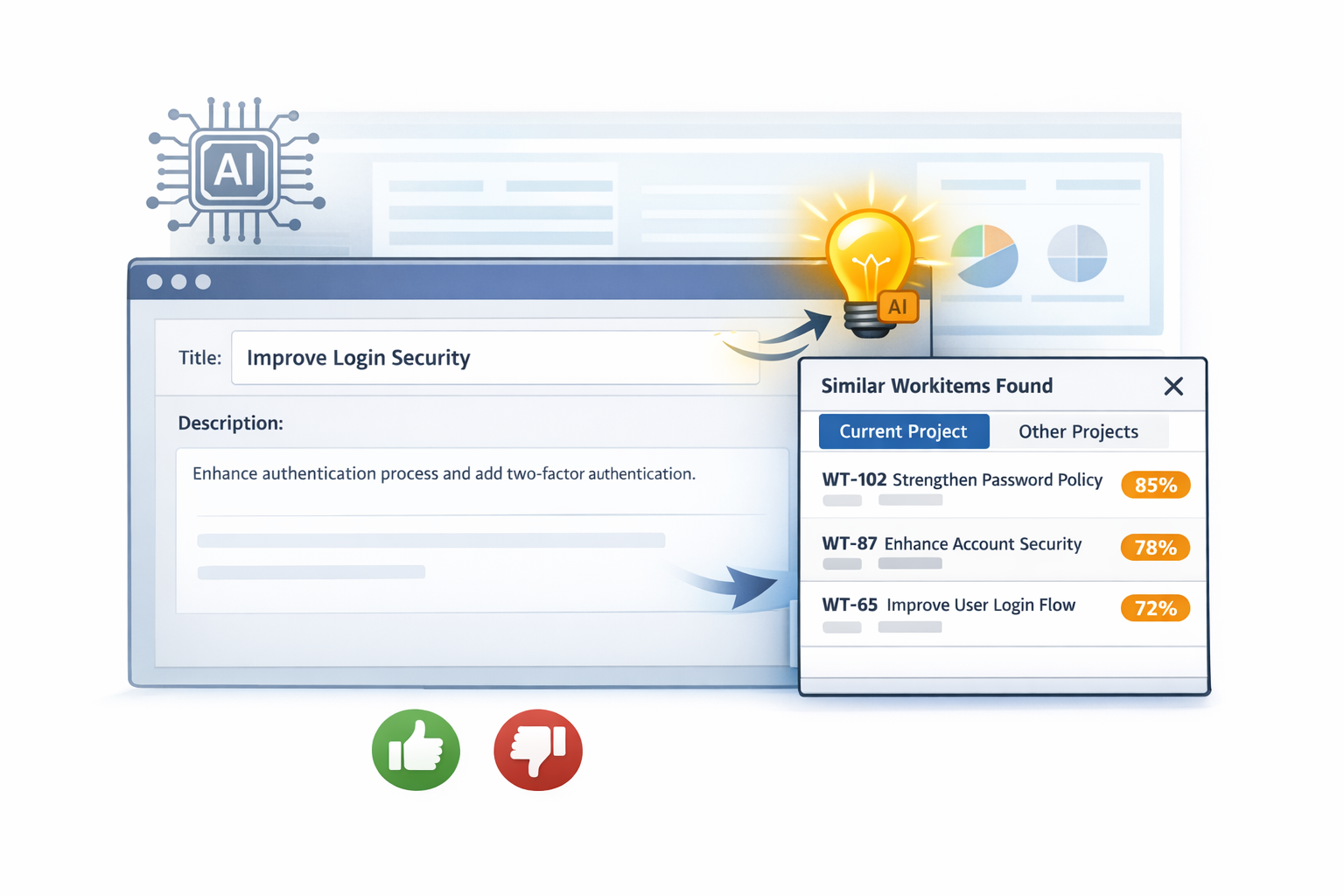
The AI Similarity feature helps you view related workitems while creating or editing a workitem. Having access to similar workitems makes it easier to understand how related work has been handled and provides useful context for completing the current workitem.
Similarity suggestions are generated using AI by analyzing values entered in text-based fields within the Main Field Block of the workitem. When any two text fields (Text, Multiline, or Rich Text) contain values, a Similarity icon appears, indicating that related workitems can be retrieved.
Selecting the Similarity icon opens a suggestions panel that displays related workitems from both the current project and other projects across the enterprise. Suggestions are ranked by relevance and presented directly within the workitem for quick reference.
NOTE: This capability is available as part of the AI-Agent add-on. To use this feature, your organization must purchase the add-on, learn more.
How similarity suggestions appear
Similarity suggestions are generated automatically while you work on a workitem. The system monitors the information entered in text-based fields within the Main Field Block and activates the feature when sufficient context is available.
When any two text-based fields (Text, Multiline, or Rich Text) contain values, a Similarity bulb icon appears in the workitem header. This icon indicates that the system can analyze the entered information and retrieve related workitems.
Suggestions are retrieved only when you select the Similarity icon. Selecting the icon sends the field values for analysis and opens the suggestions panel within the workitem.
Adding a New Workitem
While creating a new workitem, similarity suggestions become available as you enter descriptive information in text-based fields within the Main Field Block. When values are entered in any two text-based fields (Text, Multiline, or Rich Text), a Similarity bulb icon appears in the workitem header. This indicates that the system can analyze the entered information and retrieve related workitems.
Selecting the Similarity icon opens the suggestions panel, which displays AI-generated workitems that closely match the entered content. Suggestions are grouped into Current Project and Other Projects tabs and are ranked based on relevance. The accuracy of suggestions depends on the quality and completeness of the information entered in the text-based fields.
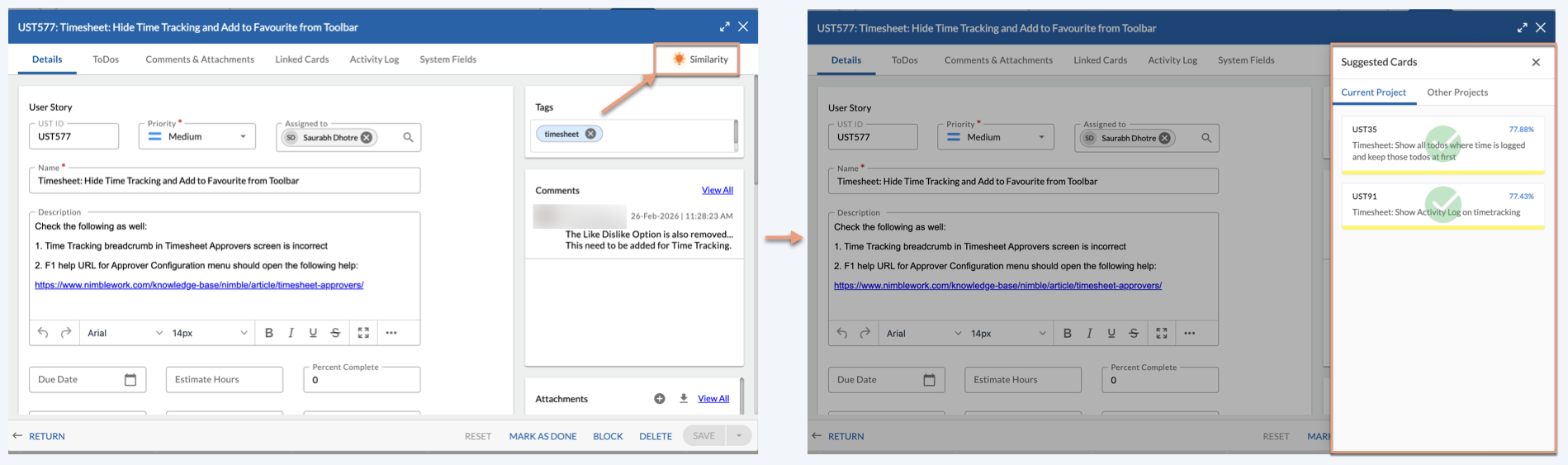
On clicking the bulb icon, the Similar Workitems Found pop window appears with the 5 most similar workitems to the current workitem. While creating a new workitem, you can also see the similar workitems in the pop-up view in the following locations apart from the detail view –
- Creating or modifying a card on Execution Board
- Creating a new traced Workitem from the Linked Cards segment of a workitem.
Modifying or Viewing an Existing Workitem
Similar workitems can also be seen while modifying or just viewing an existing workitem.
While modifying/viewing a workitem, you can also see the similar workitems in the Similar Workitems Found pop-up window. When you open a workitem and modify the value in the AI-based field and tabs out it then the AI bulb on the right side pops up. On clicking the bulb icon, the Similar Workitems Found window opens where you can see the similar workitems for your workitem.
You can also view similar workitems in the following locations apart from the detail view –
- Modifying a workitem from the Item-level pop-up of a workitem from any section in the Backlog Refinement Board
- Modifying a workitem from the Item-level pop-up from the Release & Sprints analytics view
- Modifying a workitem from the Item-level pop-up in the Swift table
Note: When a workitem is opened in the pop-up window, then the bulb for similar workitems is shown in the upper right corner.
Similar Workitem Found pop-up Window
The AI Similar workitem window has two tabs in it –
Current Project – It shows the most similar workitems of the same workitem type from the same project.
Other Projects – In this tab, cross workitem types are shown from the multiple projects as organization.
If a workitem is being suggested from a project which has less than 100 instances in it of that workitem type, then the similarity may not be accurate. In such a case, an orange triangle is shown in the upper right corner of the pop window to indicate the same.
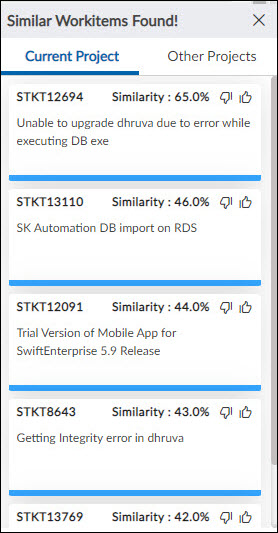
The Similar Workitems Found pop window shows the following information –
Workitem ID – It is the ID of a similar workitem.
Name: After ID, the name of the workitem is shown. If you have enabled cross-project similarity and you don’t have access to a project, then the name of that workitem won’t be shown. Instead, a message will be shown saying “You do not have access to this workitem.”
Project: The project name is shown only if the similar workitem belongs to another project.
Similarity: As the name suggests, it shows the percentage of similarity between the current workitem and the suggested similar workitem.
In the Similar Workitems Found window, similar workitems will be shown as per their color set in the Form configuration settings. When you click the similar workitem, in the pop window, the workitem is opened in the read-only mode where you can see the relevant details of it.