
This article will help you to learn how to configure timesheets in your projects.
|
Skip Ahead to: Where to Configure Timesheet Approvers Understanding the Timesheet Approver Hierarchy Assigning or Skipping an Approver |
Overview
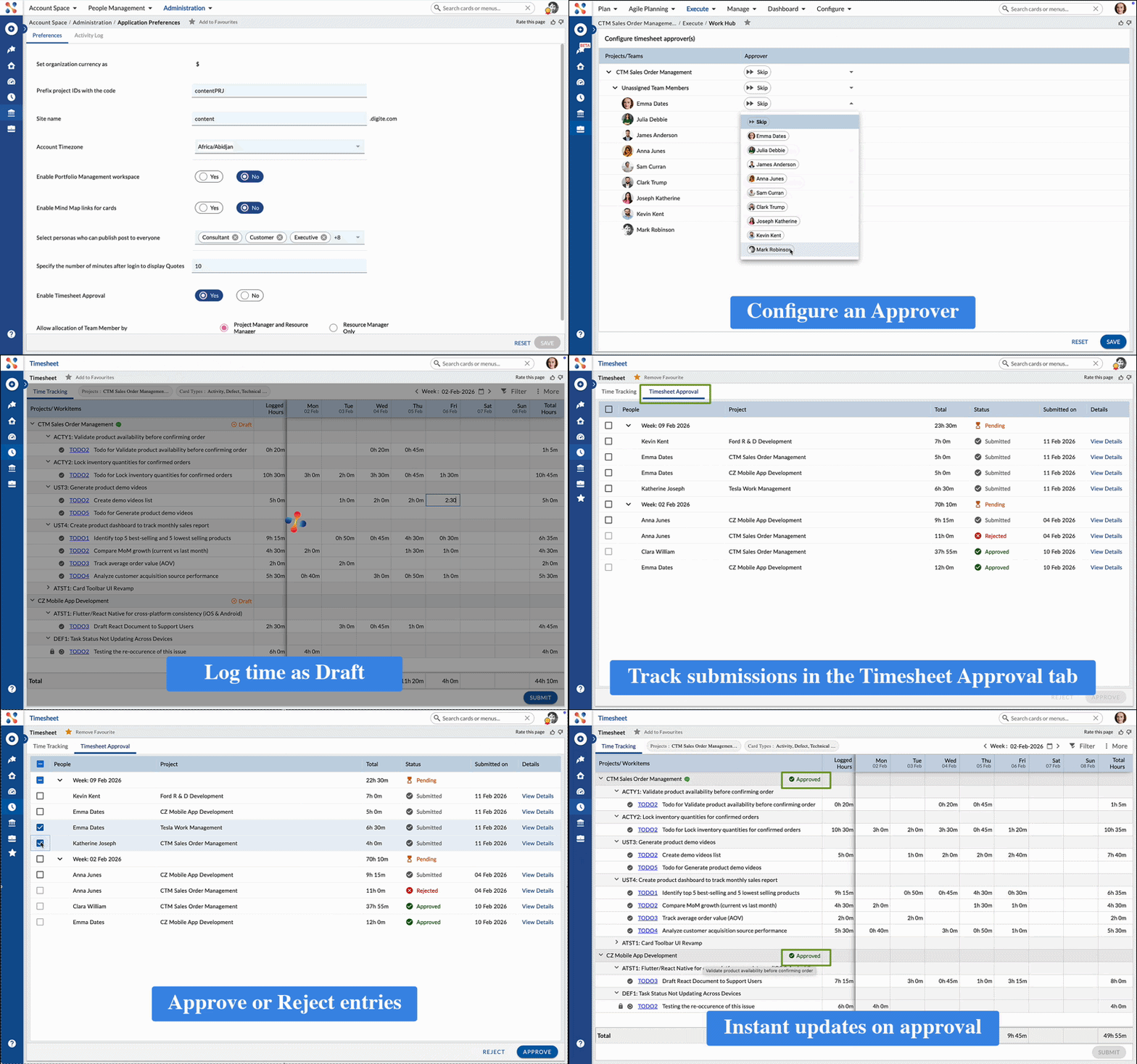
Timesheet Approvers allow organizations to introduce an approval workflow for time logged by team members. By configuring approvers at the project level, you can control whether logged time requires review before approval or can be saved directly without approval.
Approver configuration is optional and can be customized for each team member within a project.
Where to Configure Timesheet Approvers
Timesheet Approvers are configured at the project level.
To access the configuration:
The Timesheet Approvers screen lists all team members added to the project and allows you to define approval behavior for each of them individually.
Understanding the Timesheet Approver Hierarchy
The Configure Timesheet Approver(s) screen displays project members in a hierarchical structure. This hierarchy helps you understand how approvers are assigned and managed across the project.
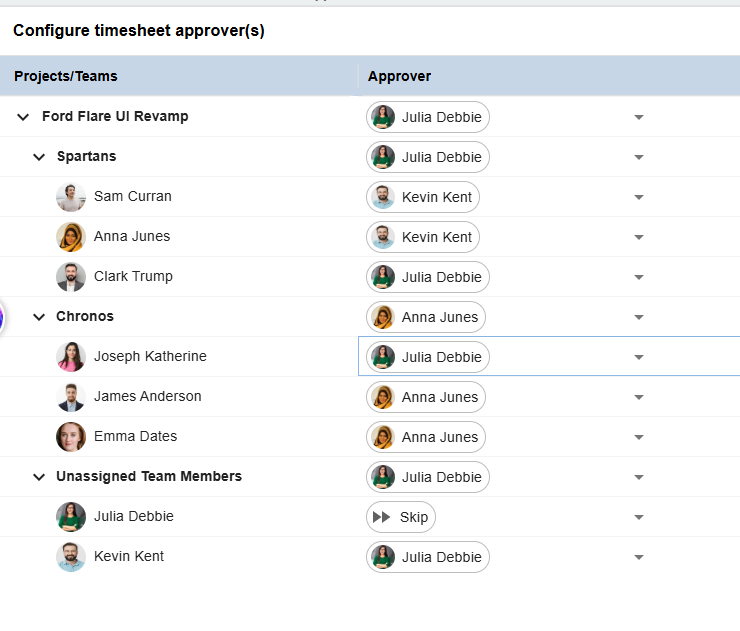
Approvers are configured at the individual team member level, but the screen organizes users based on the project and team structure for easier management.
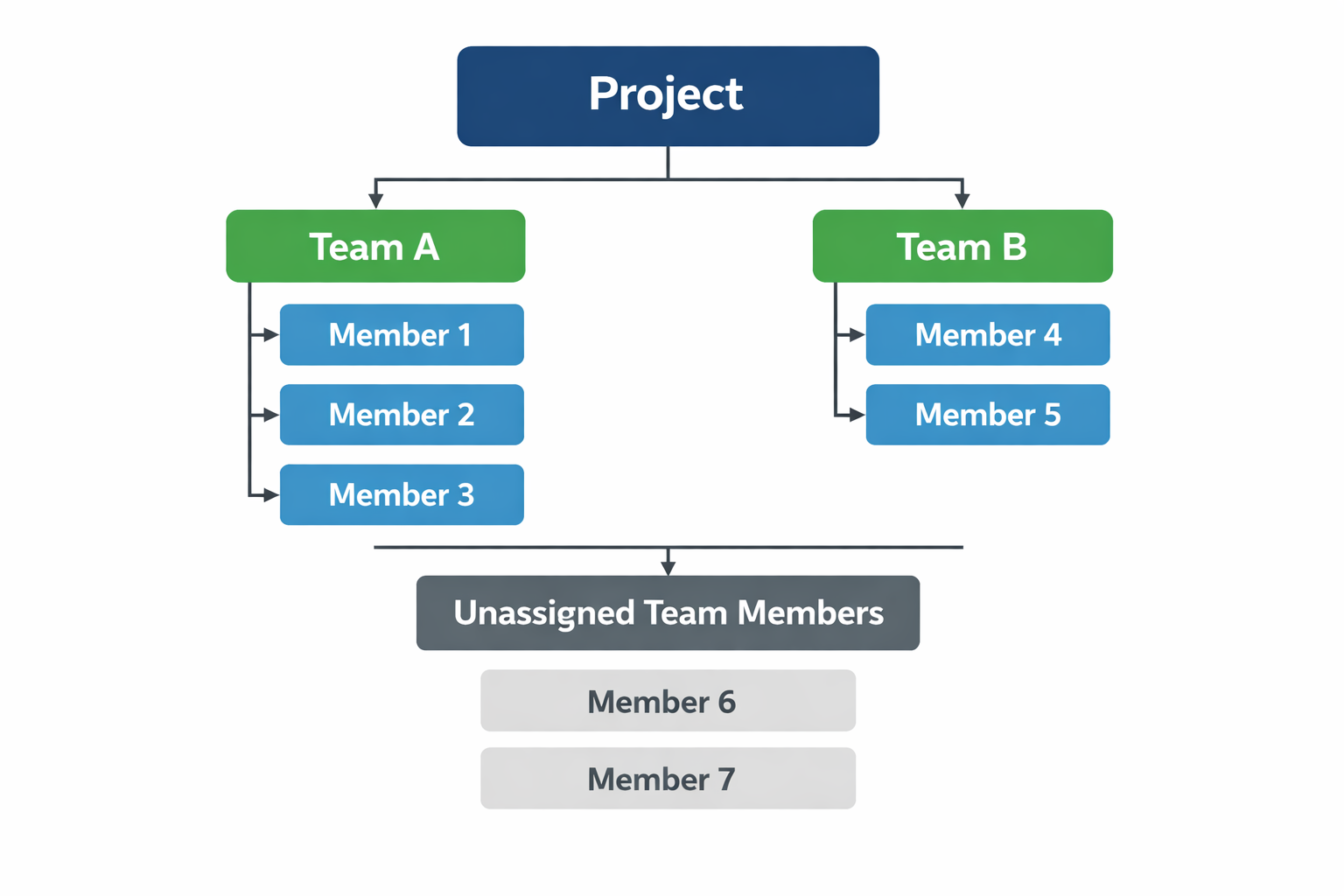
The hierarchy is displayed as follows:
Project Level
At the top level, the project name is displayed.
For example:
Ford Flare UI Revamp
The approver shown at the project level represents the primary approver associated with the project setup. This helps quickly identify who is responsible for approvals across the project, although approvals are still applied individually per team member.
Team Level
Within the project, users are grouped by teams such as:
- Spartans
- Chronos
Each team expands to show the members belonging to that team.
This grouping is only for organization and visibility — approvers are still assigned per team member, not per team.
Team Member Level
Each team member has their own approver selection dropdown.
For example:
| Team Member | Assigned Approver |
|---|---|
| Sam Curran | Kevin Kent |
| Anna Jones | Kevin Kent |
| Clark Trump | Julia Debbie |
This means:
- Kevin Kent approves the time logged by Sam Curran and Anna Jones.
- Julia Debbie approves the time logged by Clark Trump.
Even within the same team, different members can have different approvers.
Unassigned Team Members
Some users may appear under Unassigned Team Members.
These are project members who are not part of any specific team but still participate in the project.
For example:
- Project managers
- Leads
- Coordinators
- Main approvers
Approvers can also be assigned or skipped for these members independently.
Skip Option
If Skip is selected as a team member:
- No approver is assigned.
- Time logged by that member is saved immediately.
- No submission or approval workflow is required.
This allows mixed approval models within the same project.
Example Scenario
Consider the following setup:
- Project: Ford Flare UI Revamp
- Project Approver: Julia Debbie
- Teams:
- Spartans
- Chronos
Configuration:
- Spartans team members Sam Curran and Anna Jones → approved by Kevin Kent.
- Clark Trump → approved by Julia Debbie.
- Chronos members → approved by Anna Jones.
- Julia Debbie (project lead) → Skip selected.
Result:
- Some members require approval before the time is finalized.
- Others can log time directly without approval.
- Approval responsibility is clearly distributed across roles.
Assigning or Skipping an Approver
For every team member in the project, you can choose one of the following options:
Assign an Approver
- Select a project member as the Timesheet Approver for the team member.
- The assigned approver will be responsible for reviewing and approving the time logged by that team member.

What this means for the team member: – Time logged in the Time Tracking tab is saved in Draft state. – The team member must click Submit to send the logged time for approval. – Until approved, the time remains editable.
Skip Approver
- Choose Skip if you do not want an approval workflow for the team member.
What this means for the team member: – Time logged in the Time Tracking tab is saved immediately. – No submission or approval is required. – The logged time is considered final as soon as it is saved.
Impact of Approver Configuration on Timesheet
The approver configuration directly affects how the Timesheet module behaves:
- Approval is applied per team member, not per project.
- Within the same project:
Important: Assigning a Timesheet Approver does not prevent a team member from logging time. It only controls whether the logged time must be submitted and approved.
Visibility of the Timesheet Approval Tab
The Timesheet Approval tab in the Timesheet module is visible only to users who are assigned as approvers.
- If you are assigned as an approver for one or more team members:
- You will see the Timesheet Approval tab.

- If you are not assigned as an approver:
- The Timesheet Approval tab is not visible to you.
This ensures that only authorized users can review and approve submitted time.
Notes and Important Considerations
- A team member can have only one approver per project.
- An approver can be assigned to multiple team members.
- Approval configuration can be updated at any time and applies to future time entries.
- Approval workflows apply only within the Timesheet module and do not affect time logged directly from card details.
What to Read Next
- Time Tracking in Nimble – Learn how team members log time, submit it for approval, and track approval statuses.
- Working with Timesheet Approval – Learn how approvers review, approve, or reject submitted time.
This article explains how approval responsibilities are configured. To understand how approvals work in practice, refer to the linked articles above.