
Overview
An API key is a secure token that lets an Administrator authenticate requests to the Nimble REST APIs for Organization-level Integration Resources — such as Users, Projects, and Team Members. Using this key, you can programmatically access Nimble data from your own applications or integration tools, without signing in through the web interface each time.
API key generation is one part of using the Nimble REST API. For an overview of the REST API and how to authenticate your requests, see Nimble REST API.
Navigation
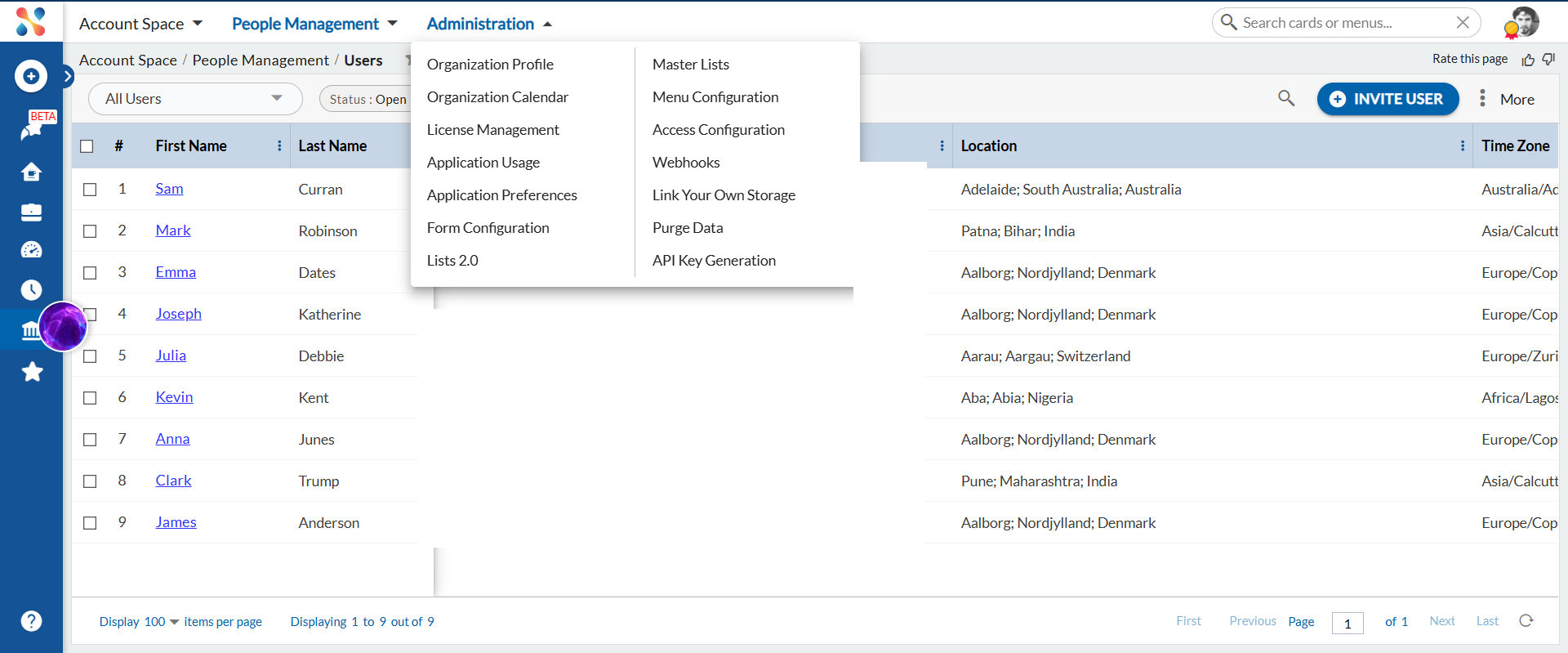
In the left panel, select Account Space. Then, from the top panel, go to Administration and select API Key Generation.
Generate an API Key
The API Key Generation screen opens with an Expiry date field and the Generate API Key button.
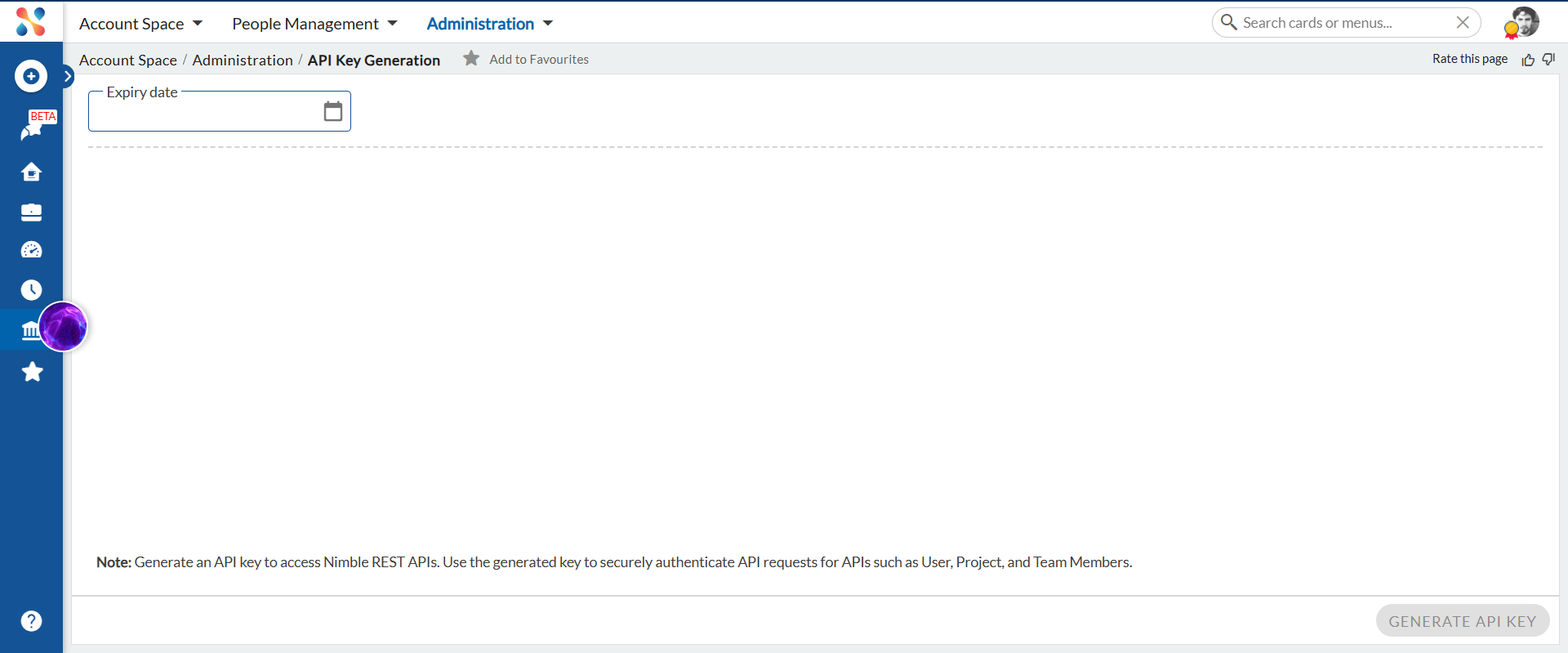
- Click the Expiry date field and select the date on which you want the key to stop working. The key remains valid until the end of this date.
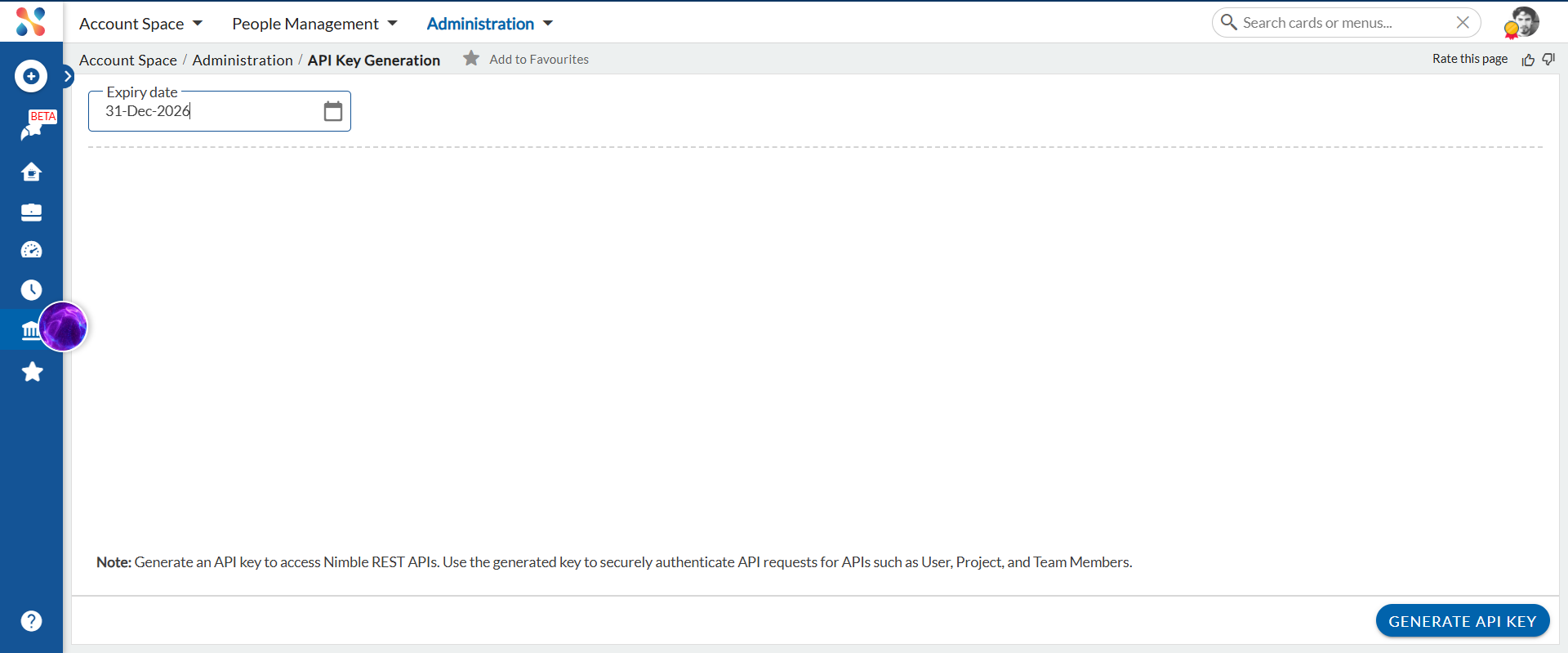
- Click Generate API Key.
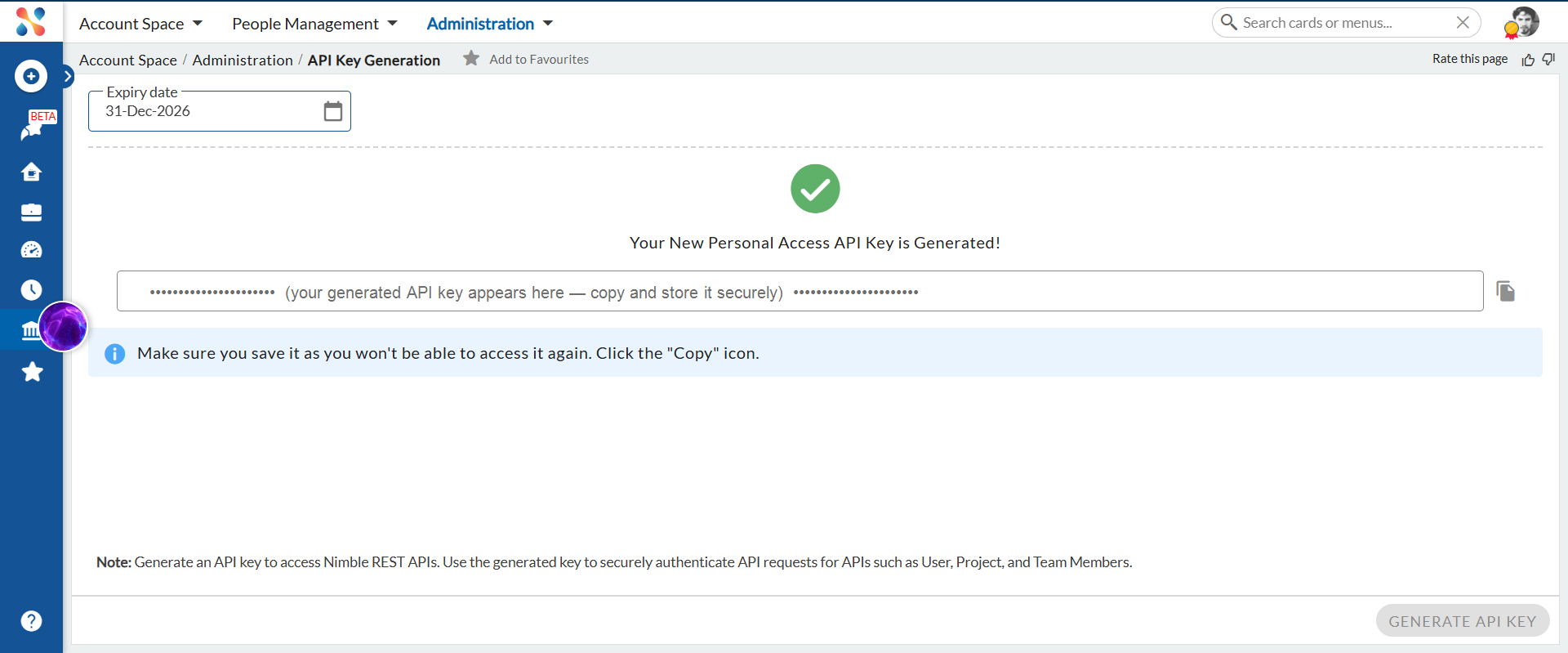
- Your new API key is generated and displayed. Click the Copy icon next to the key and store it in a safe place.
How It Works
The generated key is shown only once, at the time of generation. For security, Nimble does not store or display it again — so make sure you copy and save it before leaving the screen. If you lose the key, generate a new one.
The key stays active until the expiry date you set. After that date, any request made with the key is rejected, and you need to generate a new key to continue.
Use the API Key with the Nimble REST APIs
Once you have your API key, you use it to authenticate calls to the Nimble REST API for Organization-level Integration Resources. You can also explore and try every available API from the interactive Swagger documentation page. For the full steps, see Nimble REST API.
Important Points
- Only an Administrator can generate an API key from the API Key Generation screen.
- The API key is displayed only once. Copy and store it securely as soon as it is generated.
- The key carries the Administrator’s personal access permissions — other users accessing Nimble data via this key do so under the Administrator’s identity. Treat it like a password and never share it beyond authorized integrations.
- The key is currently used for Organization-level Integration Resources — Users, Projects, and Team Members.
- Set an appropriate expiry date. Once the key expires, generate a new one to continue accessing the APIs.