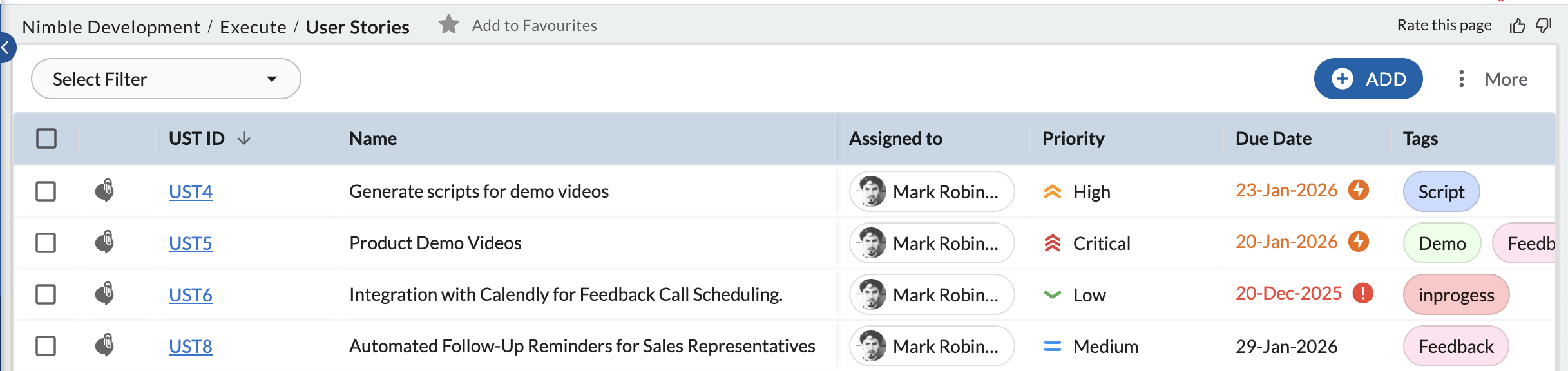
In this article, we will help you to understand how to copy and delete a workitem.
|
Skip Ahead to: |
Overview
You can create a copy of the workitem, where the details of the workitem are copied along with the attachments except the linked cards. If a workitem is no longer needed then you can also delete the workitem.
Steps to Copy a Workitem
To create a copy of a workitem,
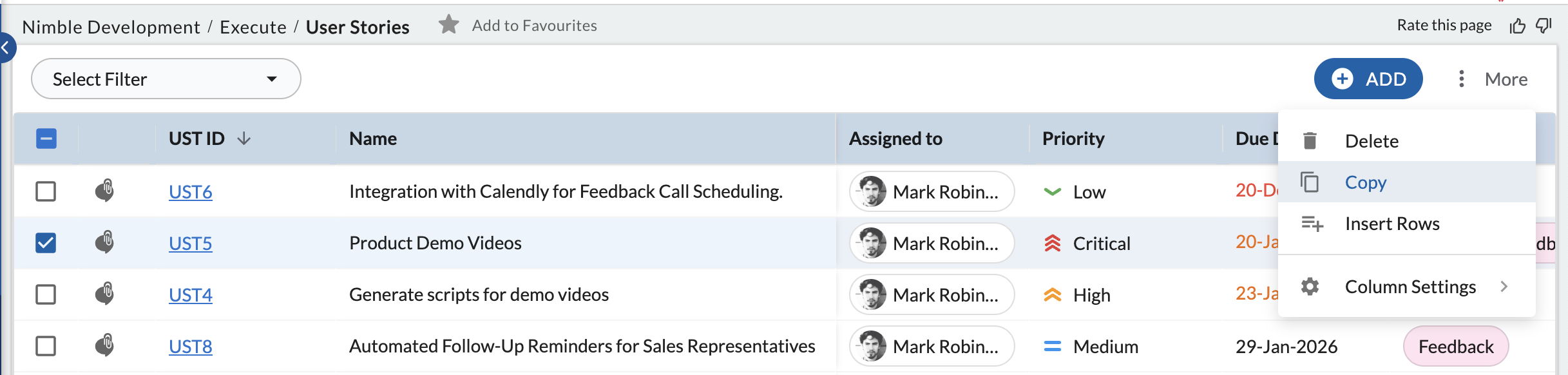
- Select the workitem and click Copy under More Options.
-
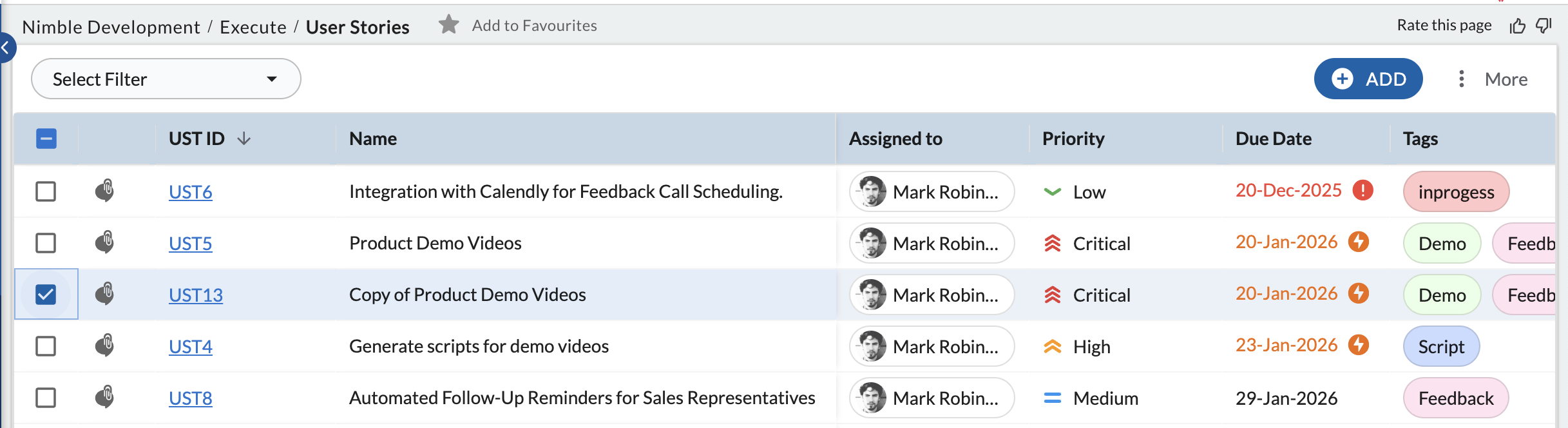
A new workitem is created with the name “Copy of <original workitem name>”. The copied workitem includes all the field values from the original workitem.
Steps to Delete Workitems
To delete a workitem,
- Select corresponding checkboxes for the required item and Click Delete under More Options.
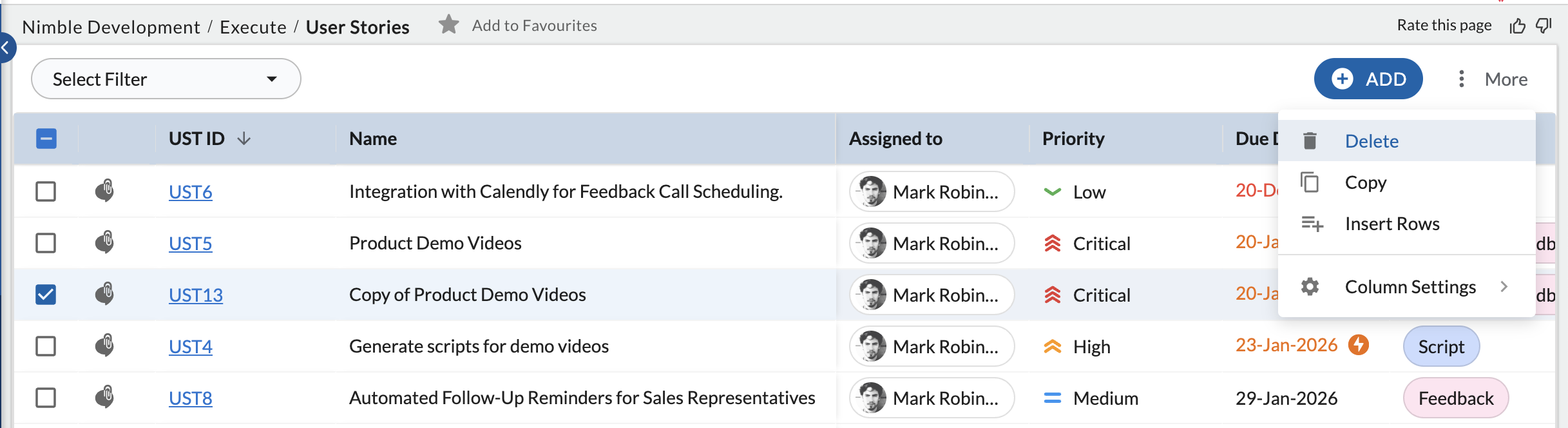
- In the Confirmation window, click OK to confirm and proceed. The item will no longer be available and will not appear on the list.
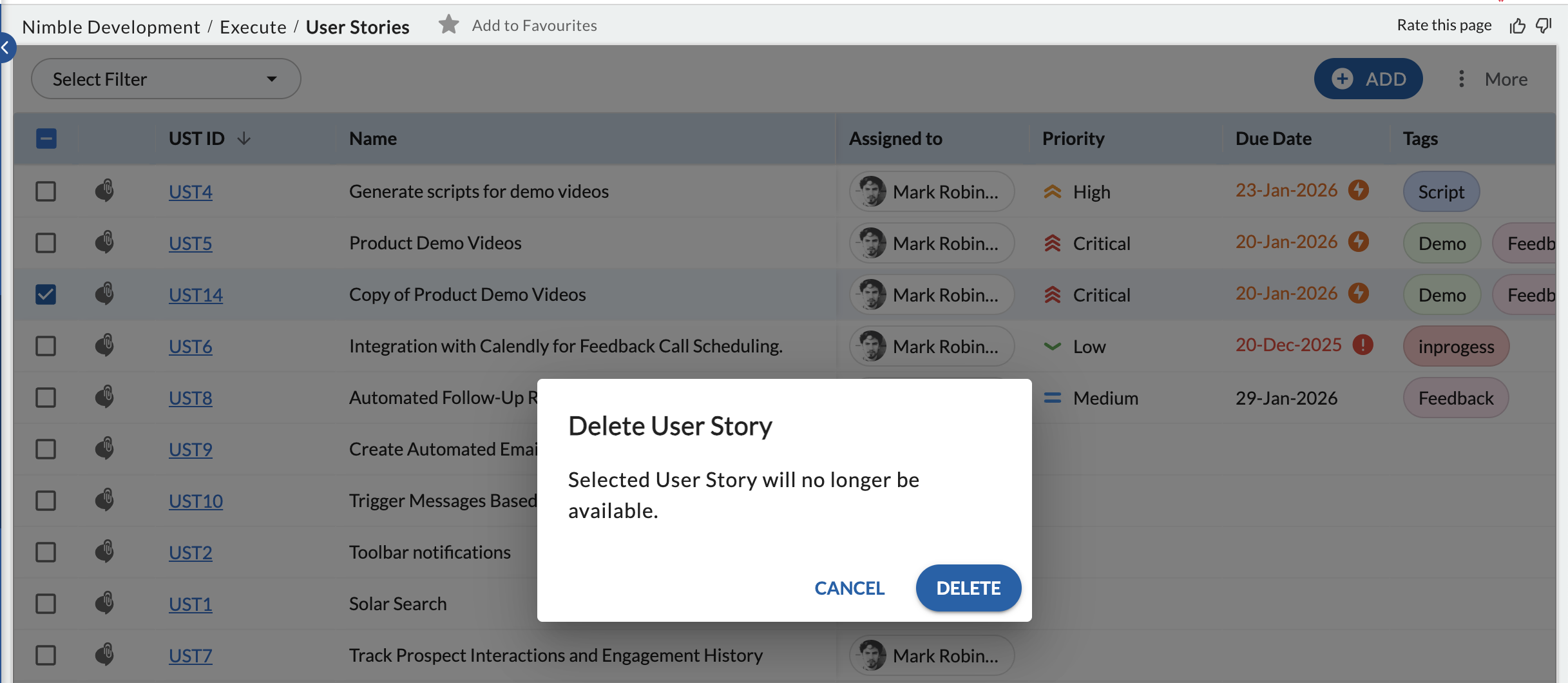
- To delete the instance of a Workitem, ensure that the time entered against it is removed.
- You cannot delete an item if it is being used in any of the projects in the current organization.
- When a sub-organization is created, then all the standard Forms, as well as the items, are copied to the sub-organization from the parent organization. In such a case, the item in the sub-organization can be deleted even if it is used in the parent organization.
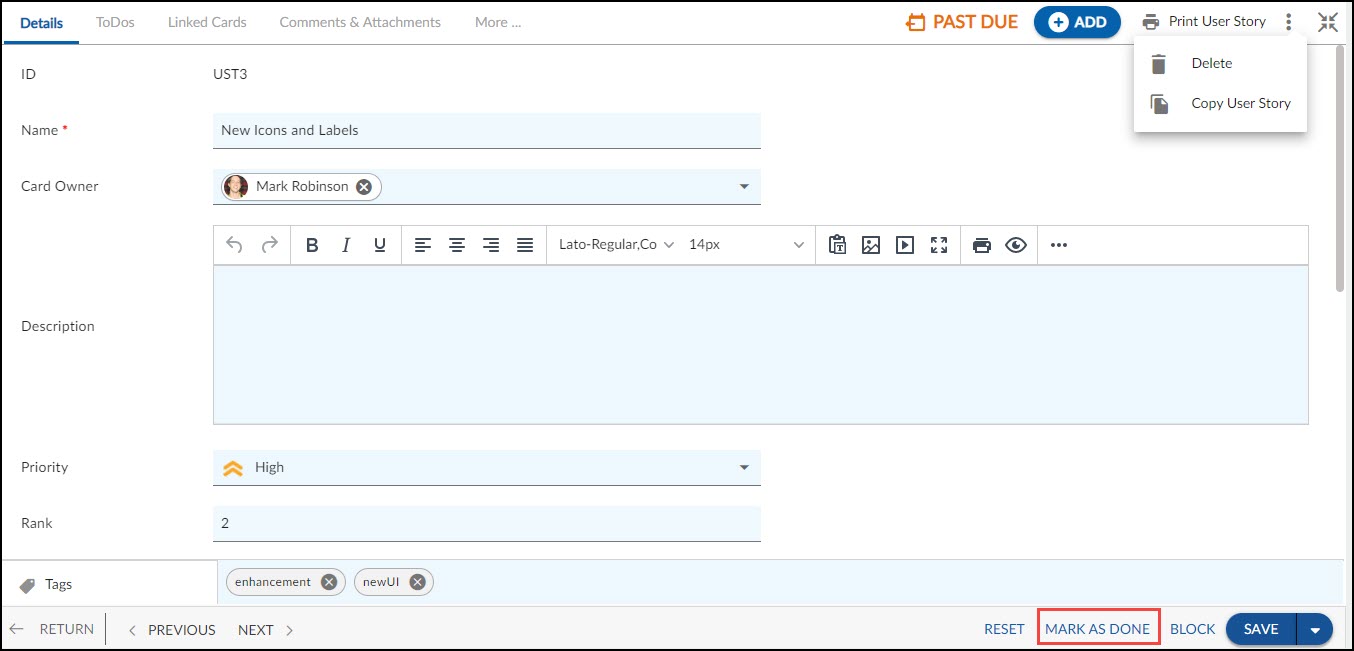
You can also delete a workitem from the Detail view of the workitem. Select the item in the List view and the Detail view, and click the Delete icon.
To delete multiple workitems, select the checkboxes for the required workitems in the List view and click the Delete icon from More Options.