Start with the video first to get a better grasp of the topic!
Overview
Workitems in a List view can be sorted in ascending or descending order using the Column Filters available for columns separately.
Single Column Sorting
Single column sorting lets you arrange the list alphabetically or numerically in ascending or descending order based on one column. By default, the list is arranged in ascending order of the item ID.
Prerequisite: Ensure the List view displays the column you want to sort by (for example, Priority).
Sort a Column
You can sort a column in either of the following ways:
Option 1: Using the column header
-
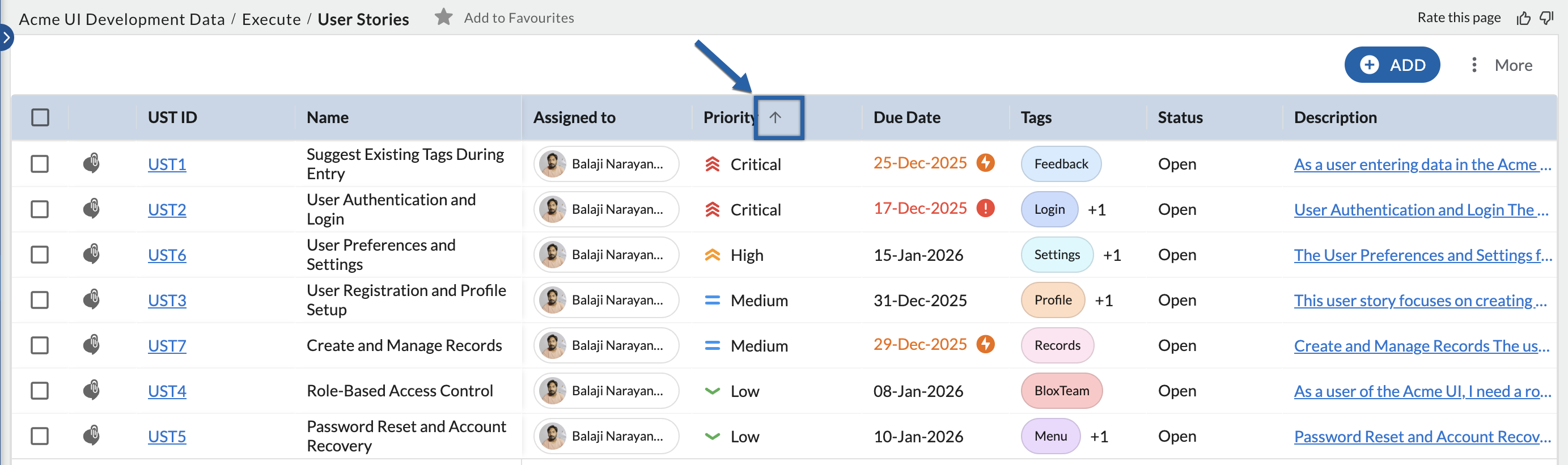
Click the column header you want to sort by.
-
The first click switches the sorting to descending order.
-
Click the same column header again to switch the sorting back to ascending order.
An arrow in the column header indicates the current sorting order:
-
Up arrow – ascending order
-
Down arrow – descending order
Option 2: Using the column menu
-
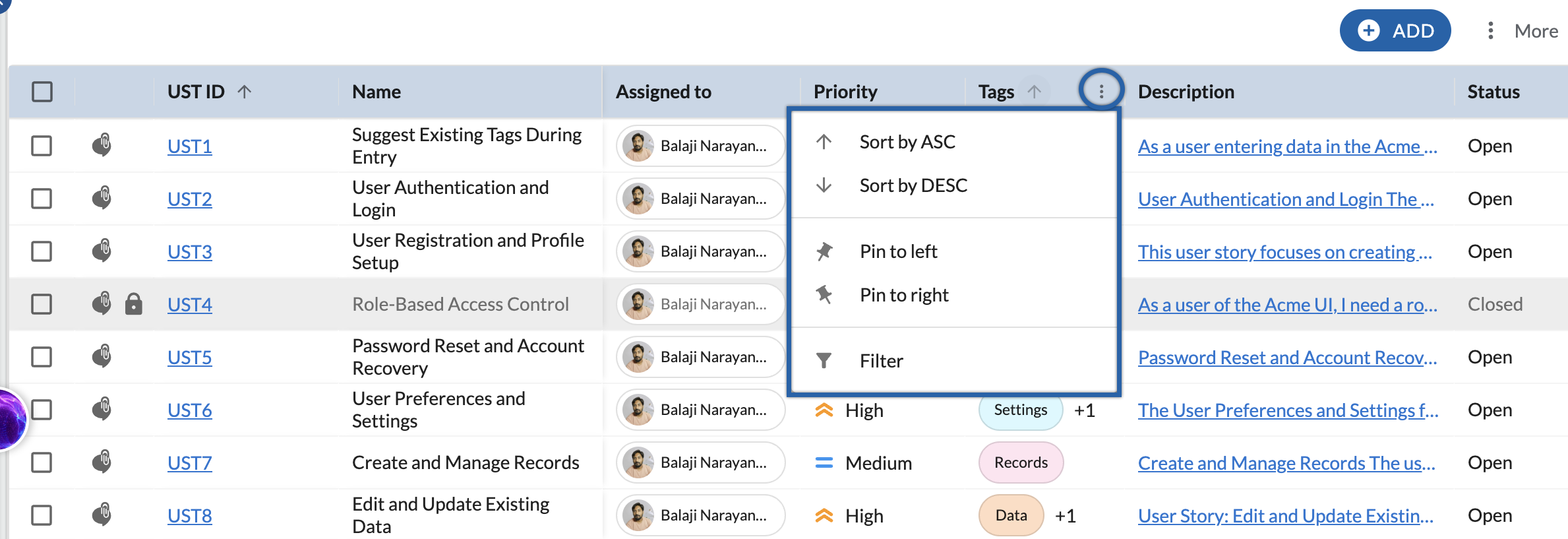
Click the More options icon on the required column (for example, the Priority column).
-
Select Sort by ASC or Sort by DESC.
Note: The sorting applies only to the selected column.
Tip: Select only the required columns to reduce horizontal scrolling in the list view.