
Overview
When a task(s) is falling behind schedule based on actual progress, Nimble takes action to adjust the Planned Finish Date based on the task type. This helps project managers by:
- Automatically flagging delays without requiring manual tracking.
- Saving effort in identifying and rescheduling tasks manually.
- Keeping plans dynamically updated based on actual progress.
Criteria to Identify Tasks Behind Schedule
Nimble automatically identifies a task as behind schedule if:
- The Planned Finish Date is in the past and % Work Complete is less than 100%, or
- Planned Start Date < Today AND Actual % Complete < Expected % Complete
Expected % Complete is based on working days from Planned Start to the last working day (i.e., yesterday).
| Task Type | System Action |
|---|---|
| Fixed Work | Auto-update Planned Finish Date based on remaining effort and resource allocation |
| Fixed Unit | Auto-update Planned Finish Date based on remaining effort and resource allocation |
| Fixed Duration | Show warning icon; no date changes |
| Fixed Date | Show warning icon; no date changes |
Tasks with zero duration (e.g., milestones) are excluded from this behavior.
How Remaining Hours Drives Task Rescheduling
For Fixed Work and Fixed Unit type of tasks, Nimble calculates whether the Remaining Hours can still be completed within the Planned Finish date:
- If Remaining Hours > available time (based on resource allocation and working hours), the Planned Finish date is pushed forward accordingly.
- If today is the last planned day and the task is not yet complete, the system waits until the day ends before changing dates.
- Weekend and non-working days are intelligently skipped during this recalculation.
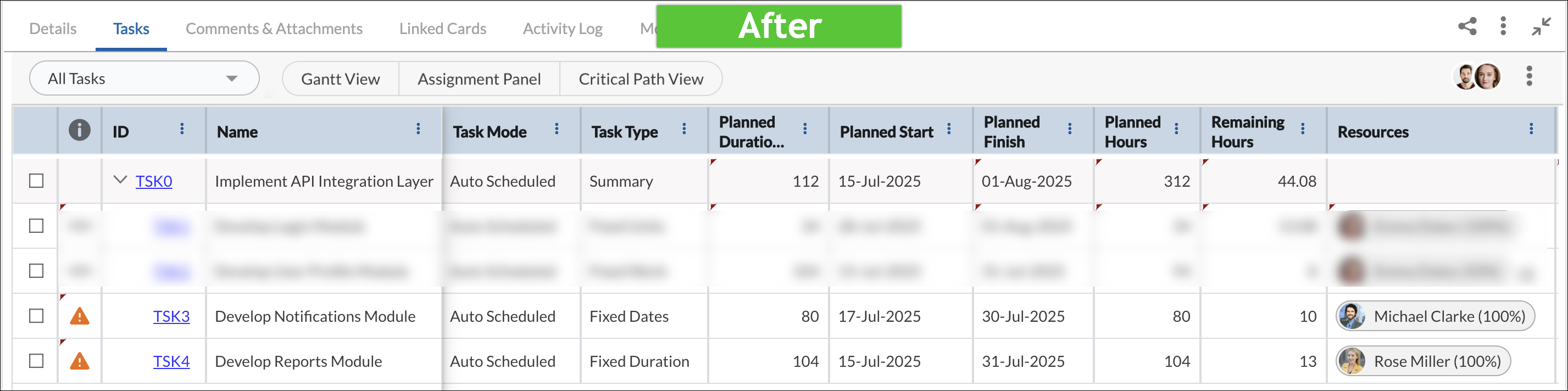
When the user opens the Task Plan, the system evaluates actual progress and calculates how many working days required to complete the Remaining Hours based on resource allocation. If needed, it automatically updates the Planned Finish Date. The updated date appears directly in the cell, marked with a red triangle in the top-right corner to indicate it was modified.
Examples:
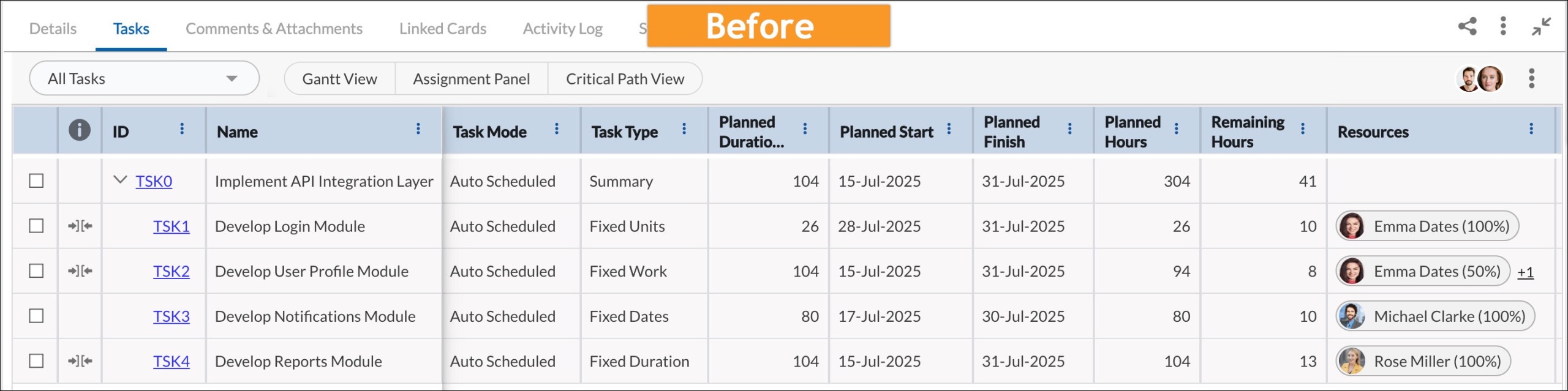
- Task TSK1-Develop Login Module (Fixed Units)
- Planned Start – Finish: 28-Jul-2025 to 31-Jul-2025
- Planned Hours: 26 hrs | Remaining Hours: 10 hrs
- Resource: Emma Dates (100%)
- Today’s Date: 31-Jul-2025 (working day)
📌 The task is scheduled to finish today, but it still has 10 hours of pending work. Since Emma is allocated at 100%, she can contribute only 8 hours in a working day. This leaves a shortfall of 2 hours, which cannot be accommodated within today’s schedule.
Nimble evaluates this mismatch and determines that the task cannot be completed by the current finish date. As a result, it automatically extends the Planned Finish date to 01-Aug-2025 to cover the remaining effort. The system marks this change with a red triangle in the date cell, clearly indicating that it was system-modified based on actual progress and allocation. This proactive adjustment helps avoid last-minute surprises for project managers.

- TSK2 – Develop User Profile Module (Fixed Work)
- Planned Start – Finish: 15-Jul-2025 to 31-Jul-2025
- Planned Hours: 94 hrs | Remaining Hours: 8 hrs
- Resources: Emma Dates (45%), Mark Jones (45%)
- Today’s Date: 31-Jul-2025 (working day)
📌 Two partially allocated resources offer a combined ~8 hrs/day. Since 8 hrs remain, the system assumes the task can be completed today. It waits until the end of the day to verify actual completion. As long as the task completes by the end of today, no date changes are applied.

- TSK3 – Develop Notifications Module (Fixed Dates)
- TSK4 – Develop Reports Module (Fixed Duration)
📌 For Tasks TSK3 and TSK4 are Fixed Dates and Fixed Duration task types are intentionally excluded from automatic date adjustments. This is because the start and finish dates for these task types are usually set deliberately by the project manager to reflect business constraints, external deadlines, or strict delivery windows. And, changing these dates automatically would defeat the purpose of defining them as “fixed.”
Instead, the system displays a ⚠️ warning icon in the Info column to alert the project manager. This indicates that the task is delay or off track and needs attention. On hovering over the icon, the following tooltip is shown: “This task is behind schedule. Consider adjusting resources or updating progress.” Since Fixed Duration and Fixed Date tasks cannot be rescheduled automatically, this approach ensures the project manager remains fully in control of any required date changes for time-sensitive tasks.
Important Notes
- This applies to both Simple and Advanced Scheduling types.
- Automatic changes to a task (such as updates to the Planned Finish Date) occur only when the user checks in the task and has to edit it.
- When Planned Finish changes, Planned Duration is also recalculated automatically to reflect the new date range. This ensures duration is based on updated working dates while maintaining effort realism.
- The system recalculates dates automatically whenever the user opens the Task Plan or modifies a task.
- Changes made by the system (like new Planned Finish Dates) are currently indicated with a red triangle in the cell.
It is recommended that Project Managers periodically review their task plans to understand automated changes and take informed actions.